
Backup folders & files with OneDrive online
Log into OneDrive here, utilizing youra Microsoft AccountAccount.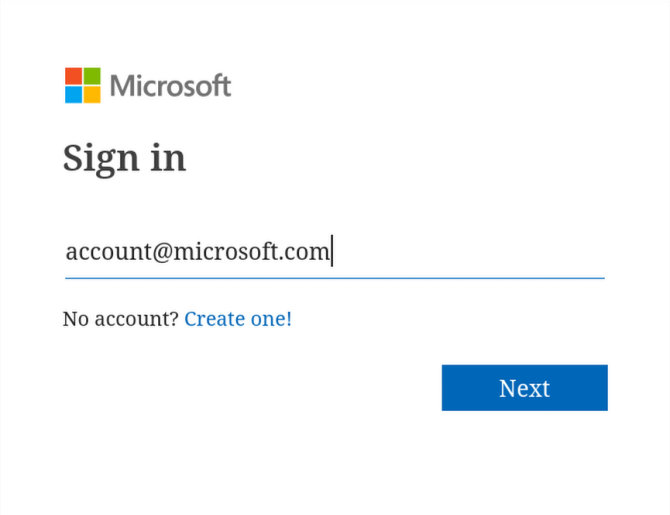
Once logged in, OneDrive Home will appear.
From the left menu pane, select My Files. 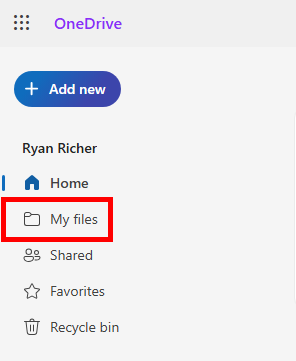
Within My Files, select +Add New, then select Folder.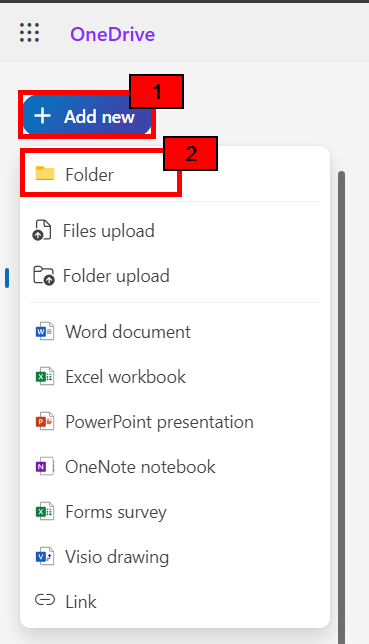
The Create a folder window will open.
Name the folder File Backup, change its colour as desired, and select Create.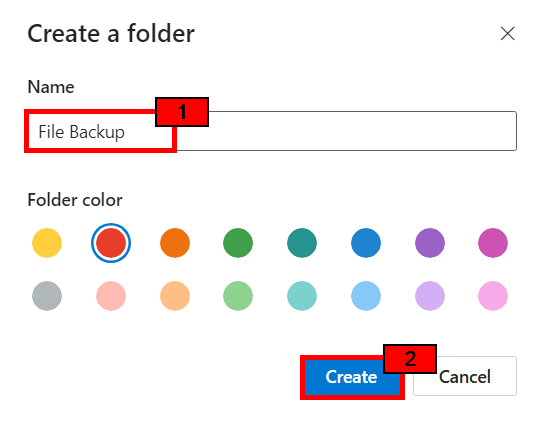
From My Files, select the new File Backup folder. 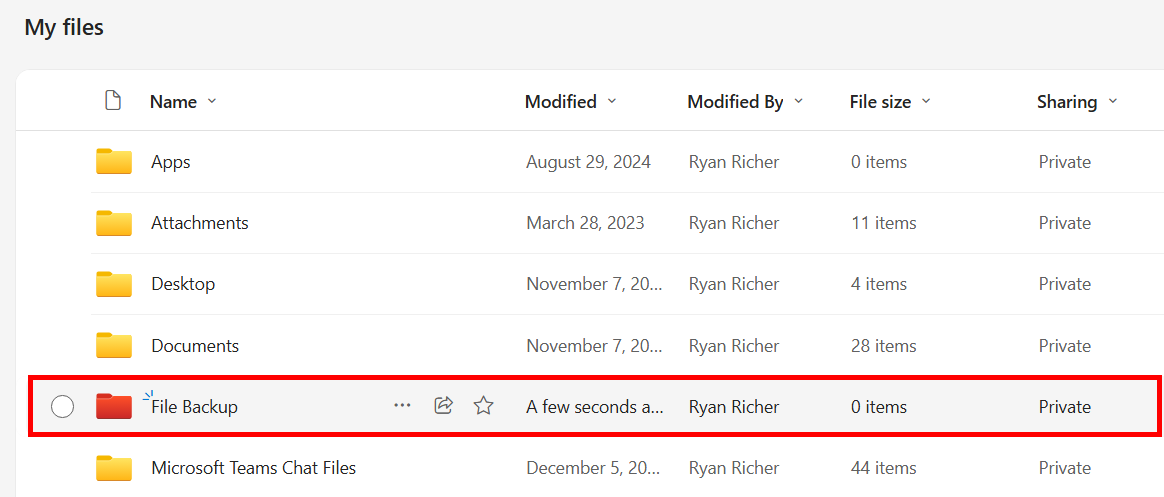
Within File Backup, select +Add New, then select Folder Upload.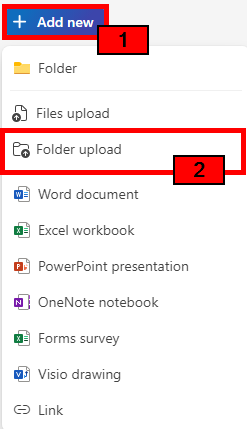
A File Explorer (Windows) or Finder (Mac) window will open.
From the left menu pane, select Desktop, Documents, Downloads, or Pictures.
Then, select Upload.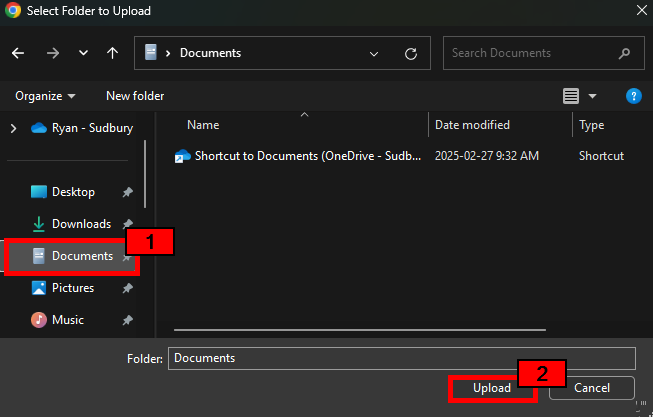
A prompt will appear notifying of the quantity of items in the folder, and a confirmation to begin the upload.
Select Upload.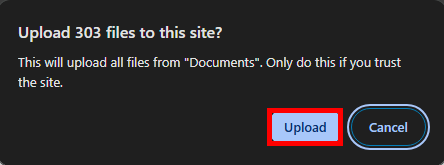
While files upload to OneDrive, leave the browser page open.
Closing the browser page or shutting down the computer will interrupt the download process.
If a folder is of a significant size, its contents may need to be uploaded in smaller chunks.
Repeat the upload steps until the Desktop, Documents, Downloads, and Pictures folders are uploaded into OneDrive.
Mac requires pictures to be exported from the photos app.
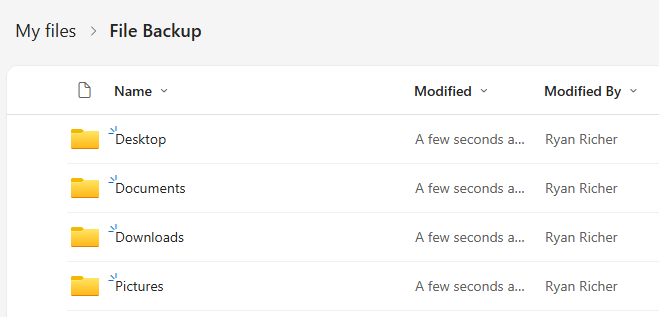
When complete, all uploaded files will be present and accessible through OneDrive, both on the web, and through a synchronized application.