# Export Passwords & Bookmarks from Safari

<span style="white-space: pre-wrap;">Ensure </span>**Safari** is open.  
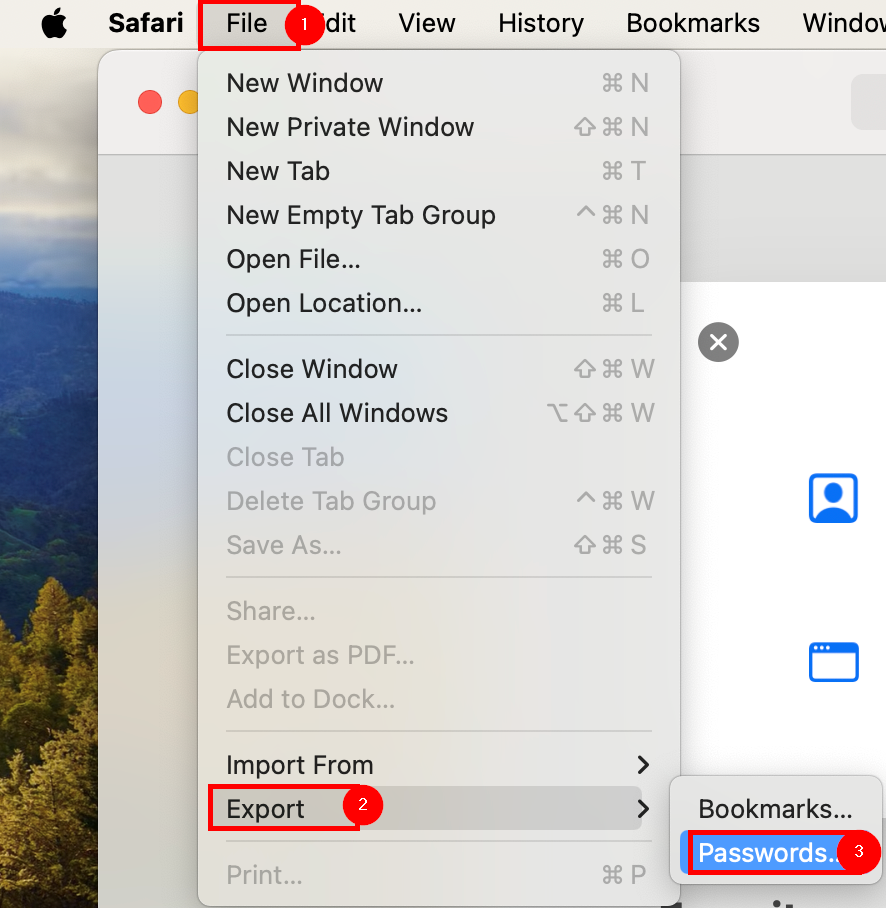
<span style="white-space: pre-wrap;">From </span>**Safari**<span style="white-space: pre-wrap;">, select the </span>****File**** <span style="white-space: pre-wrap;">dropdown from the </span>**Menu Bar**<span style="white-space: pre-wrap;">, then select </span>****Export****<span style="white-space: pre-wrap;">, then select </span>****Passwords...****<span style="white-space: pre-wrap;"> or </span>****Bookmarks...****[![image.png](https://richerkb.ca/uploads/images/gallery/2026-05/scaled-1680-/GB49Wt16IsNvZ22Y-image.png)](https://richerkb.ca/uploads/images/gallery/2026-05/GB49Wt16IsNvZ22Y-image.png)

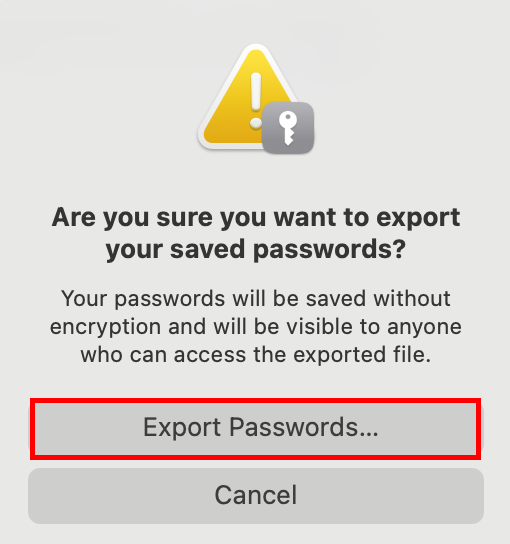
<span style="white-space: pre-wrap;">From the confirmation dialogue, select </span>****Export Passwords...****<span style="white-space: pre-wrap;"> or </span>****Export Bookmarks...****  
[![image.png](https://richerkb.ca/uploads/images/gallery/2026-05/scaled-1680-/M0CAEaYg1XuxTVCF-image.png)](https://richerkb.ca/uploads/images/gallery/2026-05/M0CAEaYg1XuxTVCF-image.png)

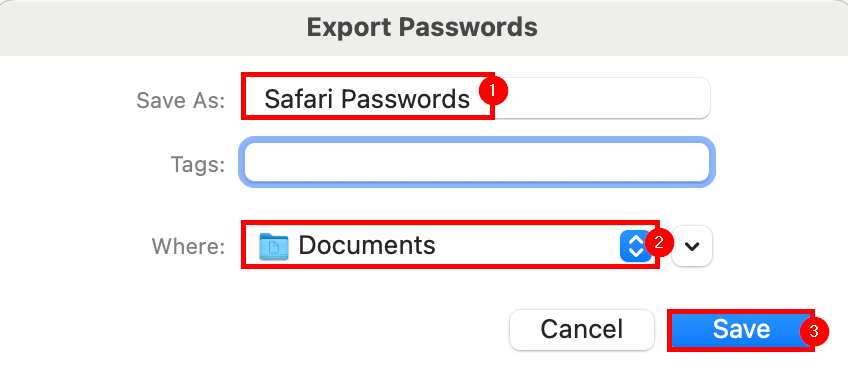
<span style="white-space: pre-wrap;">From the </span>**Export Passwords** <span style="white-space: pre-wrap;">or </span>**Export Bookmarks** <span style="white-space: pre-wrap;">window, in the </span>**Save As**<span style="white-space: pre-wrap;"> field enter </span>****Safari Passwords**** <span style="white-space: pre-wrap;">or </span>****Safari Bookmarks****<span style="white-space: pre-wrap;">. In the </span>**Where** <span style="white-space: pre-wrap;">field, select </span>****Documents****.  
<span style="white-space: pre-wrap;">Select </span>****Save**** when complete.  
[![image.png](https://richerkb.ca/uploads/images/gallery/2026-05/scaled-1680-/ElPfg0y4Hwfca5Mw-image.png)](https://richerkb.ca/uploads/images/gallery/2026-05/ElPfg0y4Hwfca5Mw-image.png)

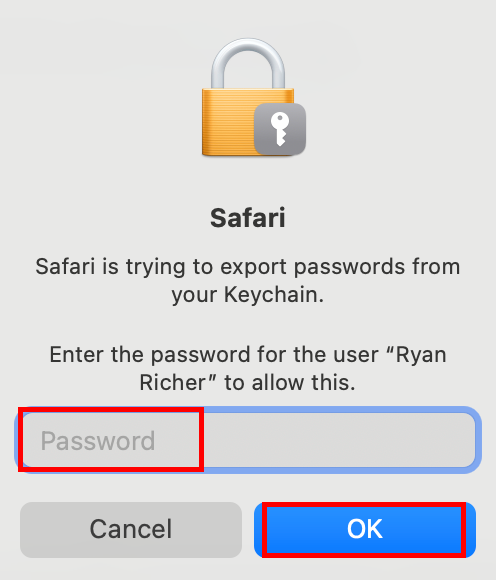
A dialogue window will open requesting your sign-on password.  
<span style="white-space: pre-wrap;">Enter it, and select </span>****OK****.  
[![image.png](https://richerkb.ca/uploads/images/gallery/2026-05/scaled-1680-/EnXGCSERMr7XszOq-image.png)](https://richerkb.ca/uploads/images/gallery/2026-05/EnXGCSERMr7XszOq-image.png)

Safari will export all saved passwords.  
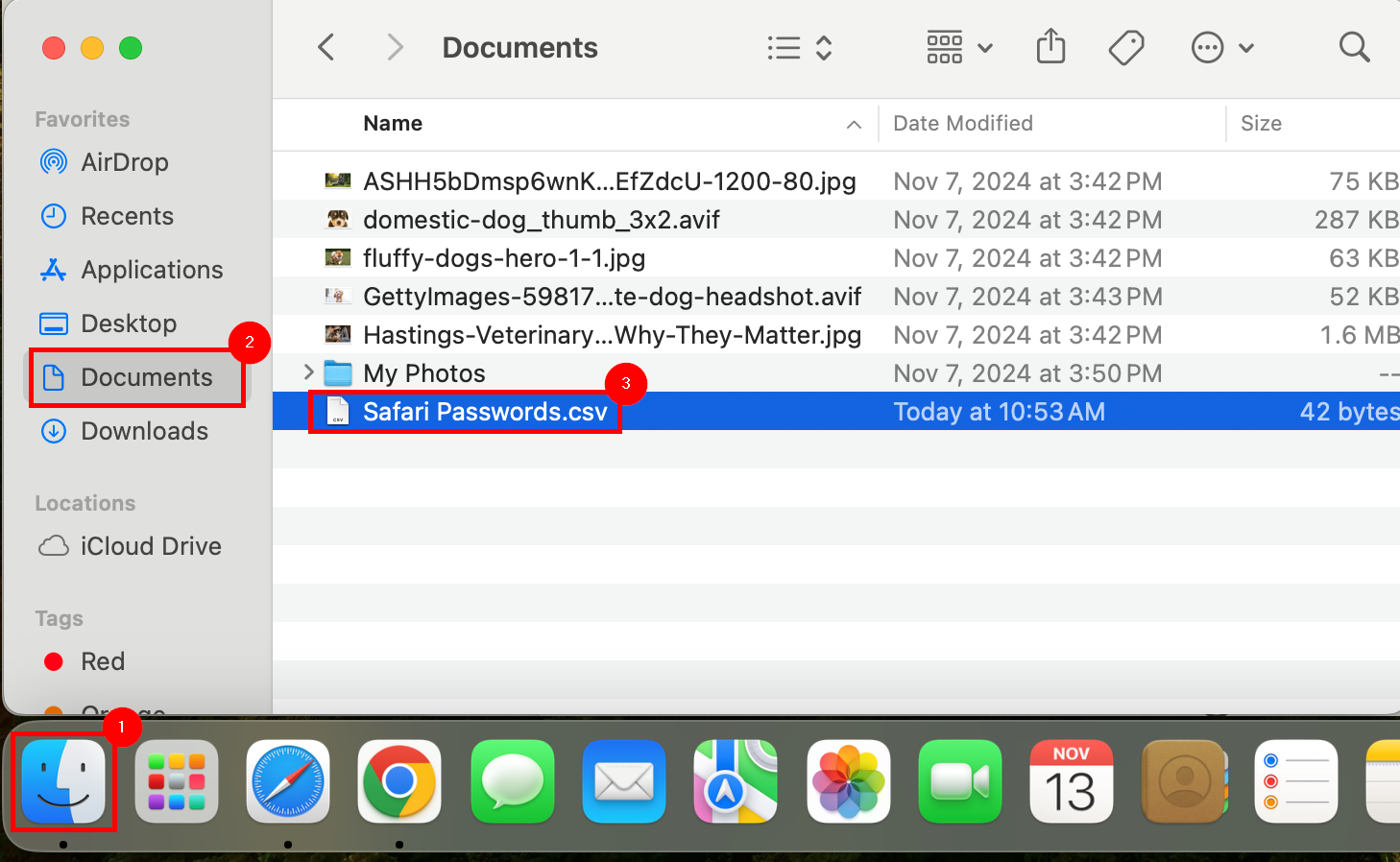
<span style="white-space: pre-wrap;">To confirm successful export, open </span>****Finder****<span style="white-space: pre-wrap;">, and select </span>****Documents**** from the left menu pane.  
****Safari Passwords.csv****<span style="white-space: pre-wrap;"> or </span>****Safari Bookmarks.html****<span style="white-space: pre-wrap;"> should be present in the list of files.</span>[![image.png](https://richerkb.ca/uploads/images/gallery/2026-05/scaled-1680-/38lqT3bxB06XcZB3-image.png)](https://richerkb.ca/uploads/images/gallery/2026-05/38lqT3bxB06XcZB3-image.png)

<p class="callout danger">The Safari Password export is unprotected, and the passwords within are all in plaintext.  
Once the passwords are re-imported, or referenced, the Safari Password file should be deleted, and the trash emptied.</p>