# Export from the Photos App
Ensure the **Photos** app is open.
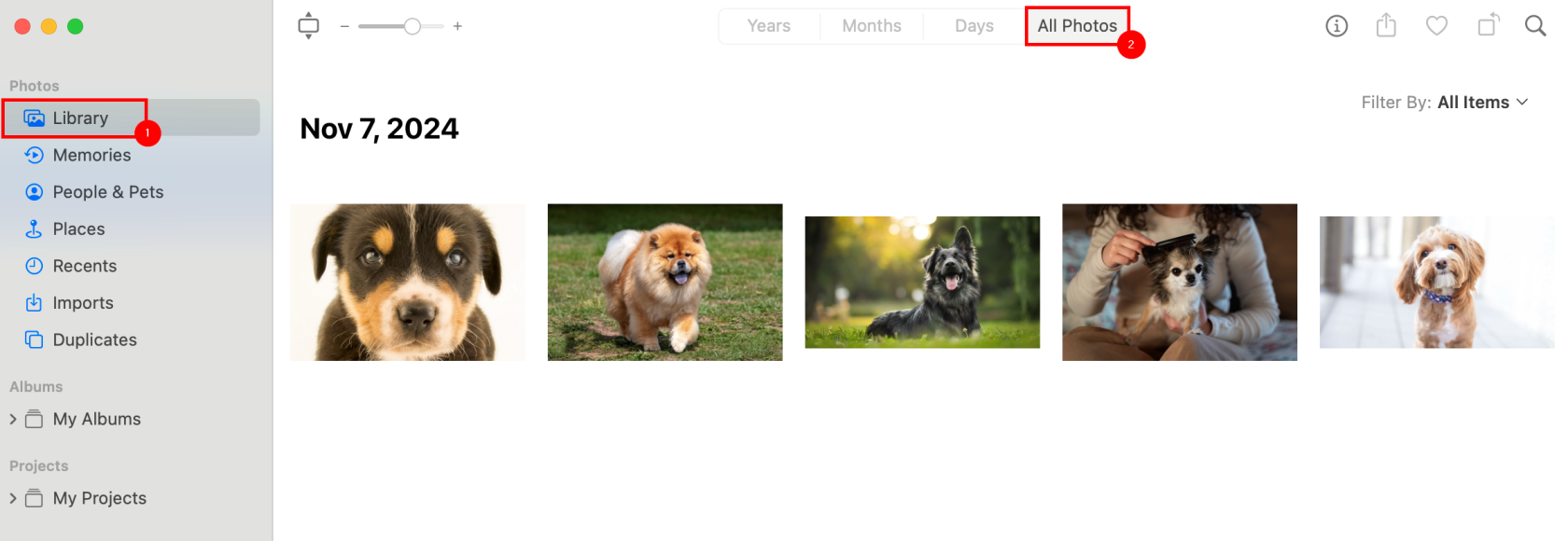
In the **Photos** app, select ****Library**** from the left pane, then the ****All Photos**** tab from the top.
[](https://richerkb.ca/uploads/images/gallery/2026-05/9SdZvLNFeaOsqCgY-image.png)
Press ****Command+A**** to select all photos.
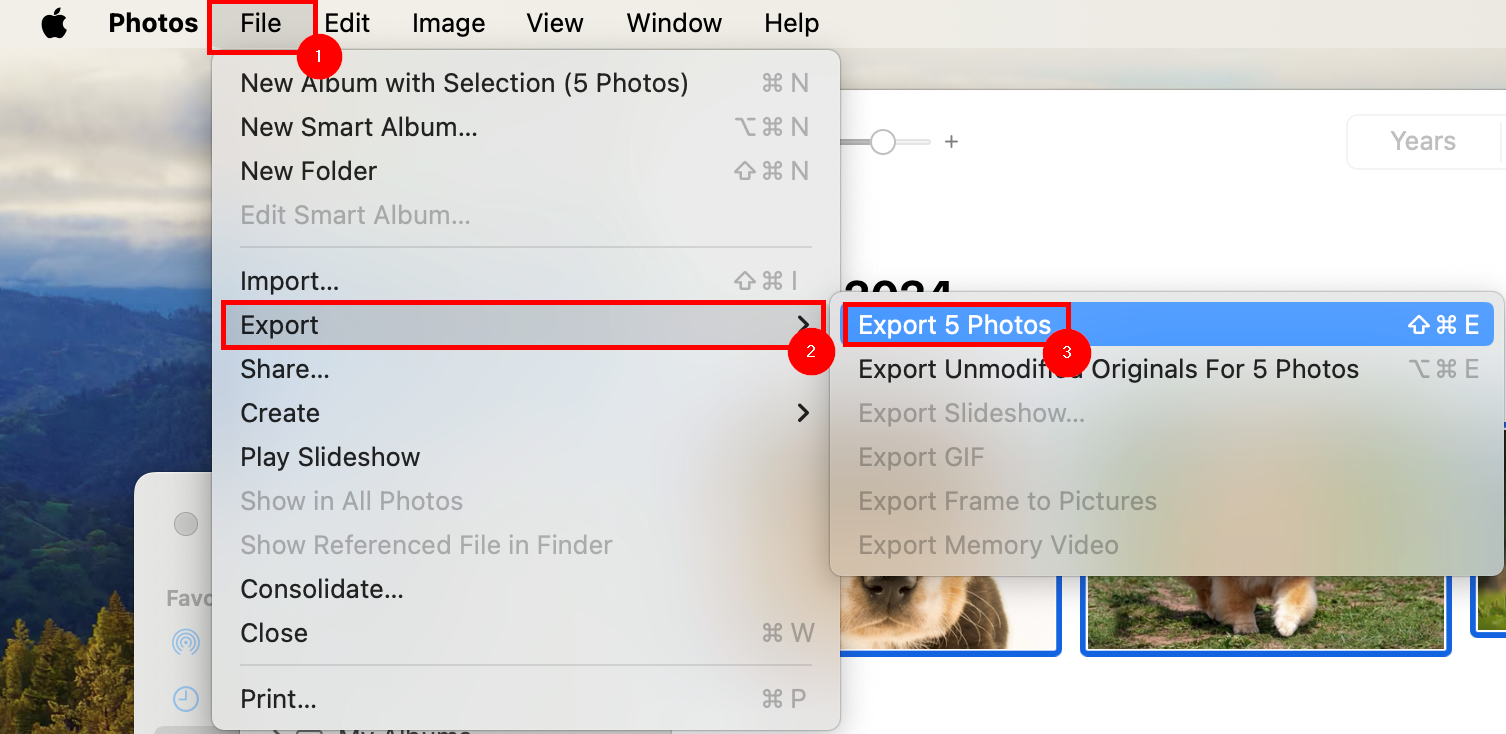
From the **Menu Bar**, select ****File****, then ****Export****, then ****Export**** *****X***** ****Photos****.
[](https://richerkb.ca/uploads/images/gallery/2026-05/d9T4loePeXGUxDeu-image.png)
In the **Confirmation Window**, leave the defaults as shown, and select ****Export****.[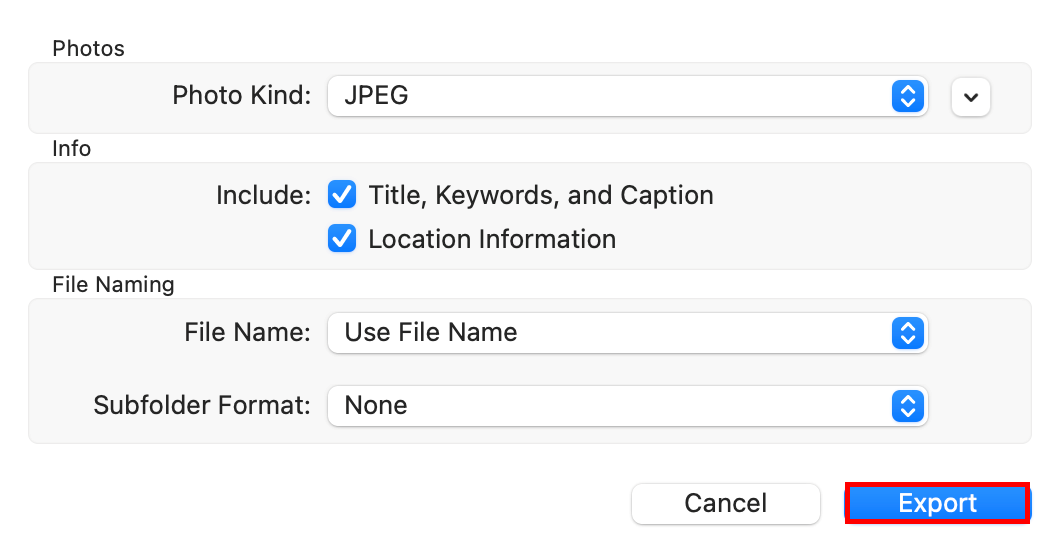](https://richerkb.ca/uploads/images/gallery/2026-05/tLDDrwW9LjbwSjqp-image.png)
A **Finder** window will open.
Select ****Documents**** from the left menu pane, then ****New Folder**** from the bottom left.[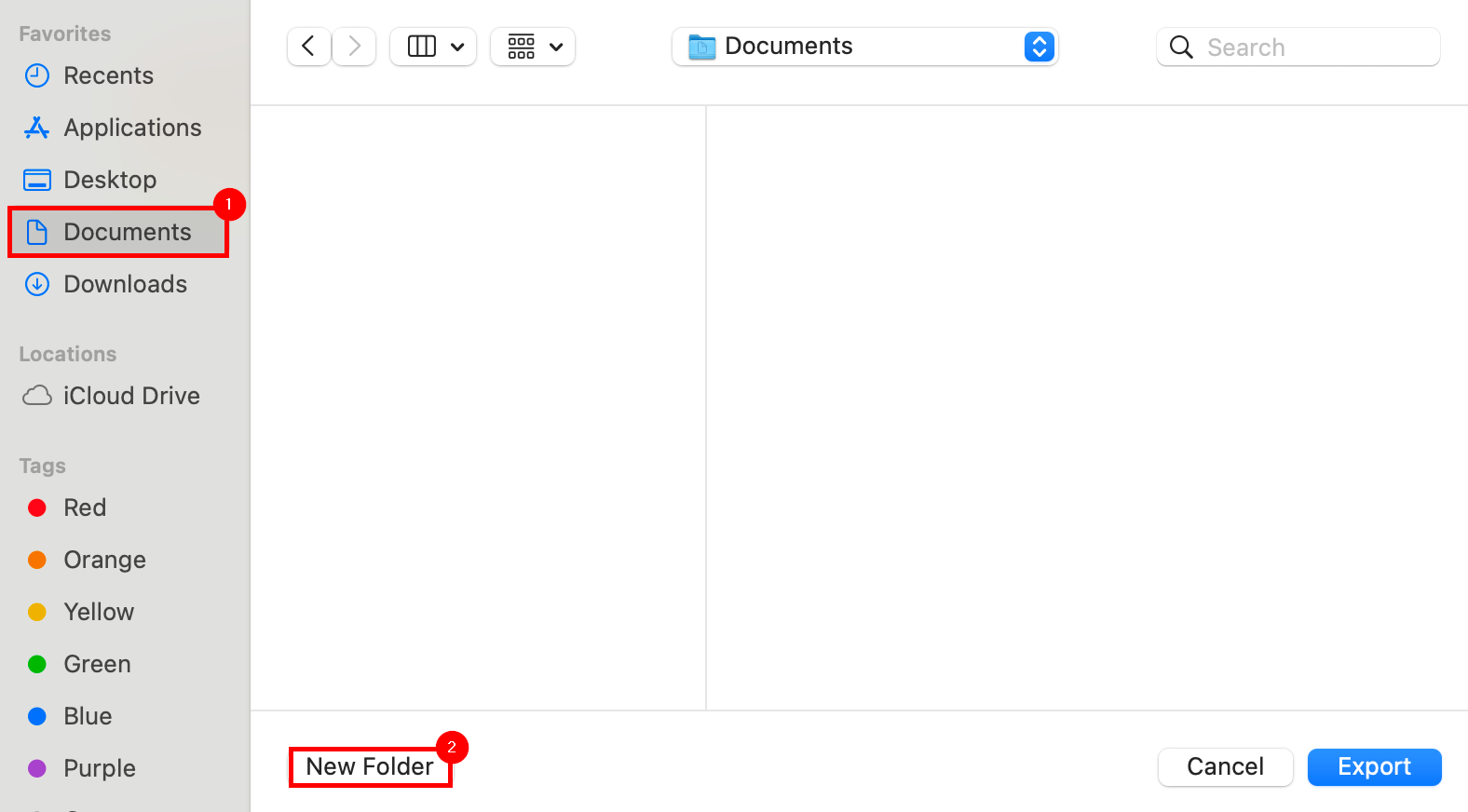](https://richerkb.ca/uploads/images/gallery/2026-05/wnjPdn8ZpqI0Stip-image.png)
In the **New Folder** dialogue, enter ****My Photos**** as the folder name, and select ****Create****.
[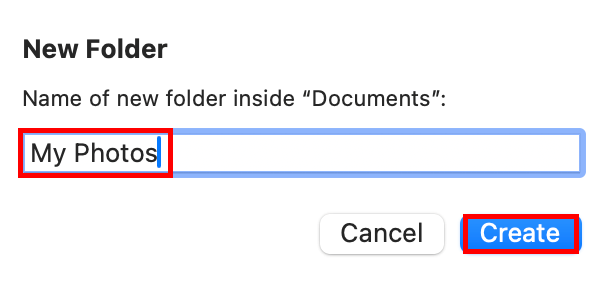](https://richerkb.ca/uploads/images/gallery/2026-05/arvW5RJZbZi2AJmT-image.png)
Select the newly made ****My Photos**** folder within **Finder**, and select ****Export**** from the bottom right.[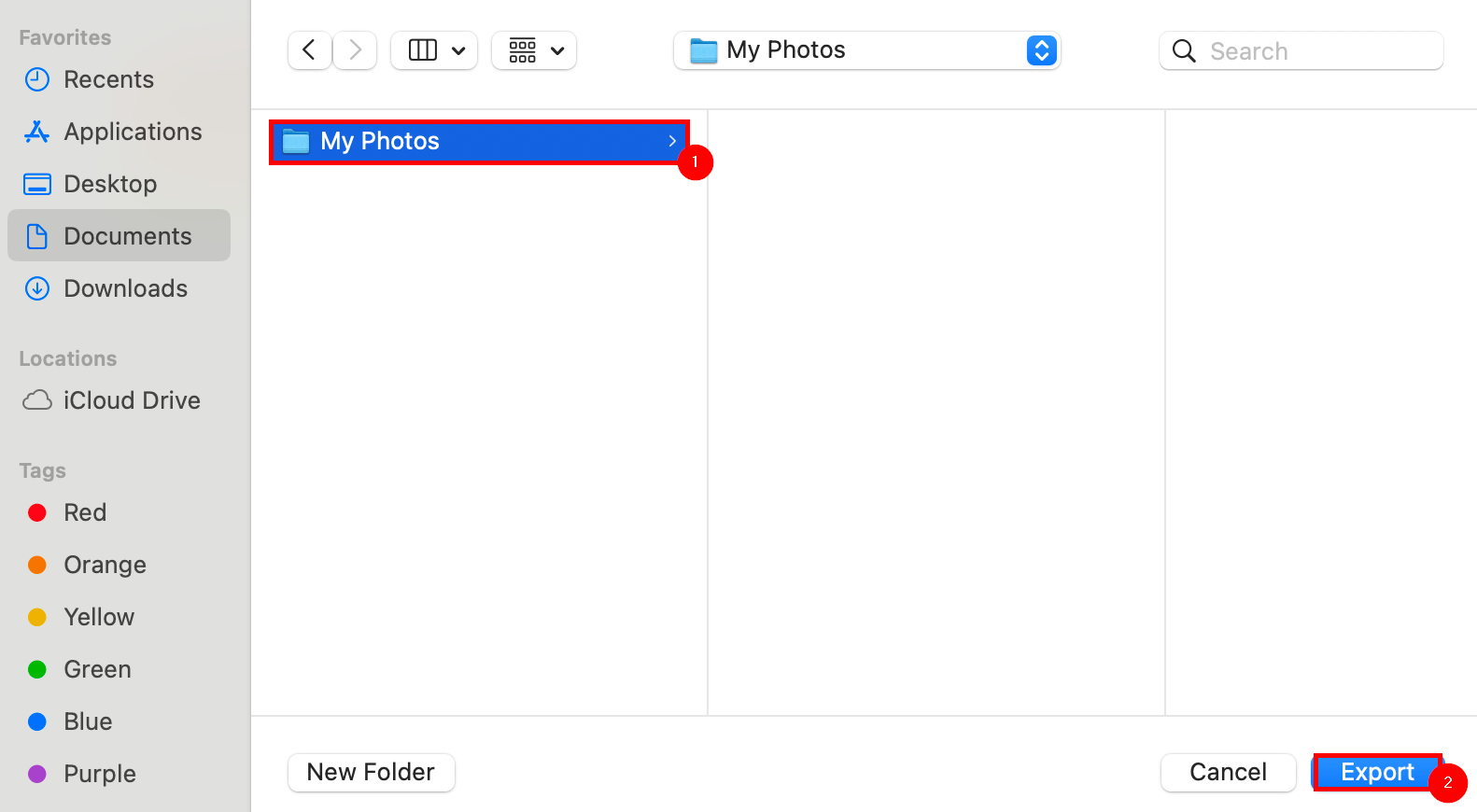](https://richerkb.ca/uploads/images/gallery/2026-05/9wBiQ4Ie3AJYId3r-image.png)
The MacBook will take some time to process the export of all photos.
When complete, view the newly made ****My Photos**** folder to verify the export's success.