Export from the Photos App
Ensure the Photos app is open.
In the Photos app, select Library from the left pane, then the All Photos tab from the top.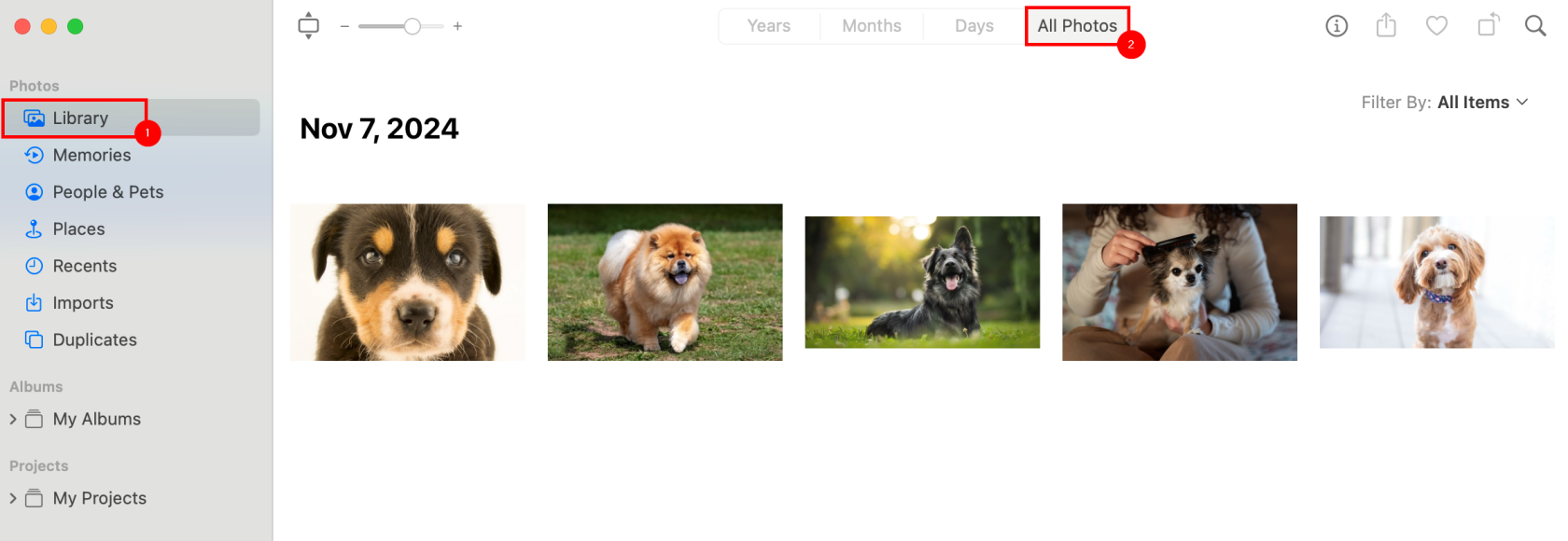
Press Command+A to select all photos.
From the Menu Bar, select File, then Export, then Export X Photos.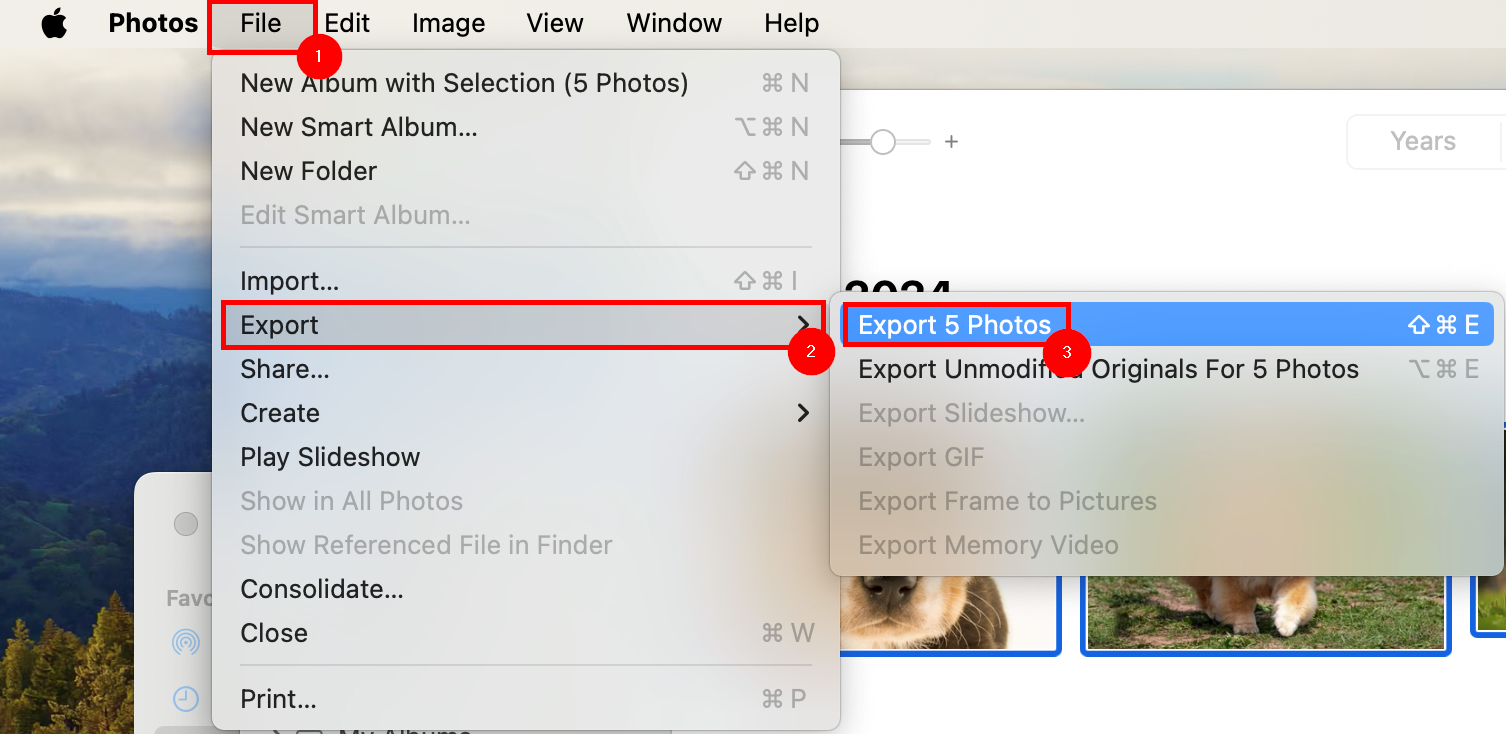
In the Confirmation Window, leave the defaults as shown, and select Export.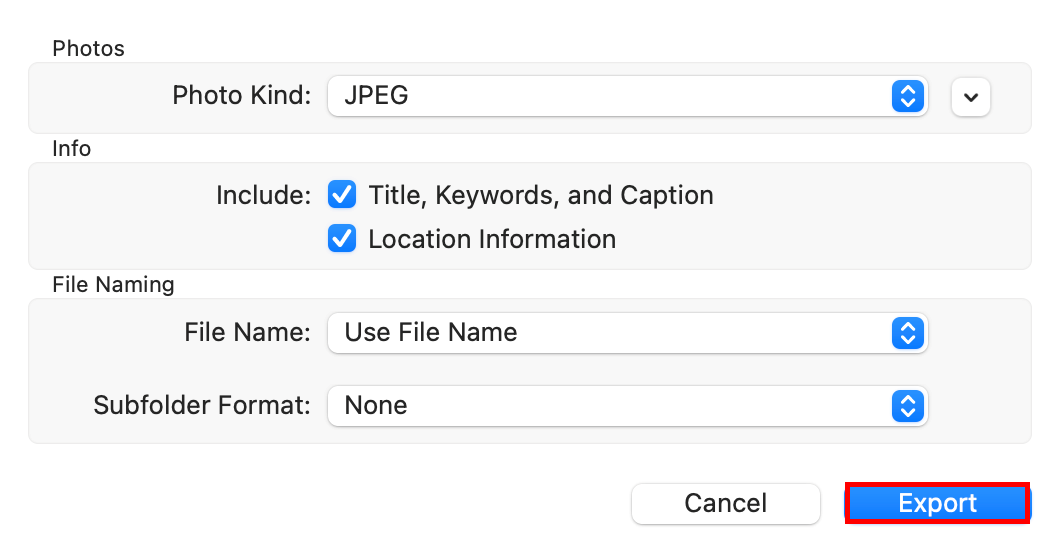
A Finder window will open.
Select Documents from the left menu pane, then New Folder from the bottom left.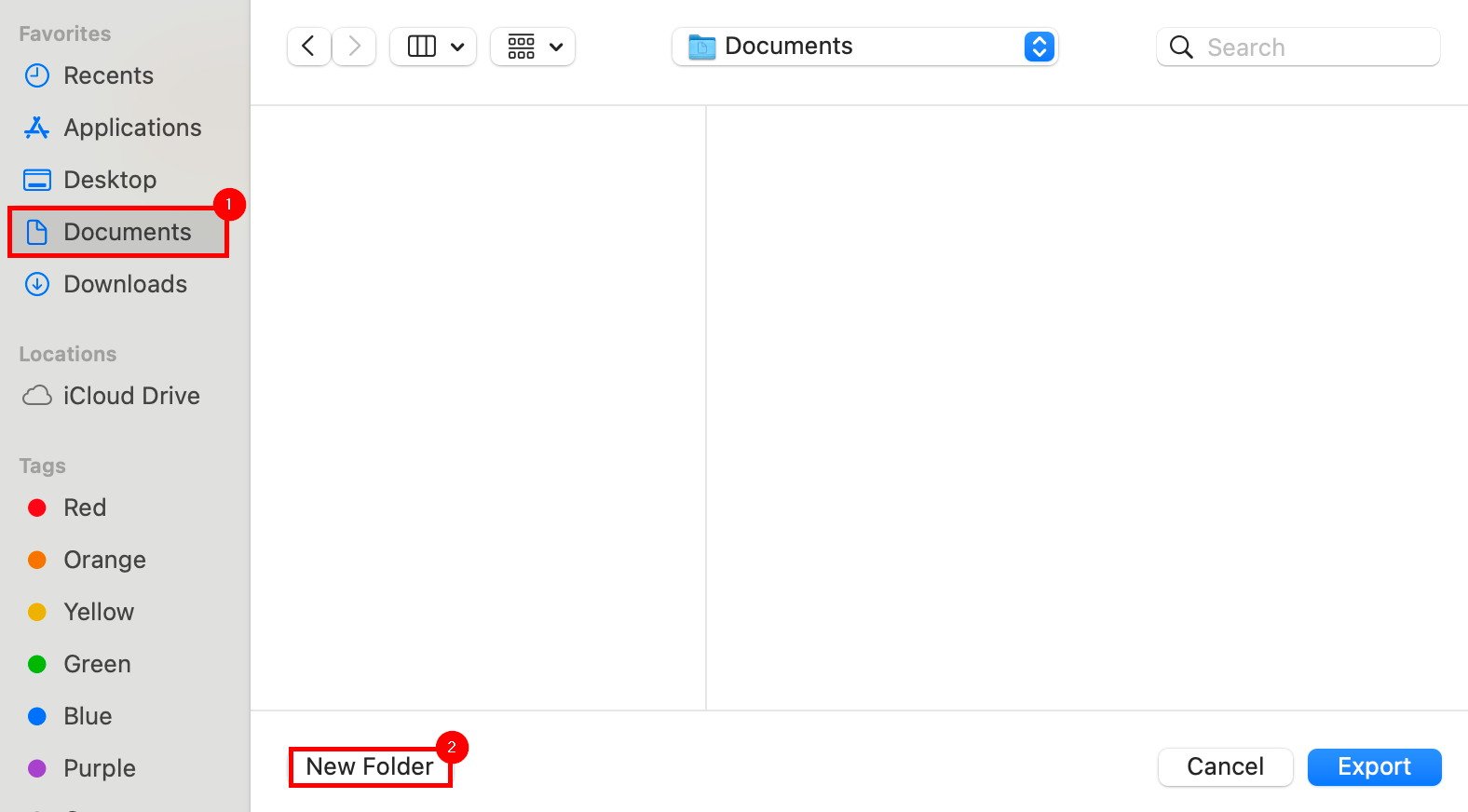
In the New Folder dialogue, enter My Photos as the folder name, and select Create.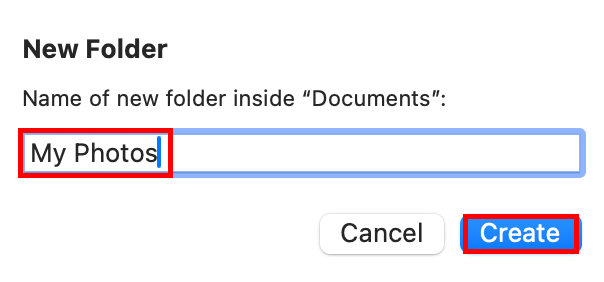
Select the newly made My Photos folder within Finder, and select Export from the bottom right.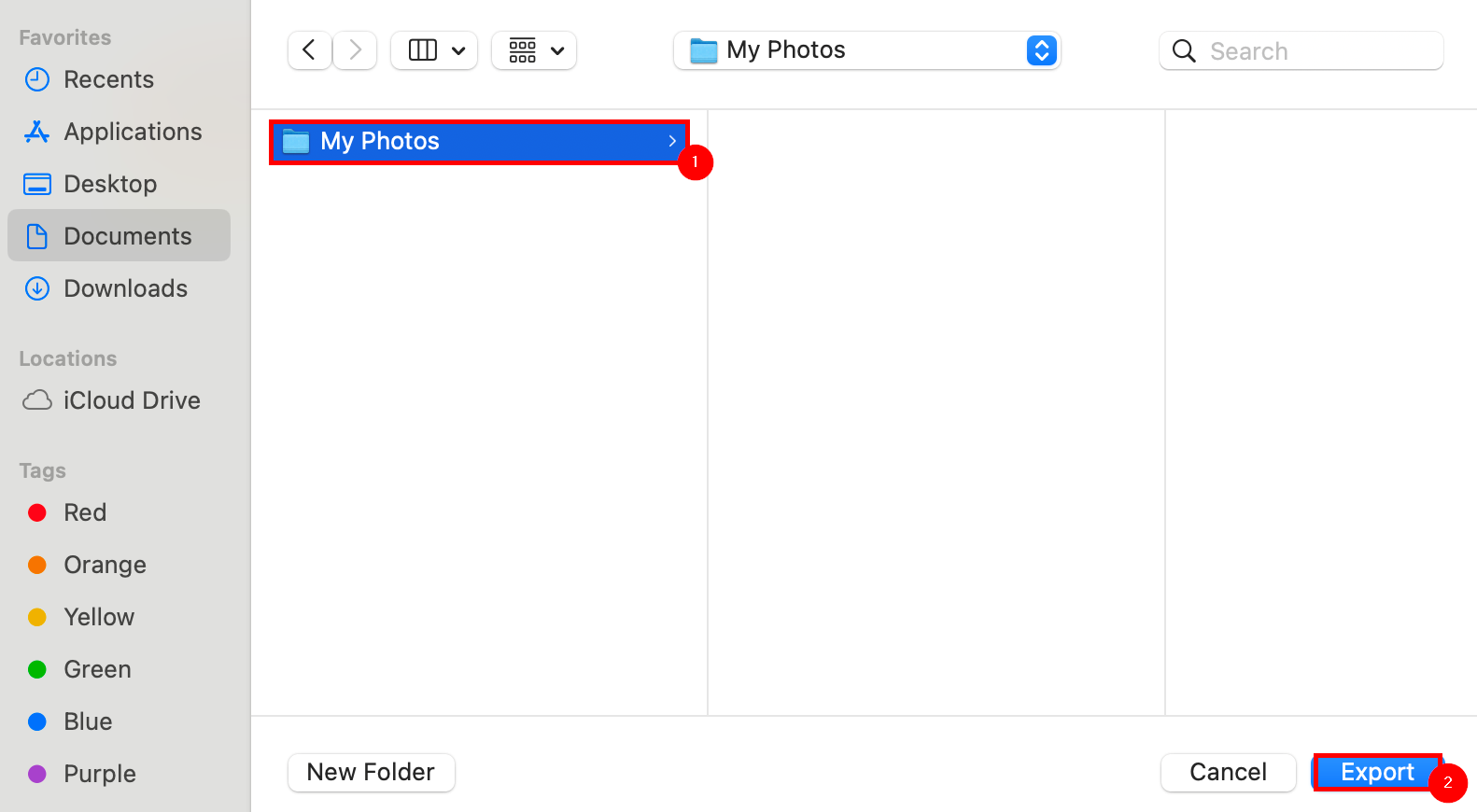
The MacBook will take some time to process the export of all photos.
When complete, view the newly made My Photos folder to verify the export's success.