# MacBook User Guide
# Export from the Photos App
Ensure the **Photos** app is open.
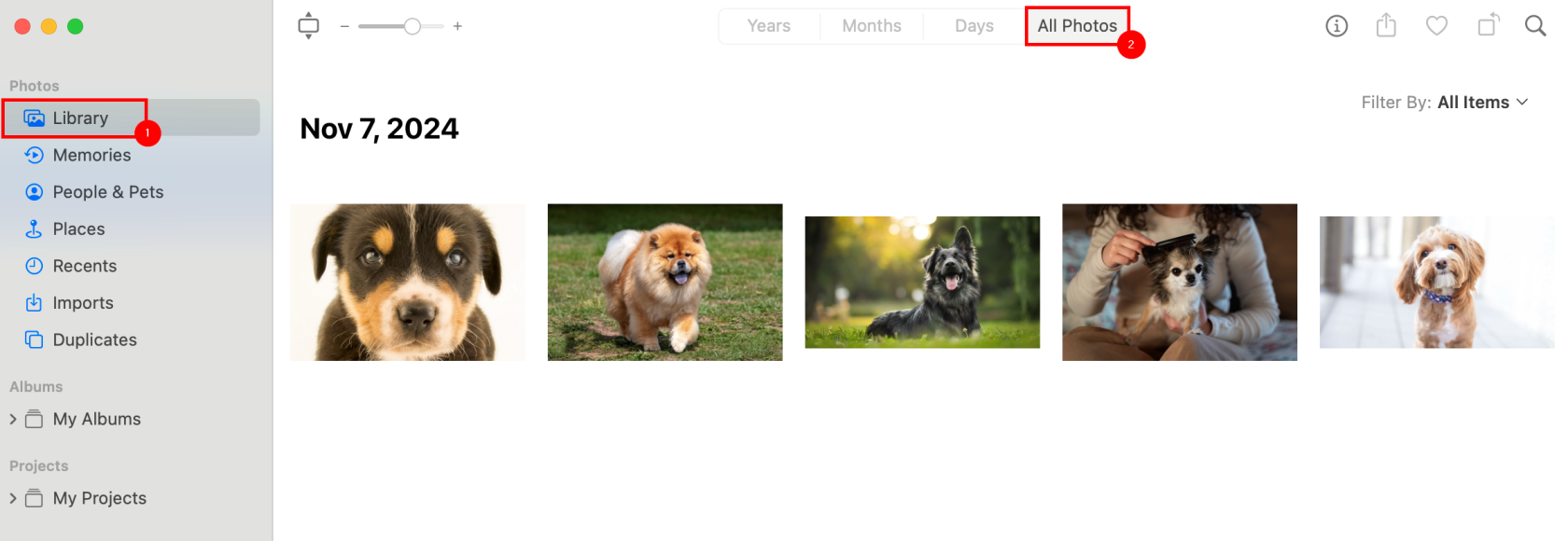
In the **Photos** app, select ****Library**** from the left pane, then the ****All Photos**** tab from the top.
[](https://richerkb.ca/uploads/images/gallery/2026-05/9SdZvLNFeaOsqCgY-image.png)
Press ****Command+A**** to select all photos.
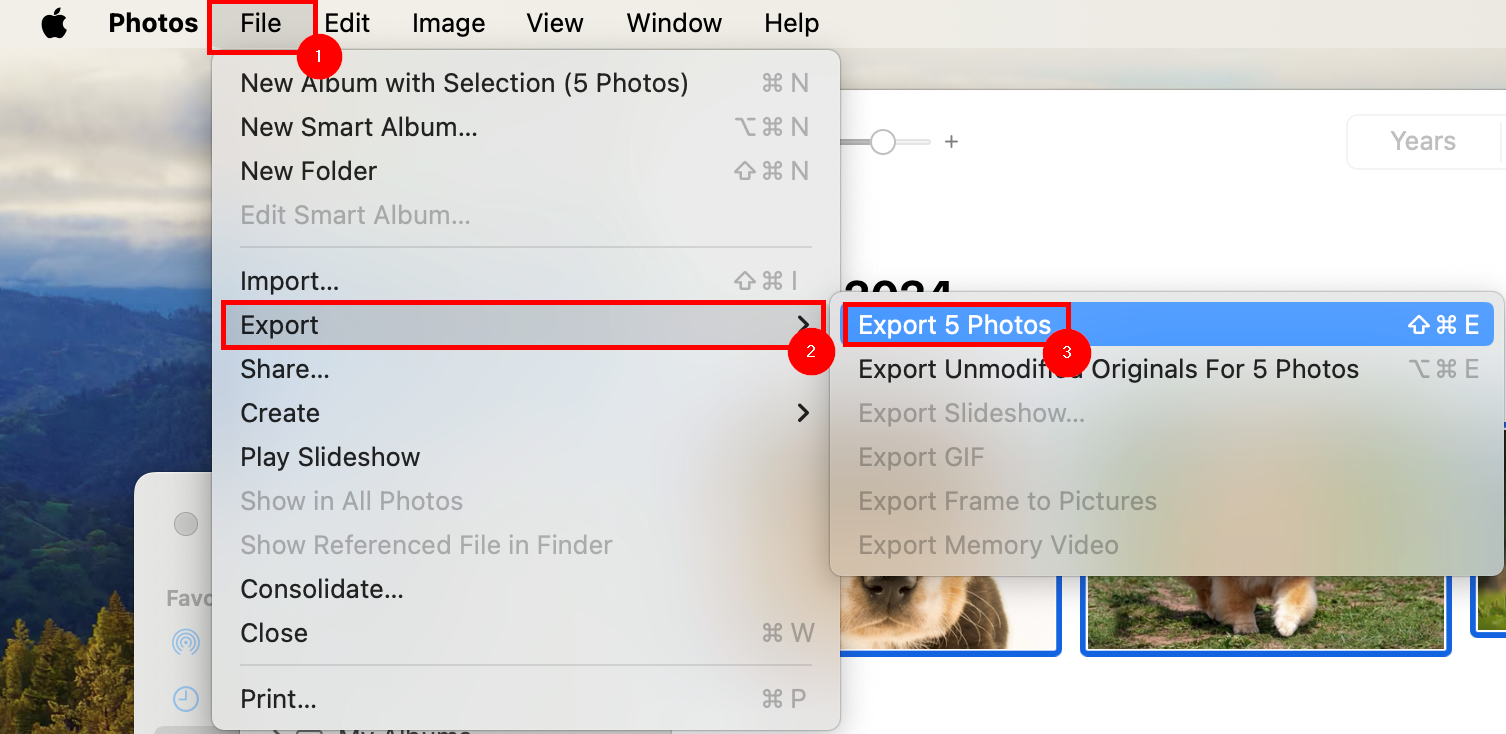
From the **Menu Bar**, select ****File****, then ****Export****, then ****Export**** *****X***** ****Photos****.
[](https://richerkb.ca/uploads/images/gallery/2026-05/d9T4loePeXGUxDeu-image.png)
In the **Confirmation Window**, leave the defaults as shown, and select ****Export****.[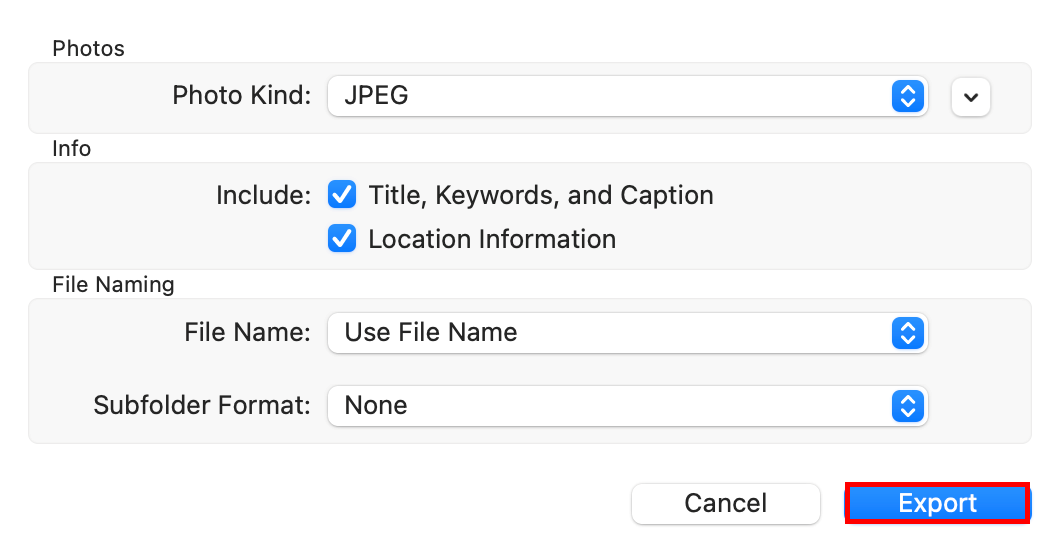](https://richerkb.ca/uploads/images/gallery/2026-05/tLDDrwW9LjbwSjqp-image.png)
A **Finder** window will open.
Select ****Documents**** from the left menu pane, then ****New Folder**** from the bottom left.[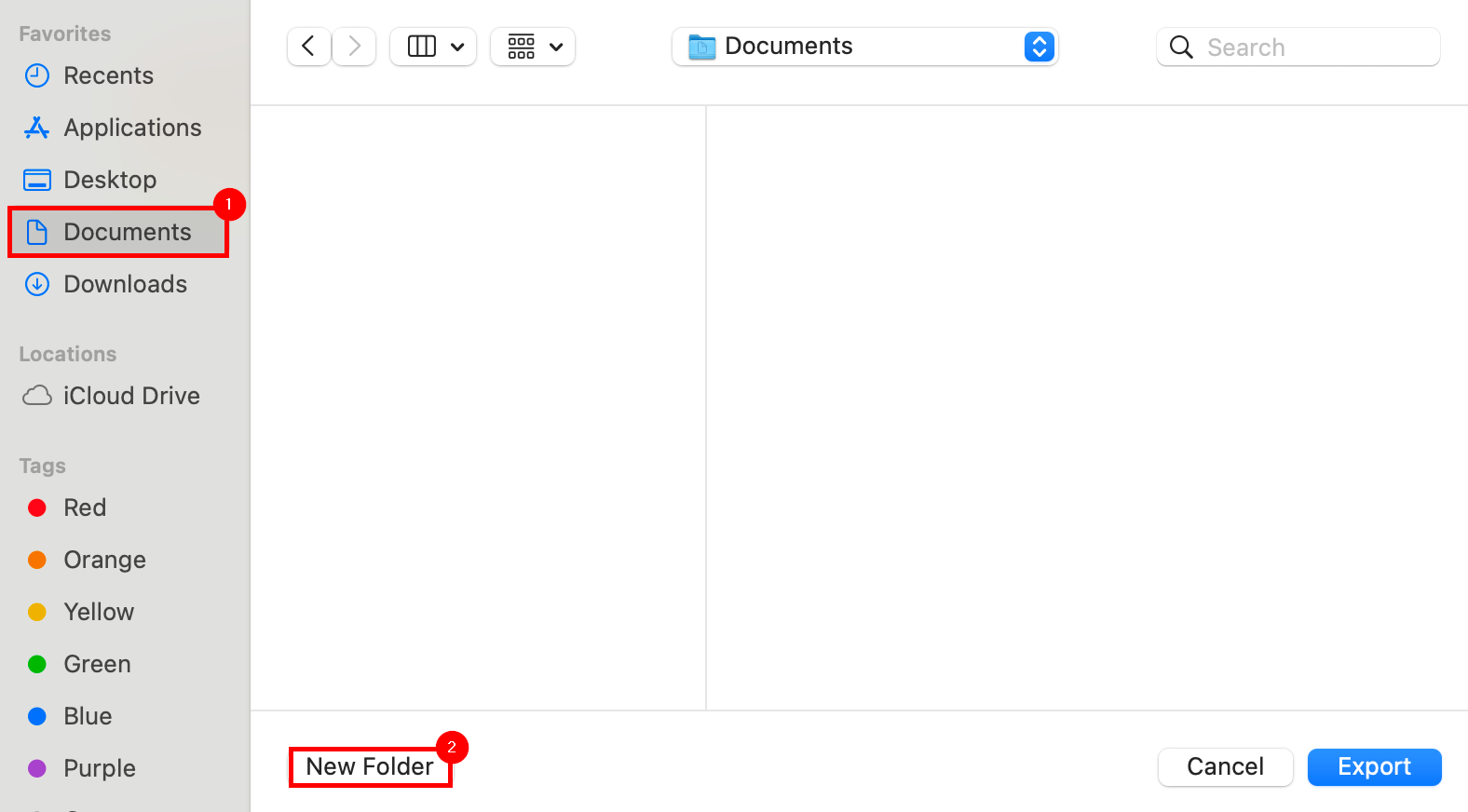](https://richerkb.ca/uploads/images/gallery/2026-05/wnjPdn8ZpqI0Stip-image.png)
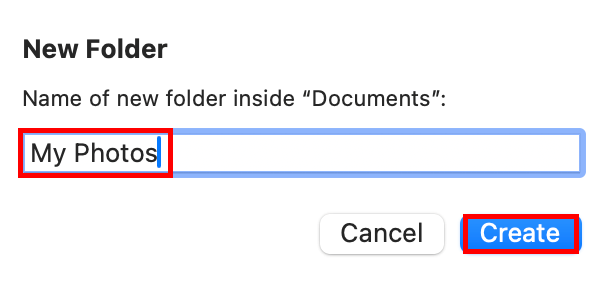
In the **New Folder** dialogue, enter ****My Photos**** as the folder name, and select ****Create****.
[](https://richerkb.ca/uploads/images/gallery/2026-05/arvW5RJZbZi2AJmT-image.png)
Select the newly made ****My Photos**** folder within **Finder**, and select ****Export**** from the bottom right.[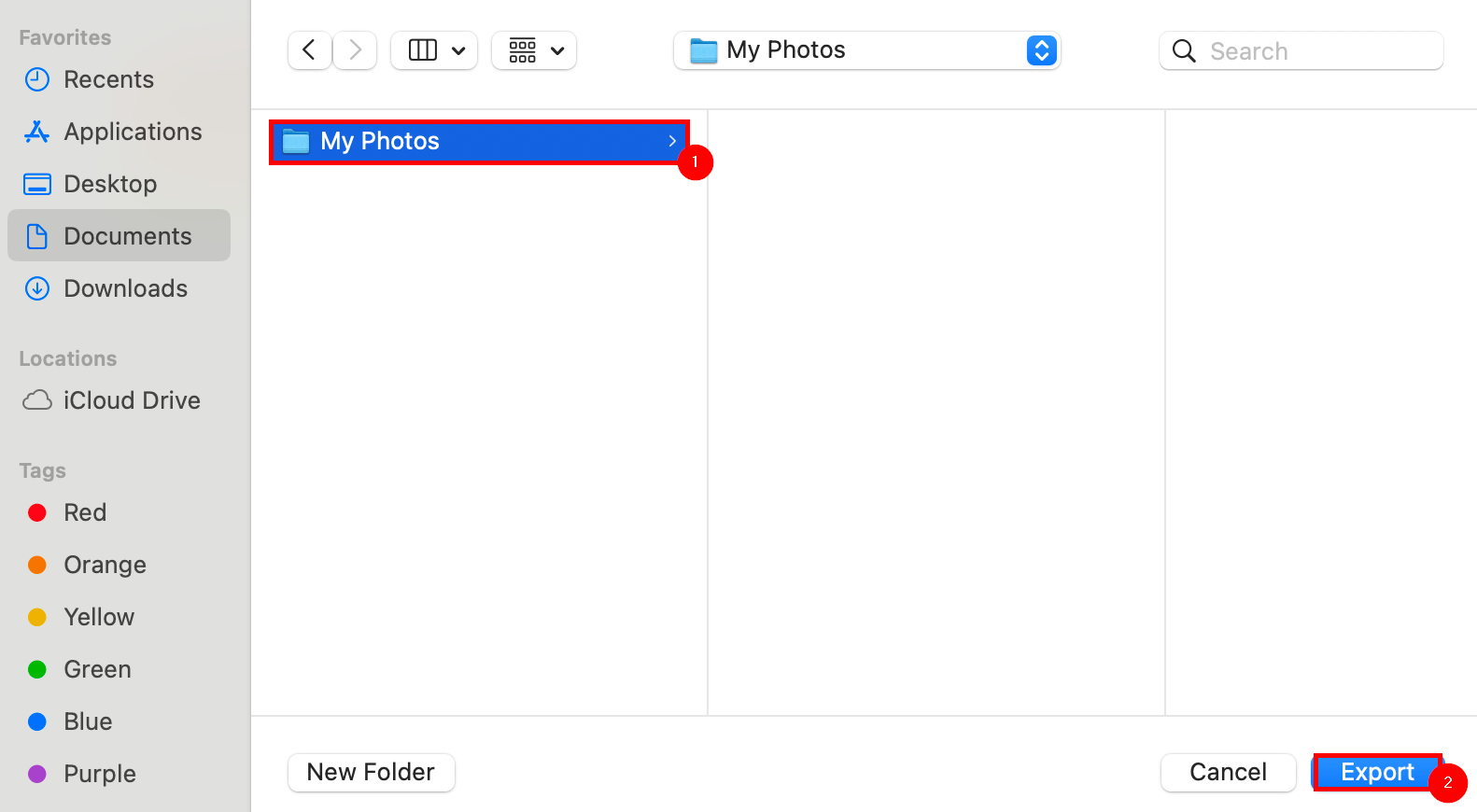](https://richerkb.ca/uploads/images/gallery/2026-05/9wBiQ4Ie3AJYId3r-image.png)
The MacBook will take some time to process the export of all photos.
When complete, view the newly made ****My Photos**** folder to verify the export's success.
# Export Passwords & Bookmarks from Safari
Ensure **Safari** is open.
From **Safari**, select the ****File**** dropdown from the **Menu Bar**, then select ****Export****, then select ****Passwords...**** or ****Bookmarks...****[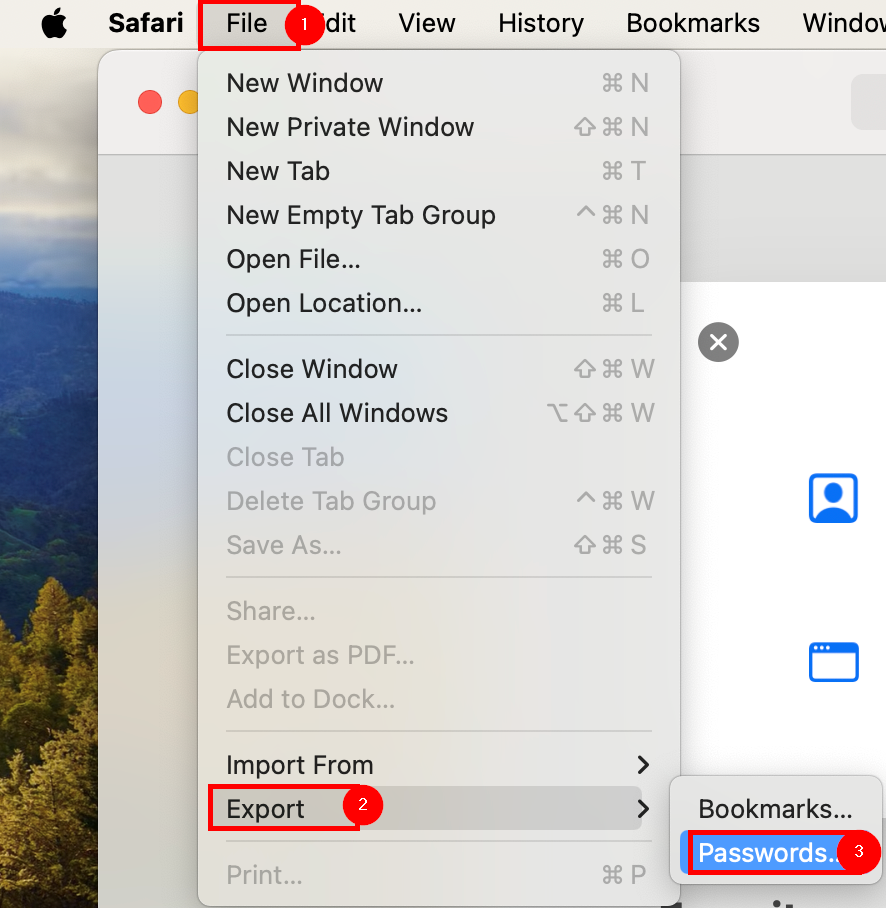](https://richerkb.ca/uploads/images/gallery/2026-05/GB49Wt16IsNvZ22Y-image.png)
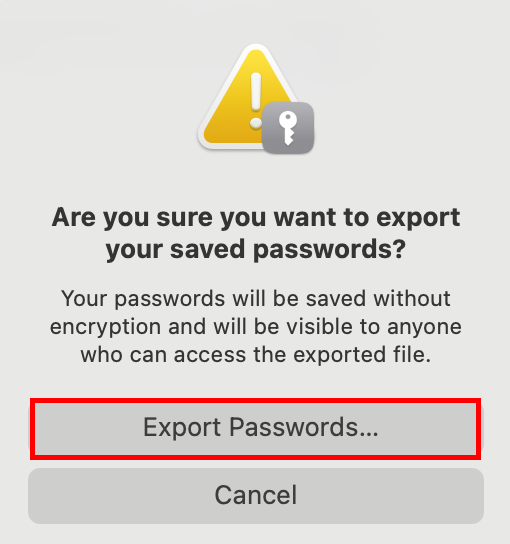
From the confirmation dialogue, select ****Export Passwords...**** or ****Export Bookmarks...****
[](https://richerkb.ca/uploads/images/gallery/2026-05/M0CAEaYg1XuxTVCF-image.png)
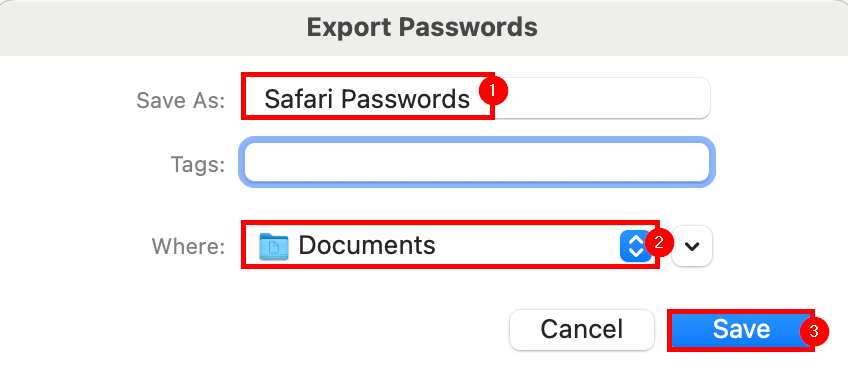
From the **Export Passwords** or **Export Bookmarks** window, in the **Save As** field enter ****Safari Passwords**** or ****Safari Bookmarks****. In the **Where** field, select ****Documents****.
Select ****Save**** when complete.
[](https://richerkb.ca/uploads/images/gallery/2026-05/ElPfg0y4Hwfca5Mw-image.png)
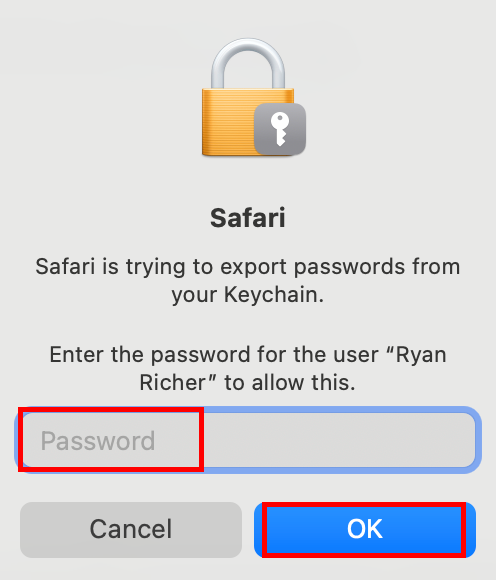
A dialogue window will open requesting your sign-on password.
Enter it, and select ****OK****.
[](https://richerkb.ca/uploads/images/gallery/2026-05/EnXGCSERMr7XszOq-image.png)
Safari will export all saved passwords.
To confirm successful export, open ****Finder****, and select ****Documents**** from the left menu pane.
****Safari Passwords.csv**** or ****Safari Bookmarks.html**** should be present in the list of files.[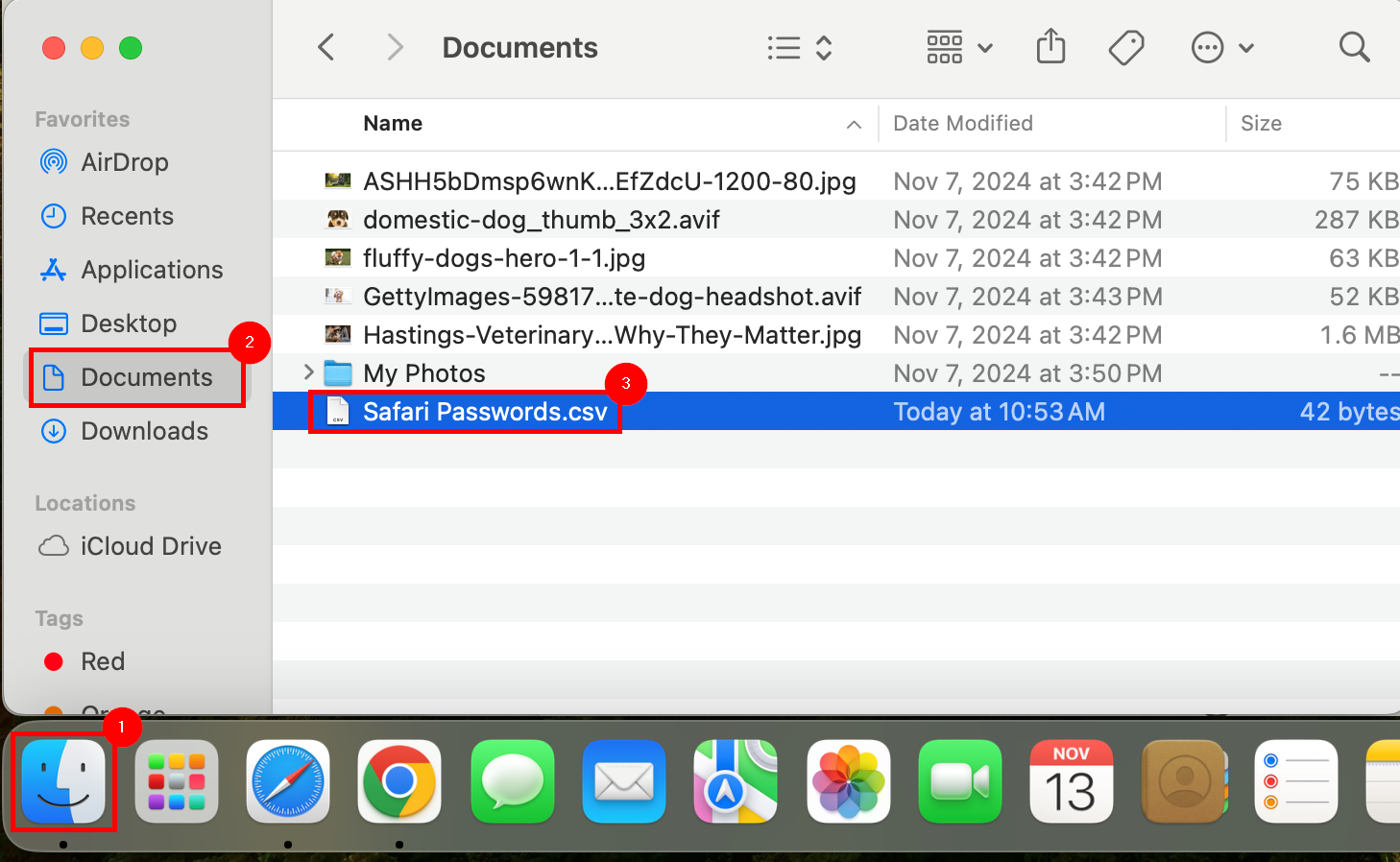](https://richerkb.ca/uploads/images/gallery/2026-05/38lqT3bxB06XcZB3-image.png)
The Safari Password export is unprotected, and the passwords within are all in plaintext.
Once the passwords are re-imported, or referenced, the Safari Password file should be deleted, and the trash emptied.
# Self-Migration Checklist
- [ ] Export all photos and videos from the [****Photos****](https://richerkb.ca/books/macbook-user-guide/page/export-from-the-photos-app) app, and any content from ****iMovie****
- [ ] [****Sync Google Chrome****](https://richerkb.ca/books/applications/page/sync-a-google-chrome-profile) profile information, or [****export Safari passwords & bookmarks****](https://richerkb.ca/books/macbook-user-guide/page/export-passwords-bookmarks-from-safari)
- [ ] ****Optional:**** Manually [****backup files to OneDrive on the web****](https://richerkb.ca/books/applications/page/backup-folders-files-with-onedrive-online), if the OneDrive application is not operating correctly
- [ ] Ensure [****OneDrive is syncing****](https://richerkb.ca/books/applications/page/setup-onedrive), and files from **Downloads** are moved to the **Desktop,** **Documents,** or **OneDrive** folders