MacBook User Guide
Export from the Photos App
Ensure the Photos app is open.
In the Photos app, select Library from the left pane, then the All Photos tab from the top.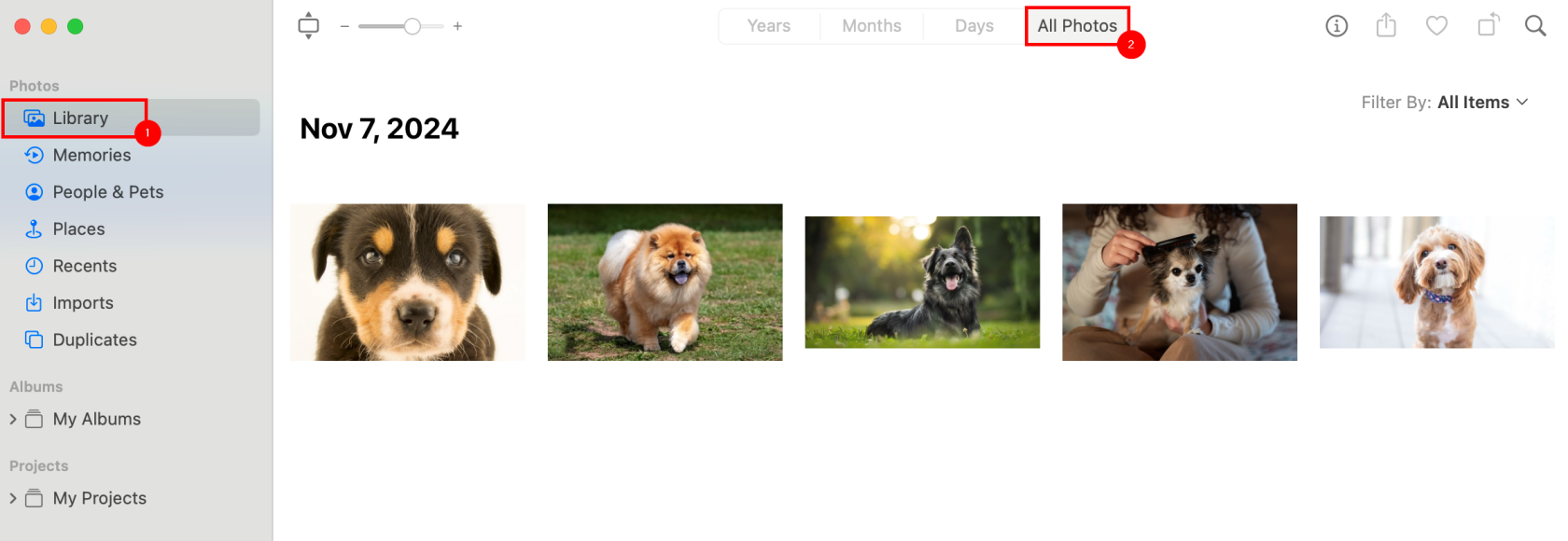
Press Command+A to select all photos.
From the Menu Bar, select File, then Export, then Export X Photos.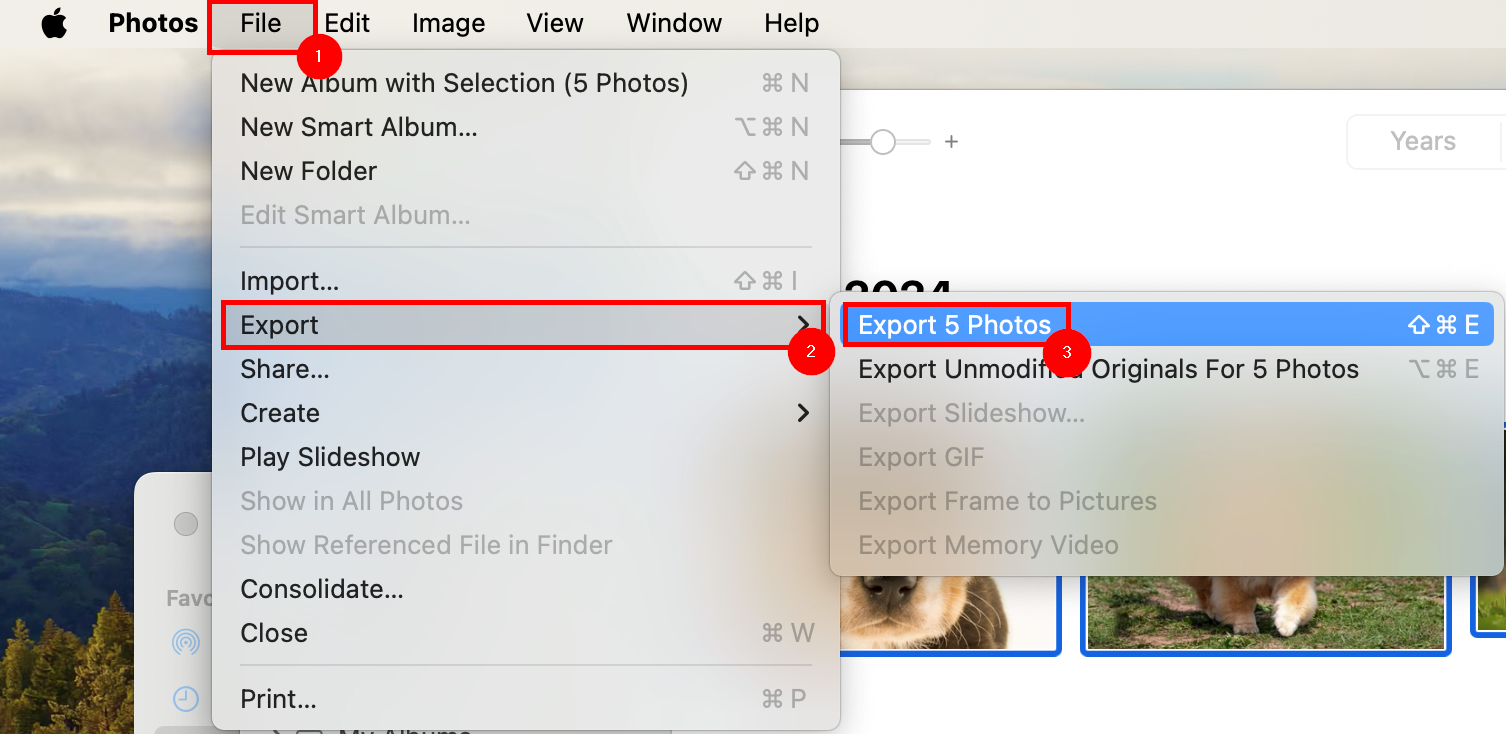
In the Confirmation Window, leave the defaults as shown, and select Export.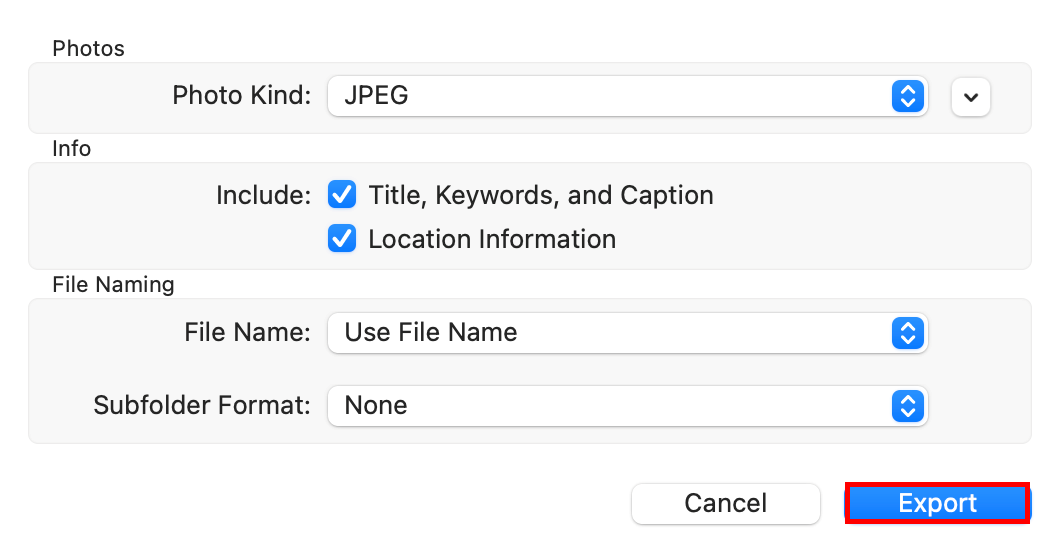
A Finder window will open.
Select Documents from the left menu pane, then New Folder from the bottom left.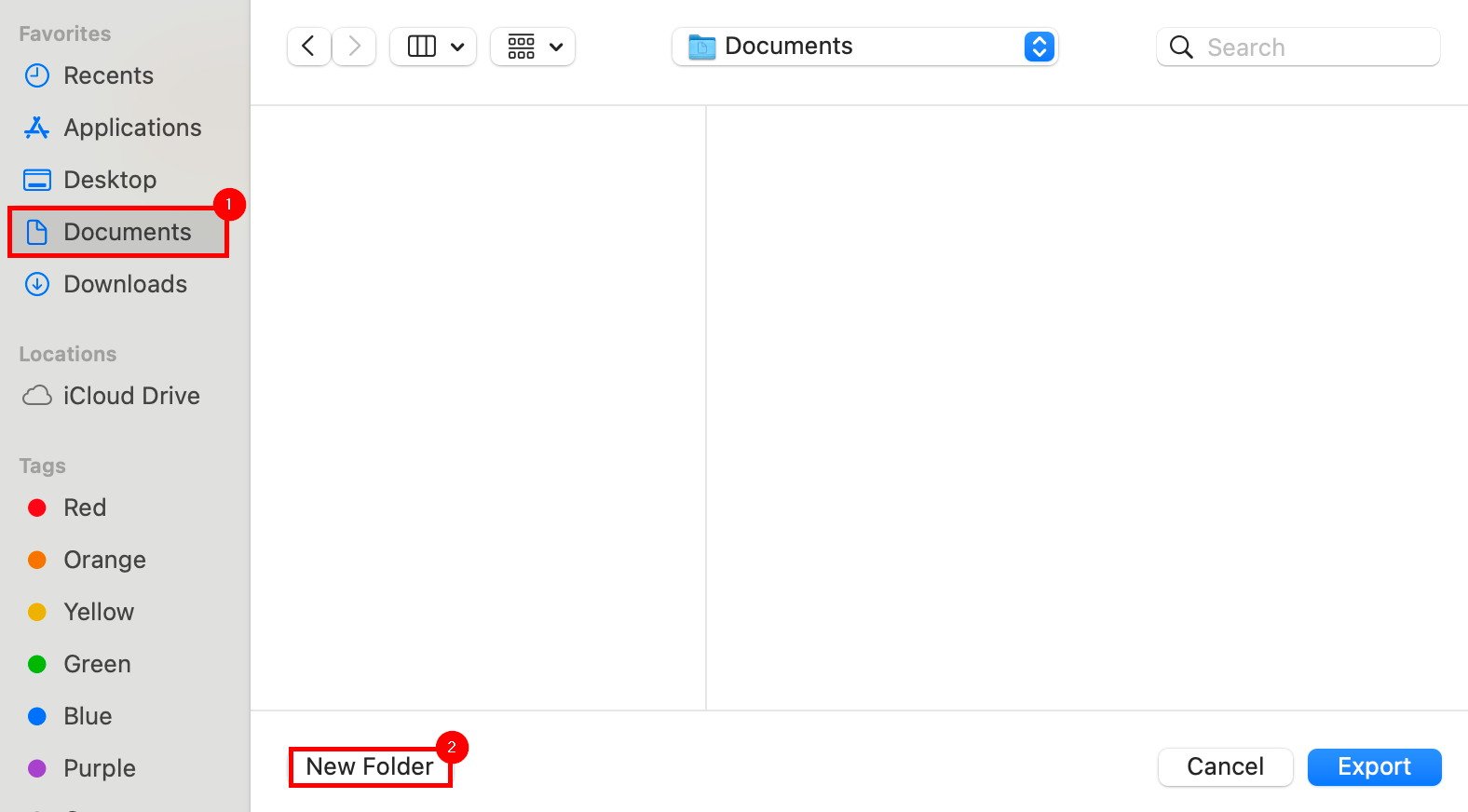
In the New Folder dialogue, enter My Photos as the folder name, and select Create.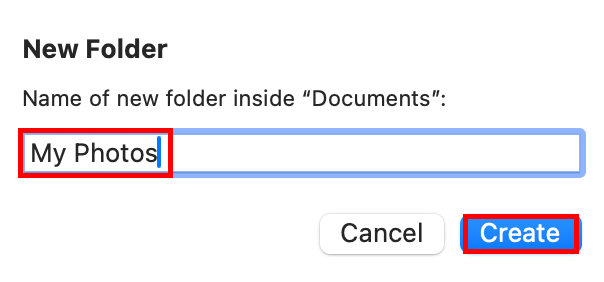
Select the newly made My Photos folder within Finder, and select Export from the bottom right.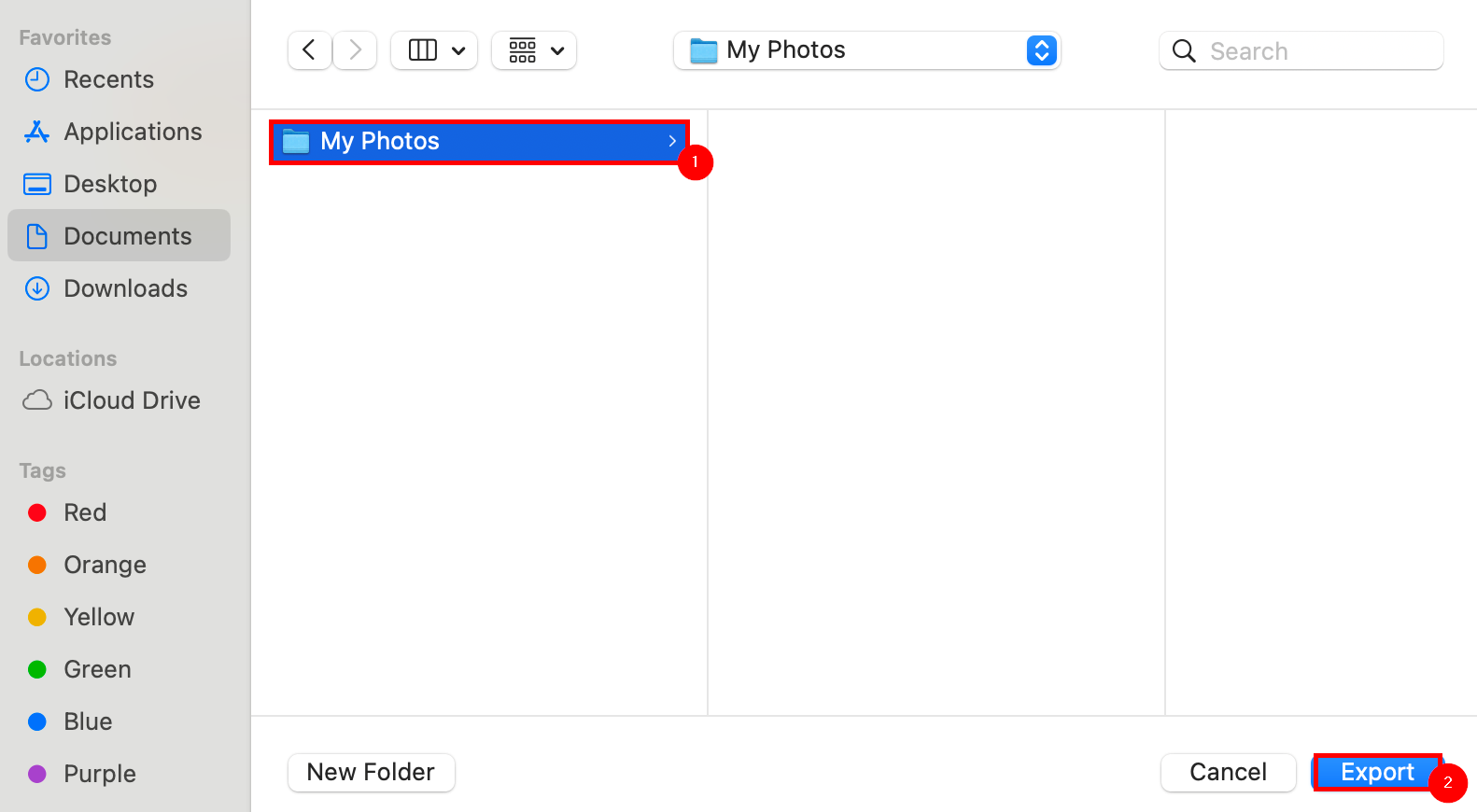
The MacBook will take some time to process the export of all photos.
When complete, view the newly made My Photos folder to verify the export's success.
Export Passwords & Bookmarks from Safari
Ensure Safari is open.
From Safari, select the File dropdown from the Menu Bar, then select Export, then select Passwords... or Bookmarks...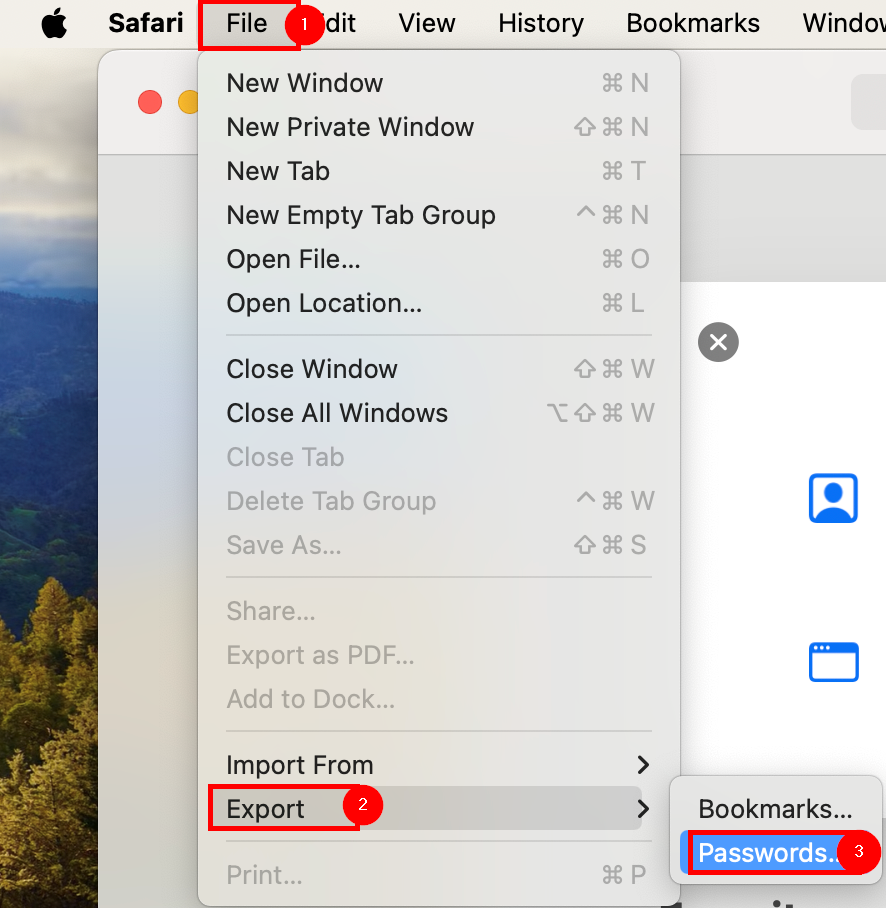
From the confirmation dialogue, select Export Passwords... or Export Bookmarks...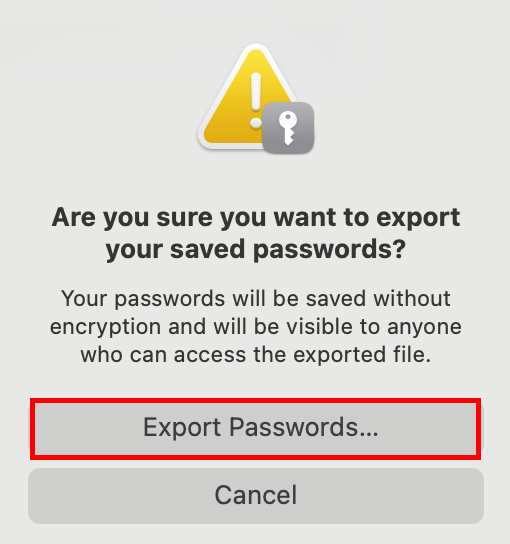
From the Export Passwords or Export Bookmarks window, in the Save As field enter Safari Passwords or Safari Bookmarks. In the Where field, select Documents.
Select Save when complete.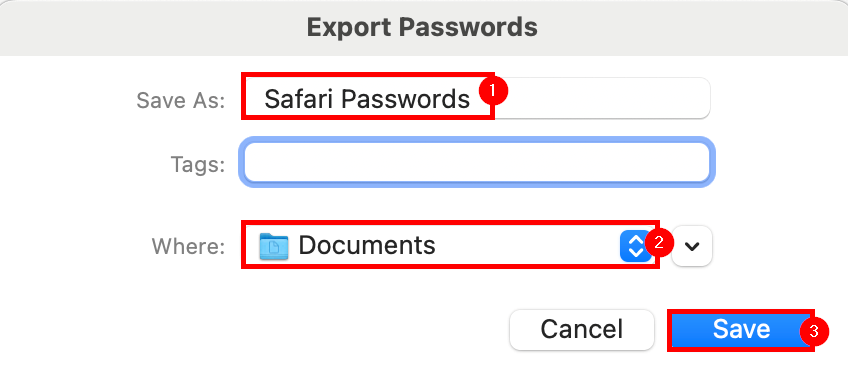
A dialogue window will open requesting your sign-on password.
Enter it, and select OK.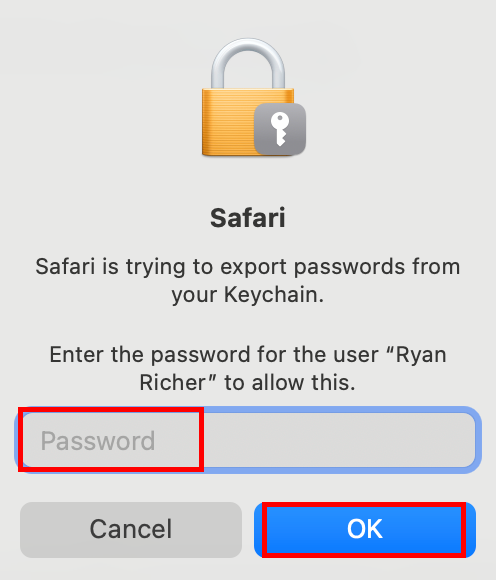
Safari will export all saved passwords.
To confirm successful export, open Finder, and select Documents from the left menu pane.
Safari Passwords.csv or Safari Bookmarks.html should be present in the list of files.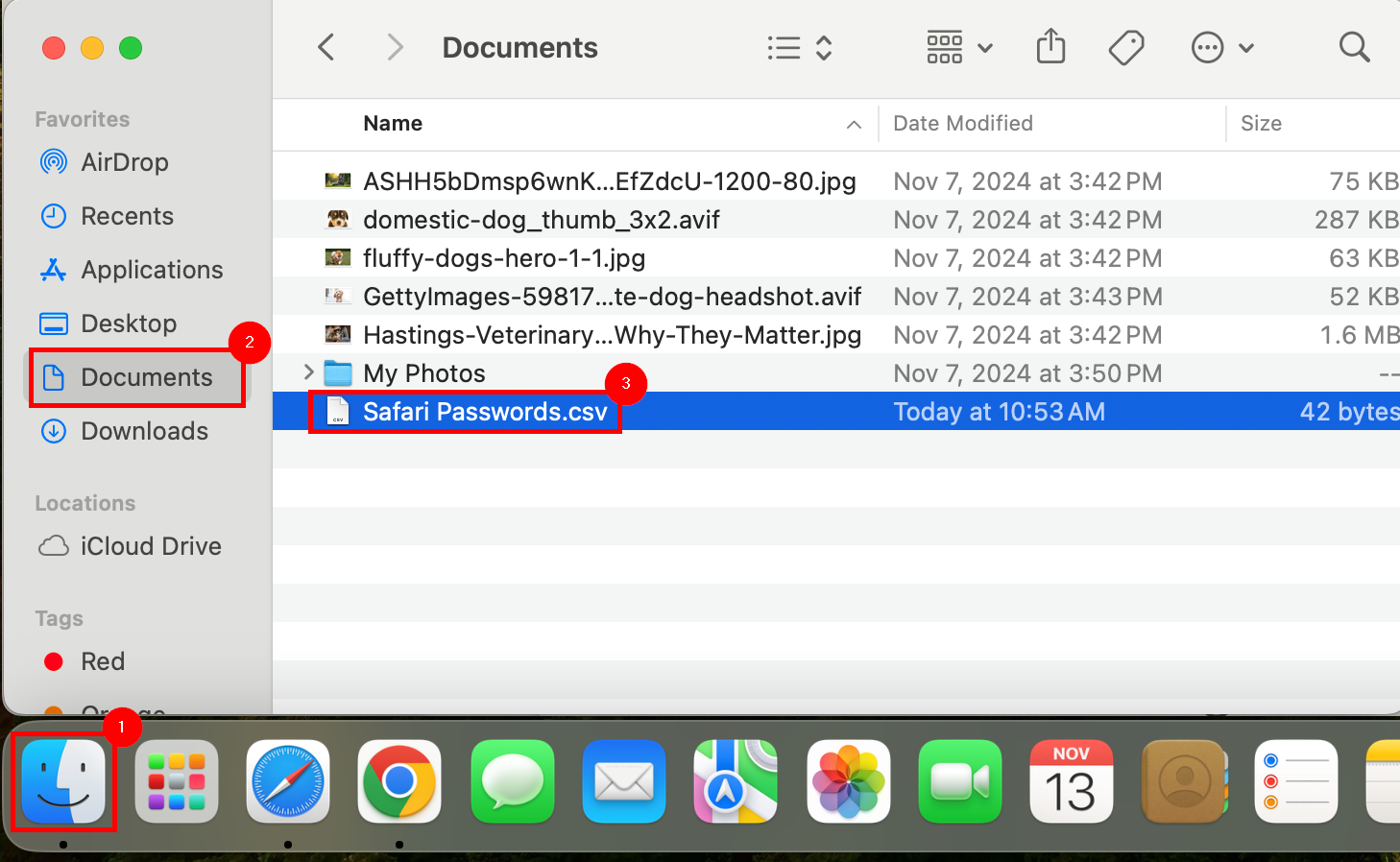
The Safari Password export is unprotected, and the passwords within are all in plaintext.
Once the passwords are re-imported, or referenced, the Safari Password file should be deleted, and the trash emptied.
Self-Migration Checklist
- Export all photos and videos from the Photos app, and any content from iMovie
- Sync Google Chrome profile information, or export Safari passwords & bookmarks
- Optional: Manually backup files to OneDrive on the web, if the OneDrive application is not operating correctly
- Ensure OneDrive is syncing, and files from Downloads are moved to the Desktop, Documents, or OneDrive folders