# Backup folders & files with OneDrive online
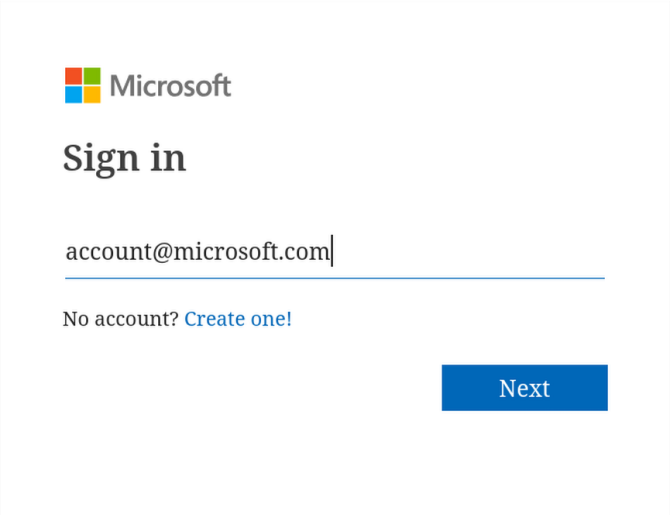
[****Log into OneDrive here****](https://onedrive.live.com/login)****,**** utilizing a ****Microsoft Account.****
[](https://richerkb.ca/uploads/images/gallery/2026-05/OmTqkX91pcpTzYXb-image.png)
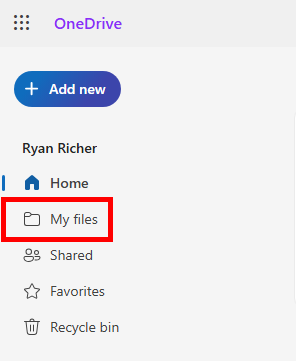
Once logged in, **OneDrive Home** will appear.
From the left menu pane, select ****My Files****.
[](https://richerkb.ca/uploads/images/gallery/2026-05/dWWOUlUpAnFY72RA-image.png)
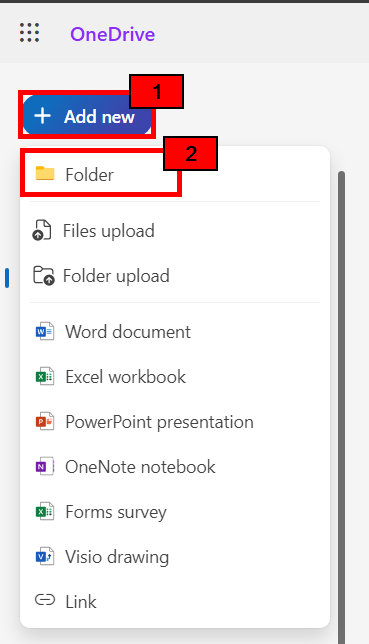
Within **My Files**, select ****+Add New****, then select ****Folder****.
[](https://richerkb.ca/uploads/images/gallery/2026-05/PqQfvlVKS3sCSchh-image.png)
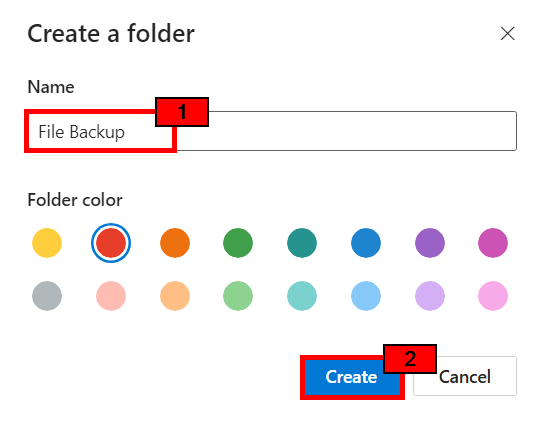
The **Create a folder** window will open.
Name the folder ****File Backup****, change its colour as desired, and select ****Create****.
[](https://richerkb.ca/uploads/images/gallery/2026-05/iiWJtDtSJrW9vZpd-image.png)
From **My Files**, select the new ****File Backup**** folder.[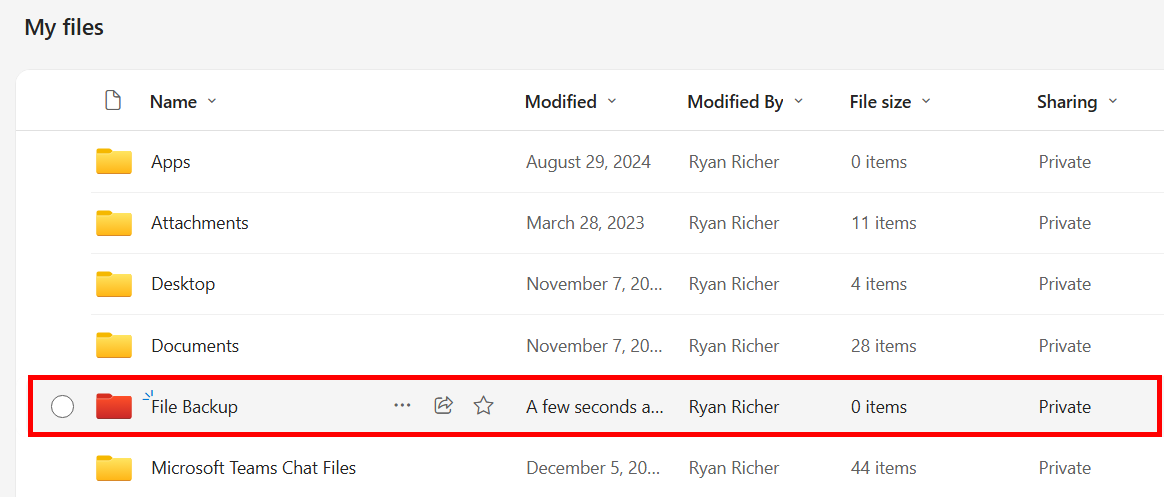](https://richerkb.ca/uploads/images/gallery/2026-05/bnTgnI4WrxHHytGb-image.png)
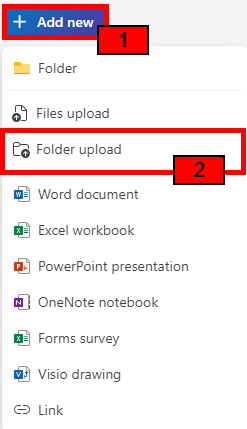
Within **File Backup**, select ****+Add New****, then select ****Folder Upload****.
[](https://richerkb.ca/uploads/images/gallery/2026-05/Nyy1kNM6CtpwIxdY-image.png)
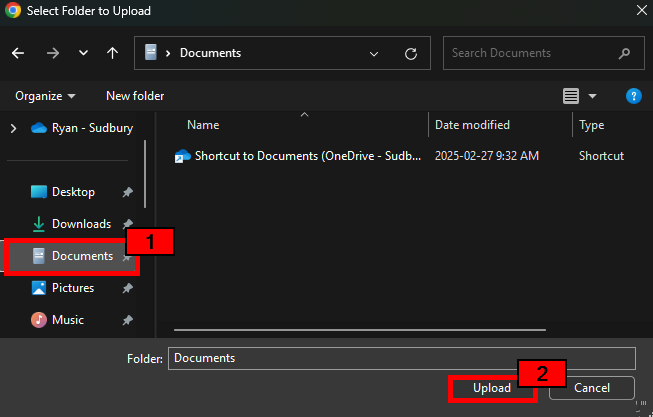
A **File Explorer** (Windows) or **Finder** (Mac) window will open.
From the left menu pane, select ****Desktop****, ****Documents****, ****Downloads****, or ****Pictures****.
Then, select ****Upload****.
[](https://richerkb.ca/uploads/images/gallery/2026-05/TOqHP4mwDzzP8OVh-image.png)
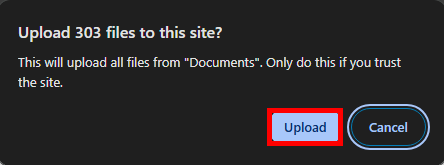
A prompt will appear notifying of the quantity of items in the folder, and a confirmation to begin the upload.
Select ****Upload****.
[](https://richerkb.ca/uploads/images/gallery/2026-05/ZV0BaKAYSRwpmPIK-image.png)
While files upload to OneDrive, ****leave the browser page open****.
Closing the browser page or shutting down the computer will interrupt the download process.
If a folder is of a significant size, its contents may need to be uploaded in smaller chunks.
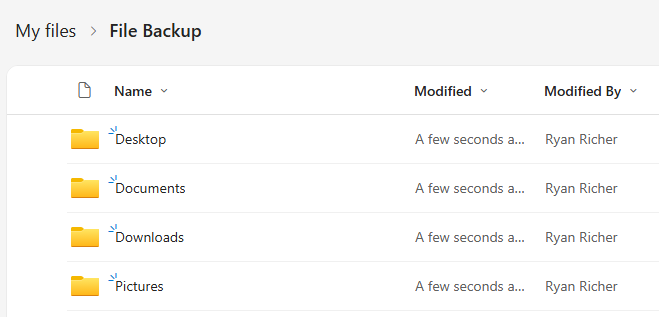
Repeat the upload steps until the ****Desktop****, ****Documents****, ****Downloads****, and ****Pictures**** folders are uploaded into OneDrive.
Mac requires pictures to be [****exported from the photos app****](http://kb.sudburycatholicschools.ca/books/macbook-user-guide/page/export-from-the-photos-app).
[](https://richerkb.ca/uploads/images/gallery/2026-05/AzYCdv5Yt3dPs6zI-image.png)
When complete, all uploaded files will be present and accessible through OneDrive, both on the web, and through a synchronized application.