While files upload to OneDrive, ****leave the browser page open****. Closing the browser page or shutting down the computer will interrupt the download process. If a folder is of a significant size, its contents may need to be uploaded in smaller chunks.
Repeat the upload steps until the ****Desktop****, ****Documents****, ****Downloads****, and ****Pictures**** folders are uploaded into OneDrive. Mac requires pictures to be [****exported from the photos app****](http://kb.sudburycatholicschools.ca/books/macbook-user-guide/page/export-from-the-photos-app).
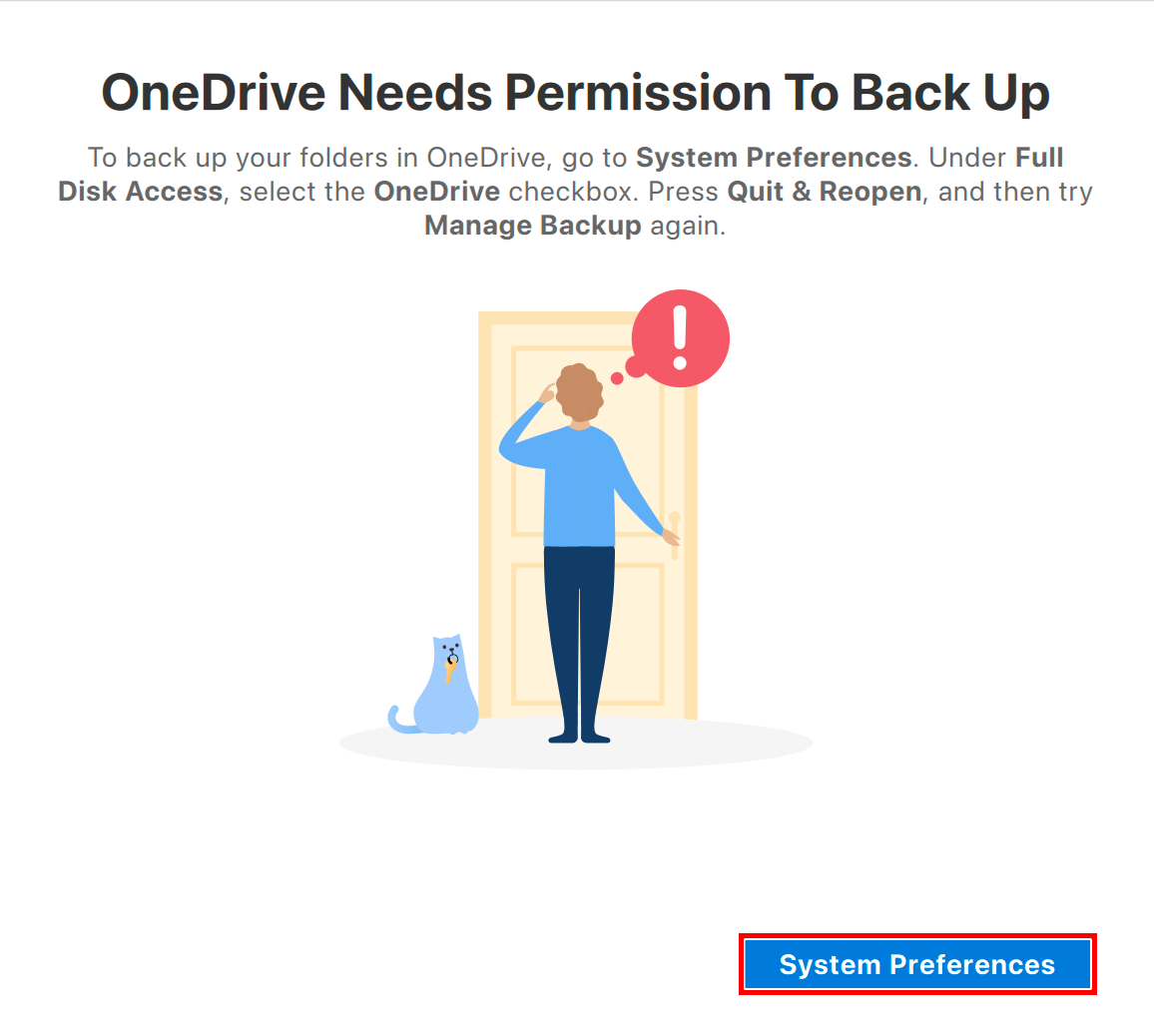
[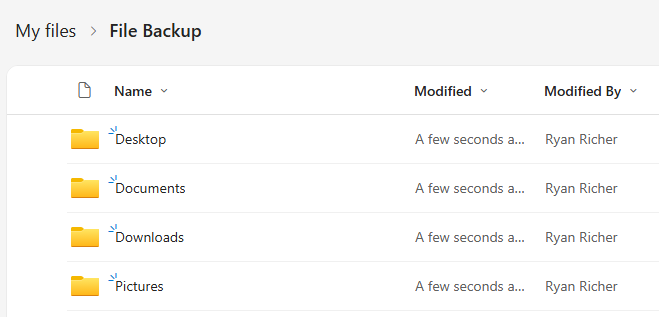](https://richerkb.ca/uploads/images/gallery/2026-05/AzYCdv5Yt3dPs6zI-image.png) When complete, all uploaded files will be present and accessible through OneDrive, both on the web, and through a synchronized application. # Setup OneDrive 1. Launch ****Finder**** from the dock. Select ****Applications**** from the left menu pane, then select ****OneDrive**** from the **applications** list. [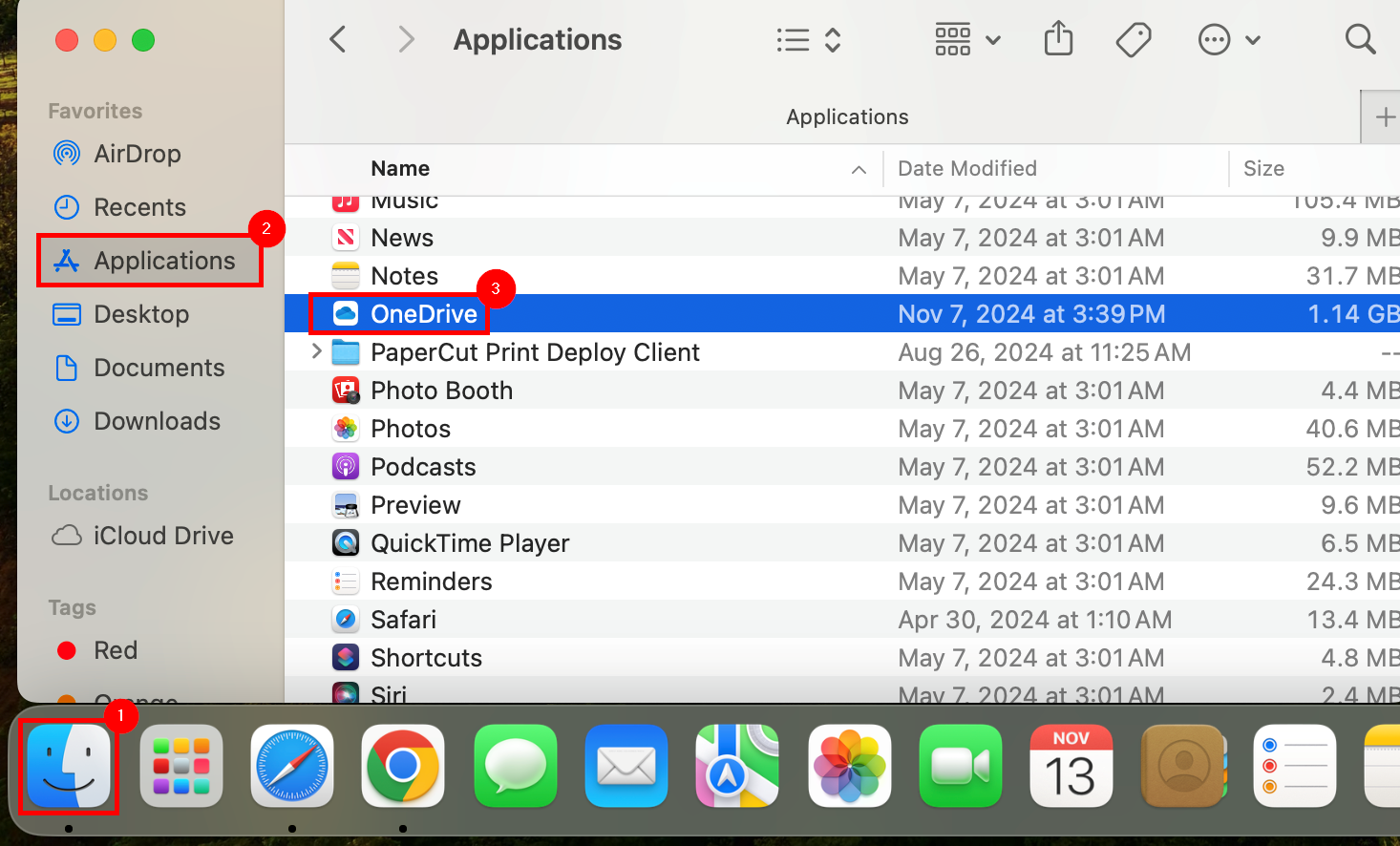](https://richerkb.ca/uploads/images/gallery/2026-05/7XfWCKPxufwRfJ5o-image.png) 2. After a few moments, the **Set Up OneDrive** window will open. For the email address, utilize a ****Microsoft Account****. Select ****Sign In****. [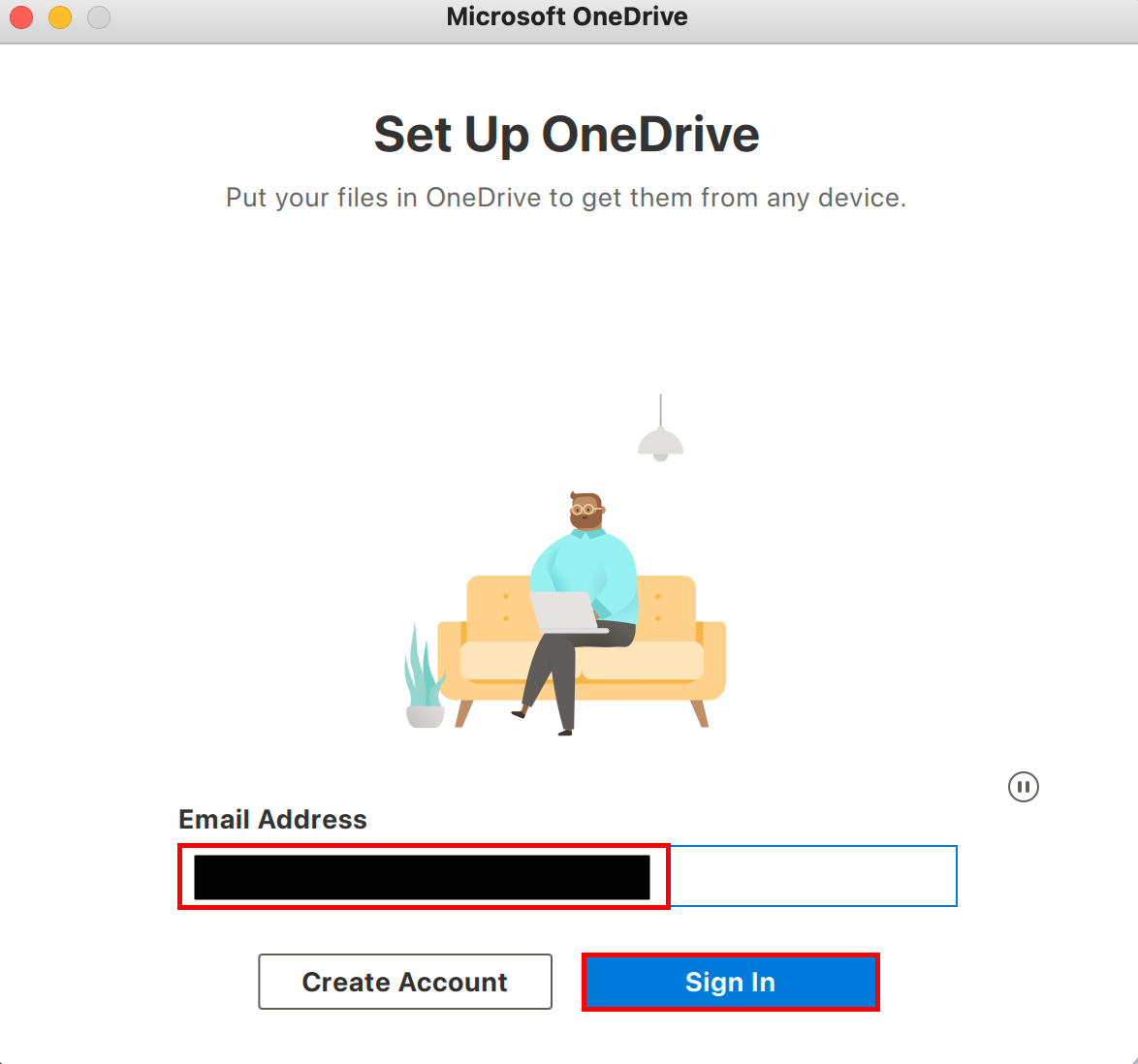](https://richerkb.ca/uploads/images/gallery/2026-05/gppPRMAeoAbsWsHJ-onedrive-login.png) 3. If an **Office 365** redirection occurs, entering the same account information again will be required. [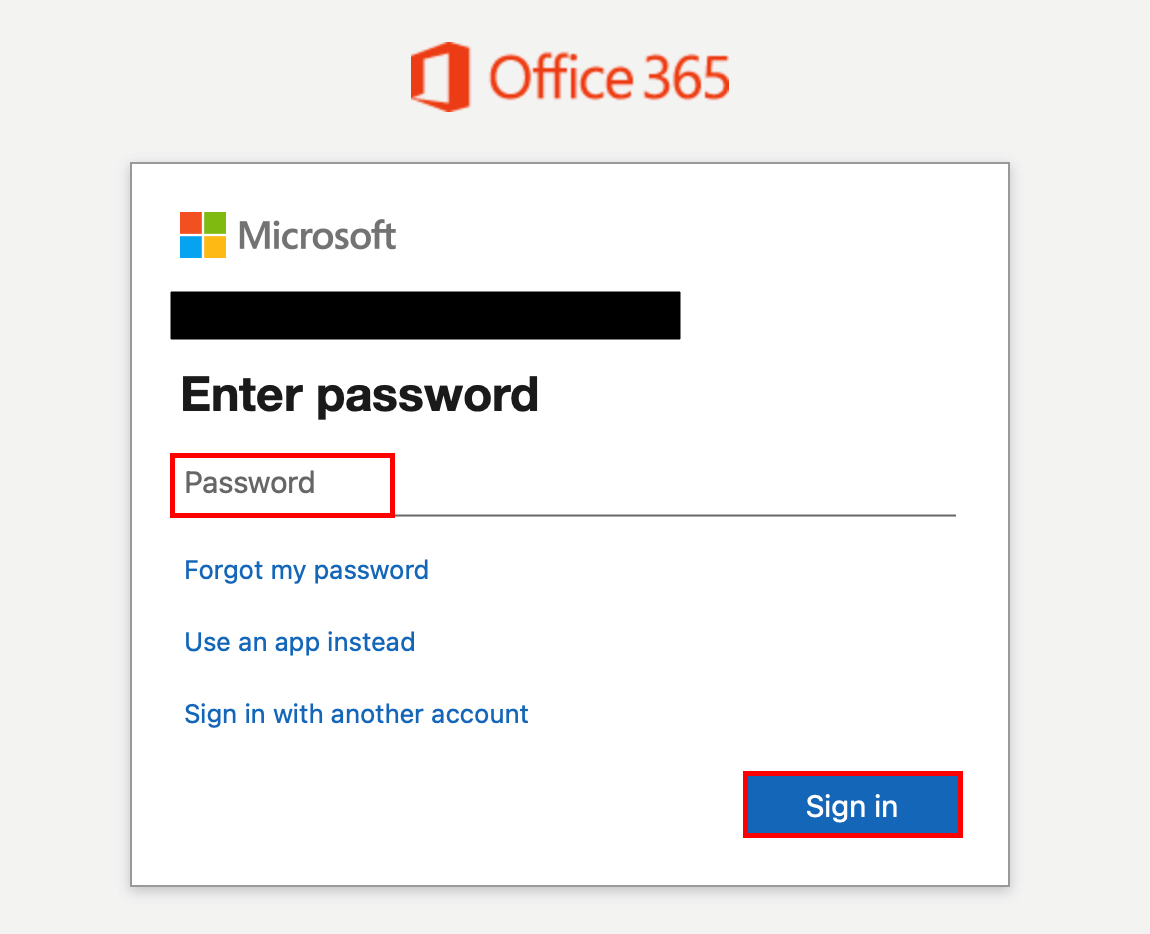](https://richerkb.ca/uploads/images/gallery/2026-05/zpjq08kBRRotTS7m-onedrive-login-2.png) 4. On the **Your OneDrive Folder** window, select ****Next****. [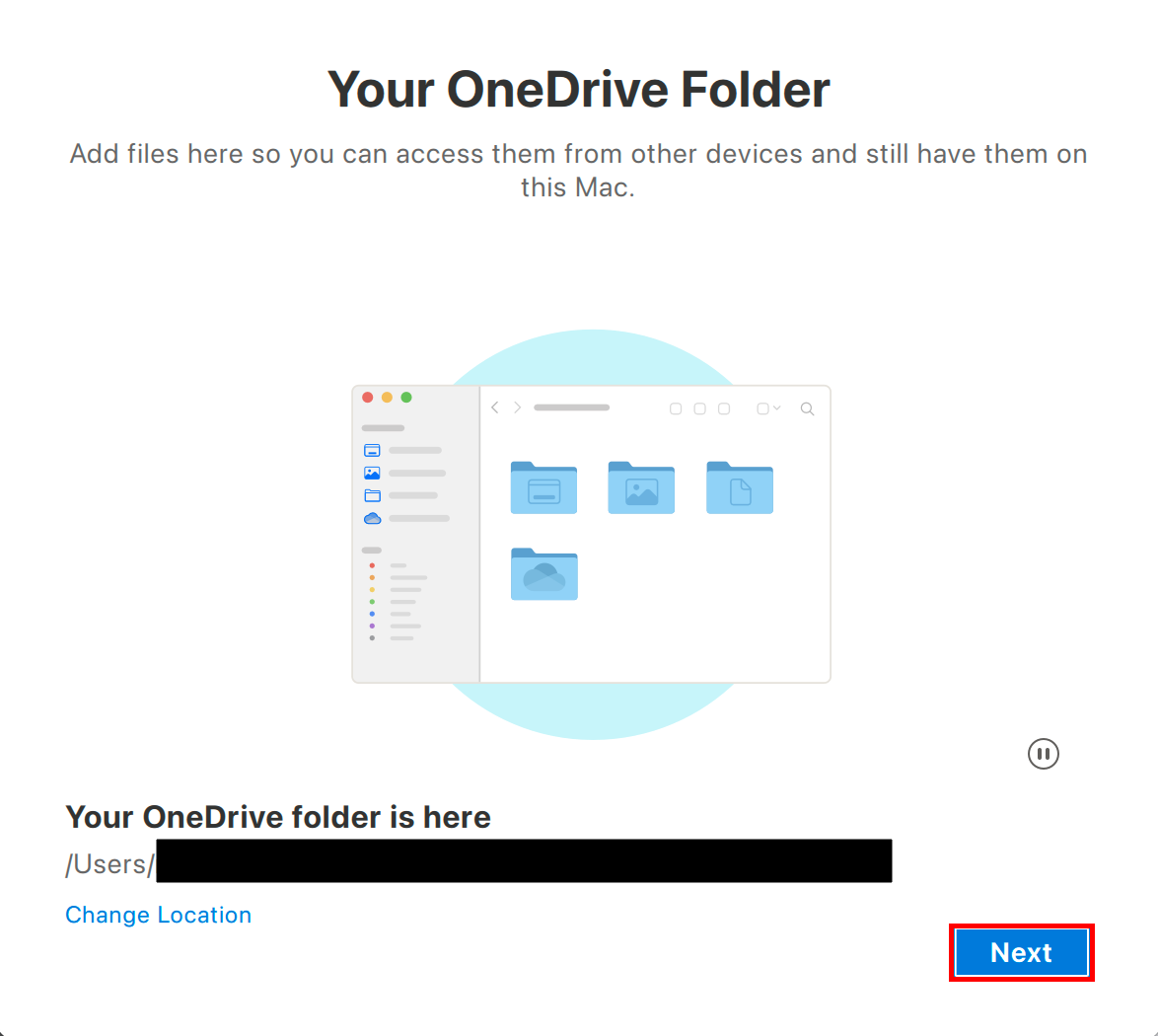](https://richerkb.ca/uploads/images/gallery/2026-05/37VyIEASvBN1ZNOm-onedrive-login-3.png) 5. On the **Finish Setting Up** window, select ****Next****. [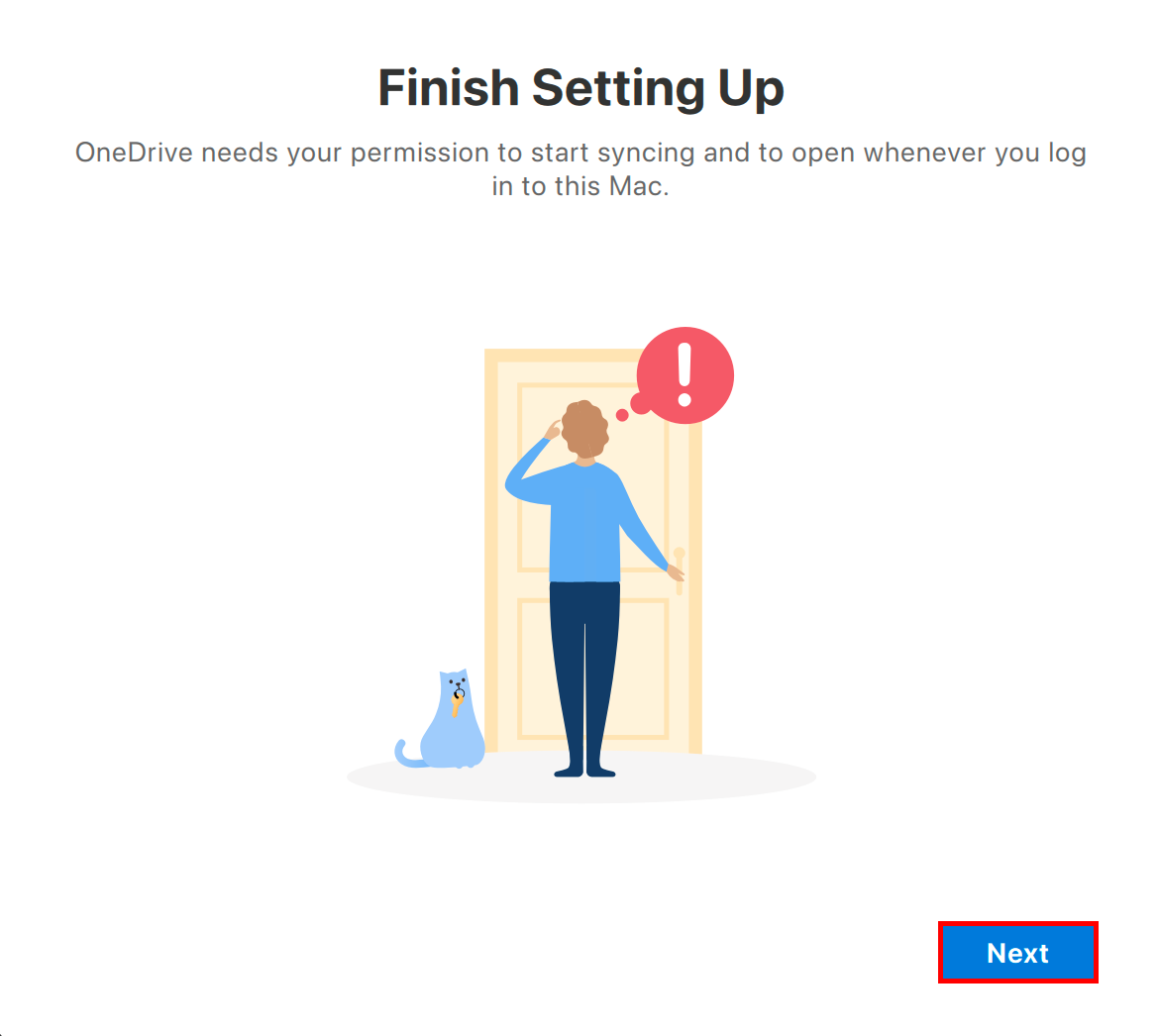](https://richerkb.ca/uploads/images/gallery/2026-05/joos3P6QsTRSY56d-image.png) 6. A dialogue will open for sync permission. Select ****OK****. [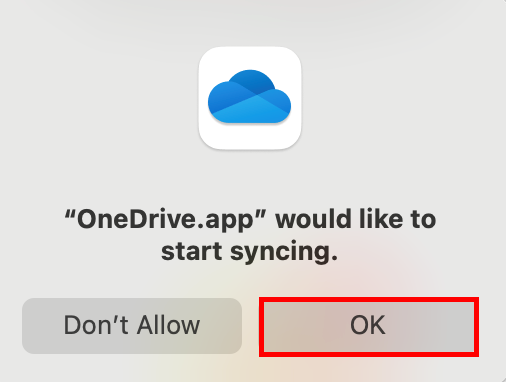](https://richerkb.ca/uploads/images/gallery/2026-05/euFuDIIa4ehI0GD7-image.png) 7. From the next ****5 windows****, select ****Next, Next, Next, Later,**** and ****Open OneDrive Folder****. [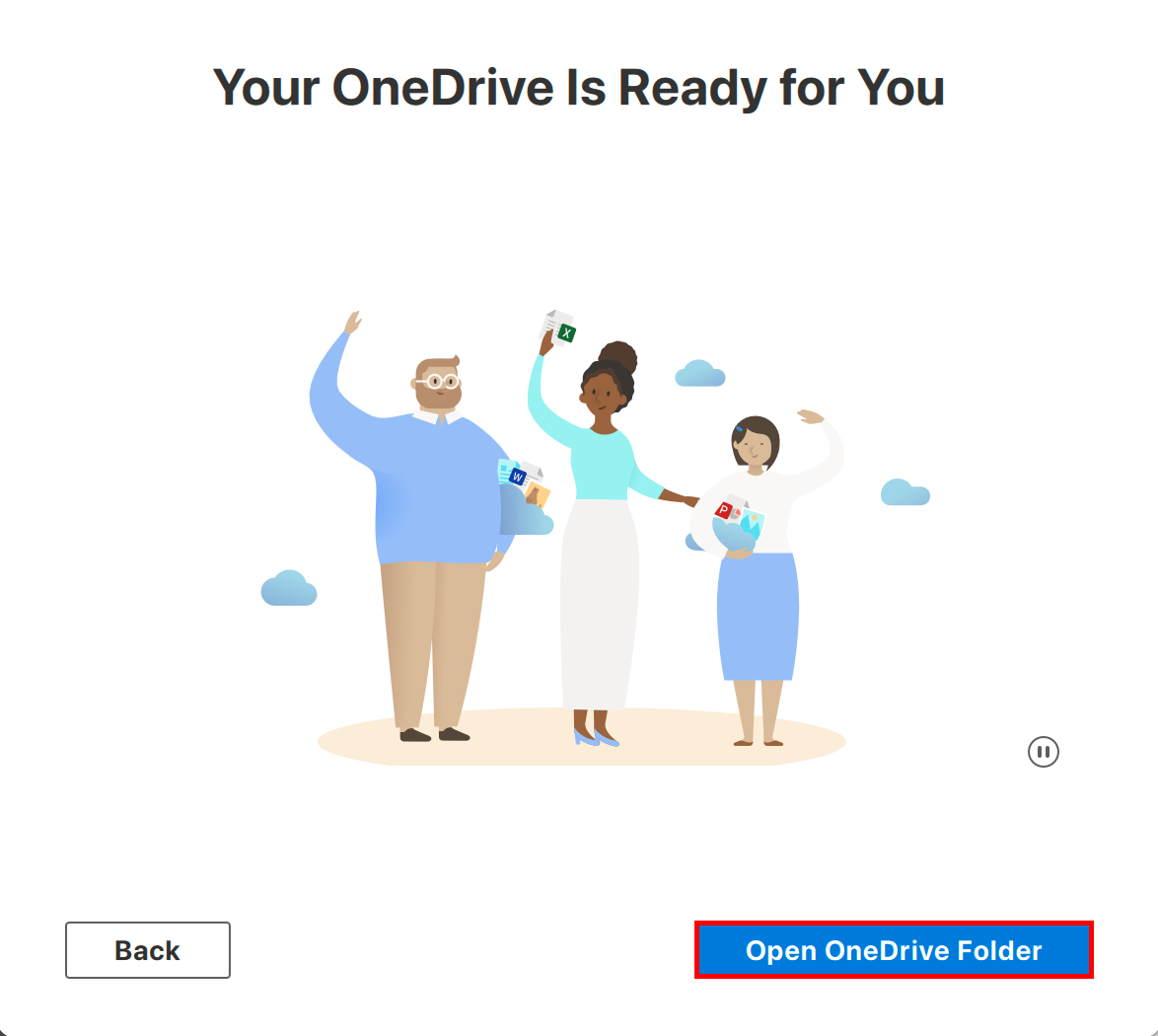](https://richerkb.ca/uploads/images/gallery/2026-05/SD9TEmL19JOLD66w-image.png) 8. From the right of the **Menu Bar**, select the ****OneDrive Icon****. From the menu that appears, select the ****Settings Gear****. From **Settings**, select Preferences. [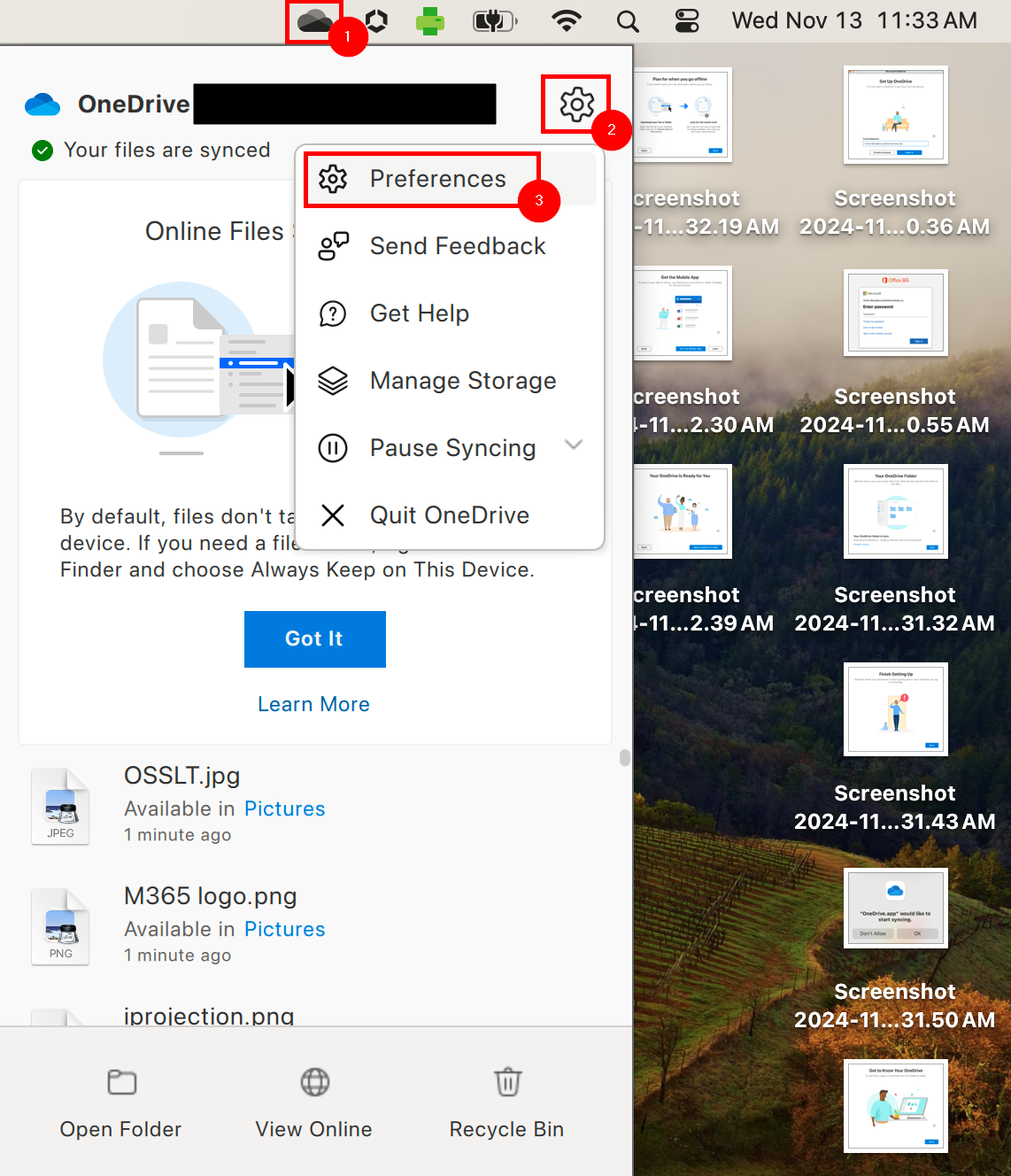](https://richerkb.ca/uploads/images/gallery/2026-05/1DqQ7Lk9T708m7pS-onedrive-login-4.png) 9. From **Preferences**, select the ****Backup**** tab, then select ****Manage Backup****. [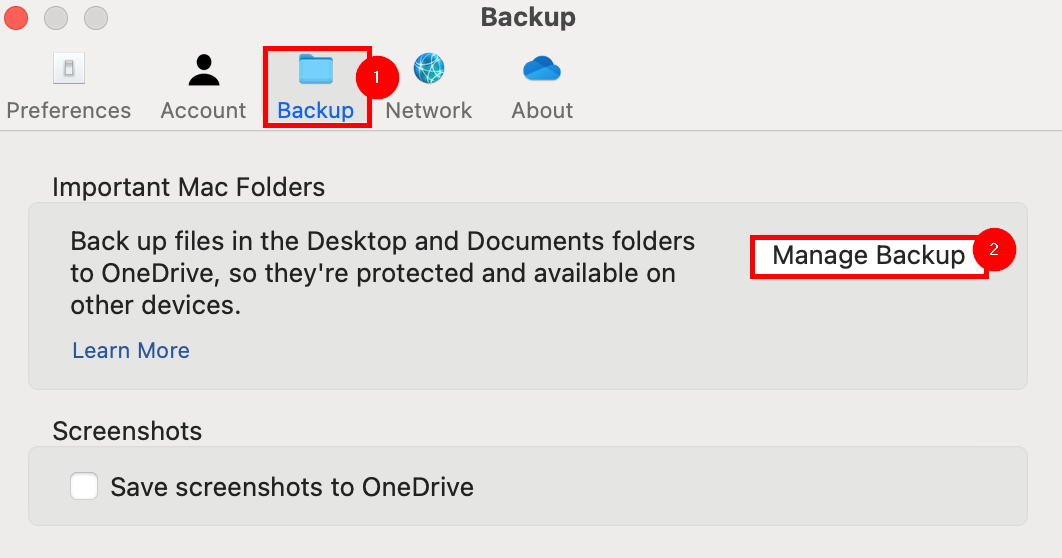](https://richerkb.ca/uploads/images/gallery/2026-05/ErgiQoLcbapIYFRl-image.png) 10. The **OneDrive Needs Permission to Back Up** window may open. Select ****System Preferences****This is a vital step to ensure full data backup of all files within the **OneDrive**, **Desktop**, and **Documents** folders. Not all MacBooks may have these folders configured for backup due to procedure changes over time. As such, verifying these settings is required to ensure files and folders are retained.
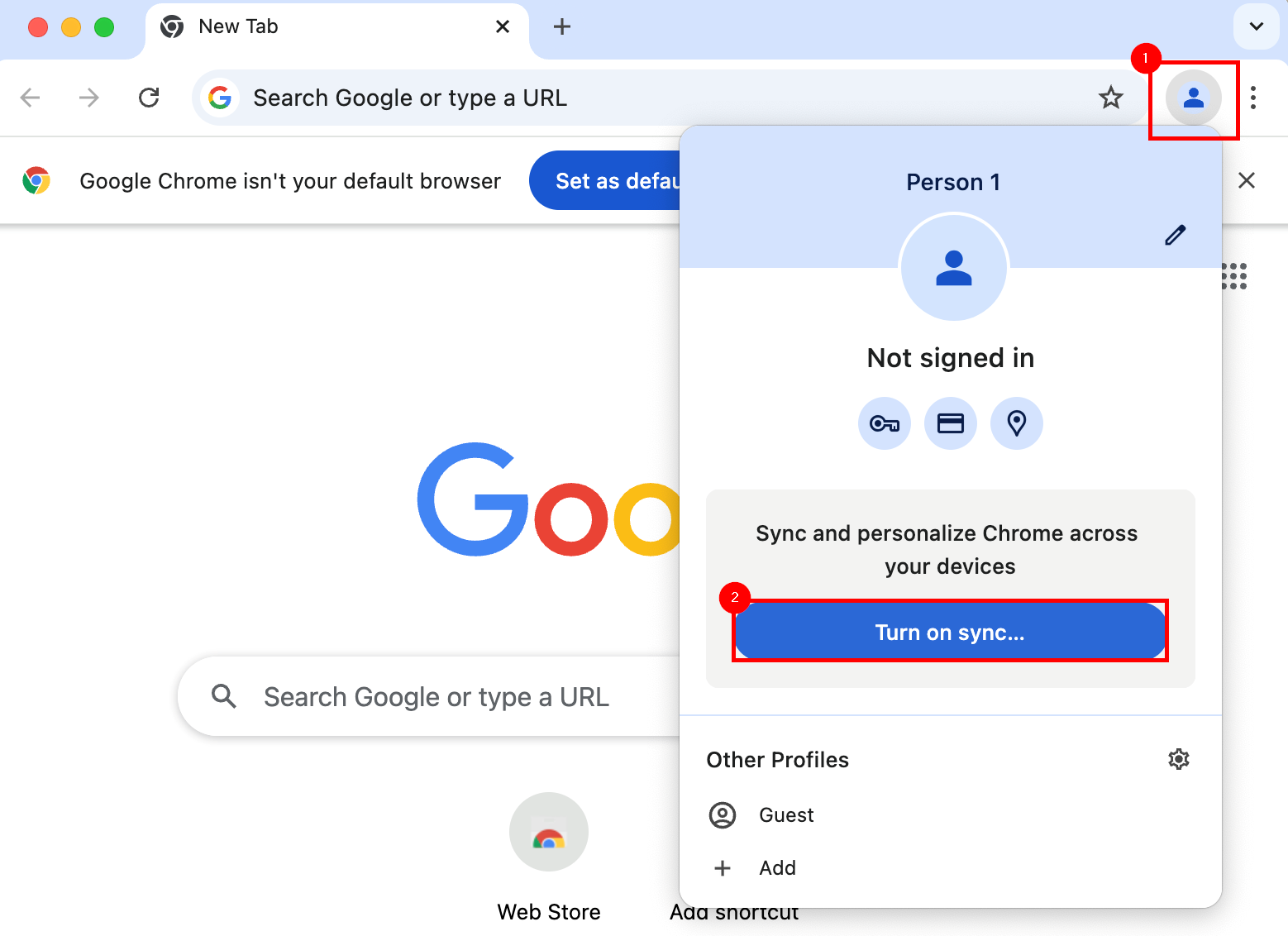
[](https://richerkb.ca/uploads/images/gallery/2026-05/gyo2MmTAu5MKj8nO-image.png) 11. From the **System Preferences** menu, select the ****Slider**** to the right of **OneDrive**. [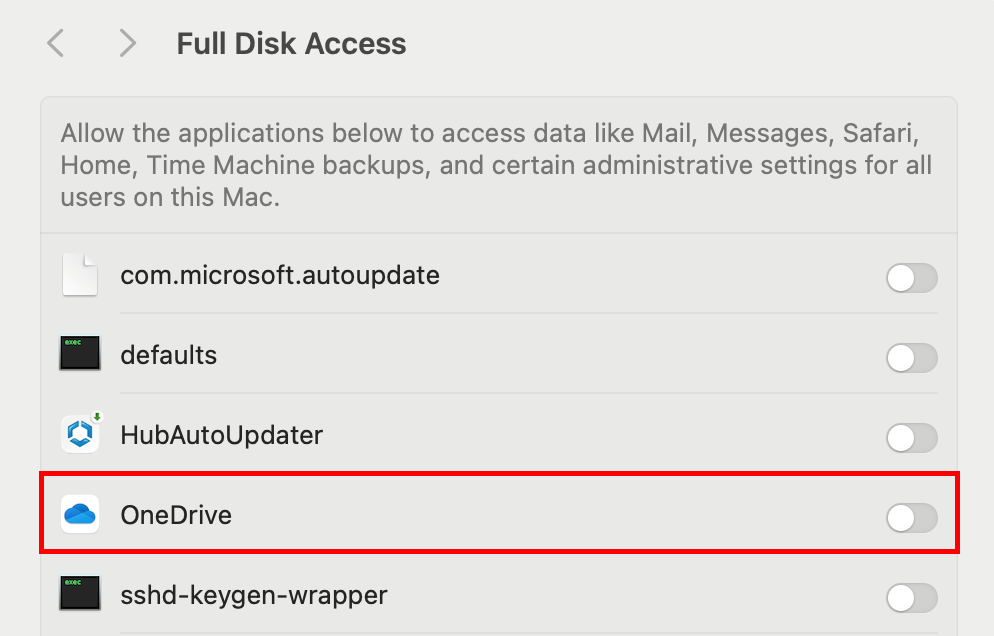](https://richerkb.ca/uploads/images/gallery/2026-05/1f8uAt6GU4OS6HTb-image.png) 12. The MacBook will prompt for your login password. Enter it, and select ****Modify Settings****. [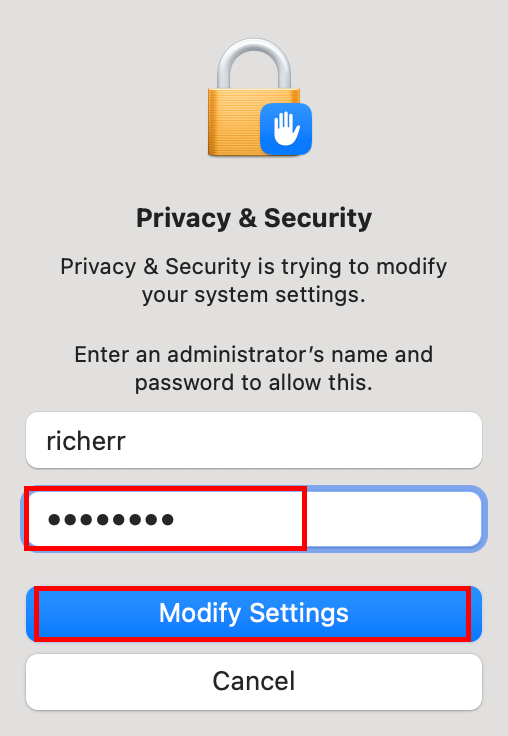](https://richerkb.ca/uploads/images/gallery/2026-05/RhIWotflwY8gW6ad-image.png) 13. A dialogue will open, notifying that the change will not occur until **OneDrive** has restarted. Select ****Quit & Reopen****. [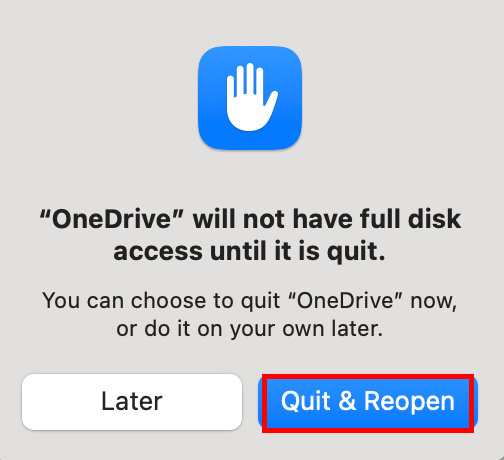](https://richerkb.ca/uploads/images/gallery/2026-05/TamibS8m3M4XkCKq-image.png) 14. Repeat steps ****\#8**** and ****\#9****, to arrive at the **Manage Folder Backup* window. Select both the ****Desktop**** and ****Documents**** folders, and select ****Start Backup****. [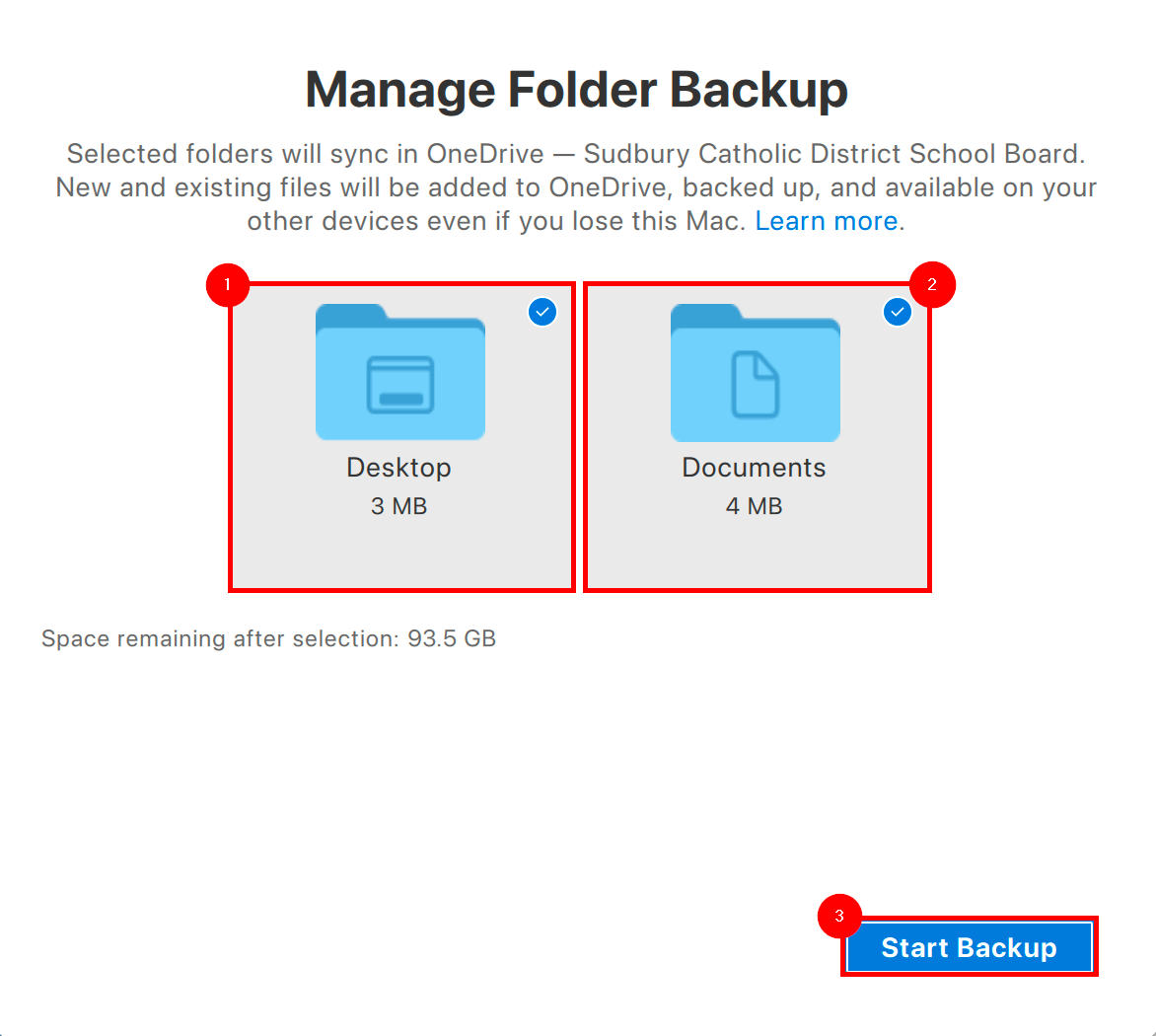](https://richerkb.ca/uploads/images/gallery/2026-05/e1DAy5Bnfp8ui0WH-image.png) 15. OneDrive will begin backing up present files, and populating folders with existing files. Select ****View Sync Progress**** to observe its completion. [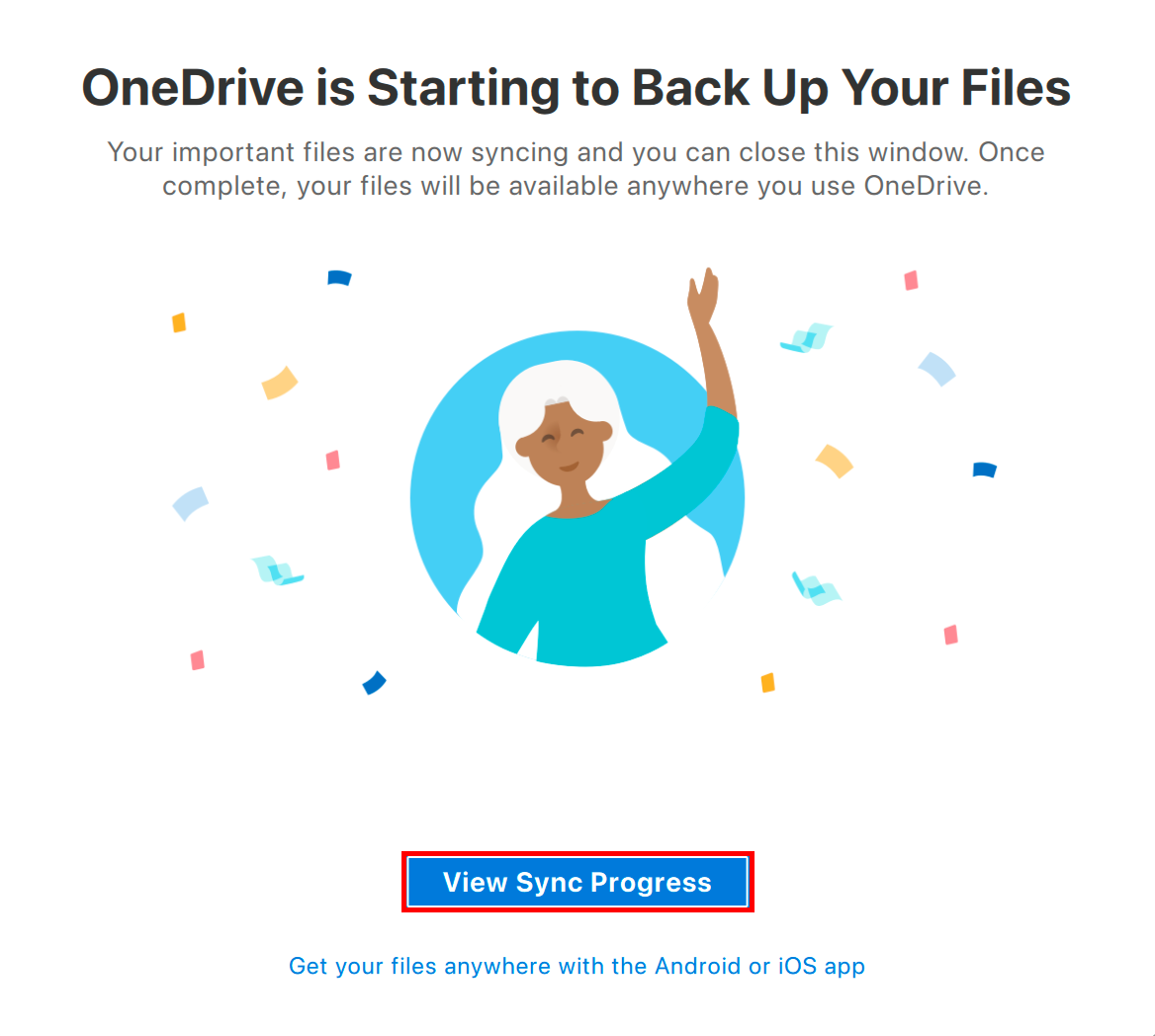](https://richerkb.ca/uploads/images/gallery/2026-05/pIgajfkI3c87P57E-image.png) 16. When complete, the **OneDrive** menu will read ****Your files are synced**** [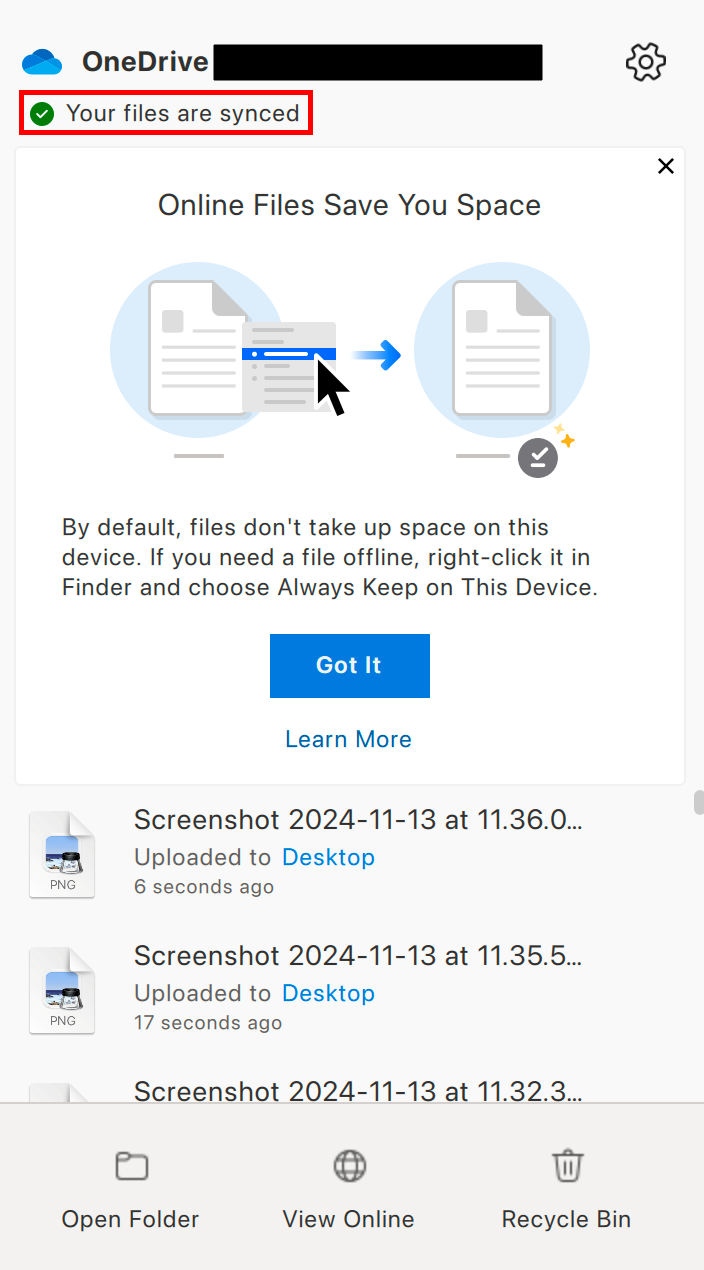](https://richerkb.ca/uploads/images/gallery/2026-05/5UXafPfMsWg4chgU-onedrive-login-5.png) # Google Chrome # Sync a Google Chrome profile Ensure **Google Chrome** is open. Select the ****Profile**** icon from the top left, then select ****Turn on sync...****An account may already be associated with a **Chrome** profile. If so, take note of the account used, and ensure it is actively synching with Google's services.
[](https://richerkb.ca/uploads/images/gallery/2026-05/pDCoqU89jnSfdMY5-image.png) At the **Sign in to Chrome** prompt, enter a ****Google Account****, and select ****Next****.[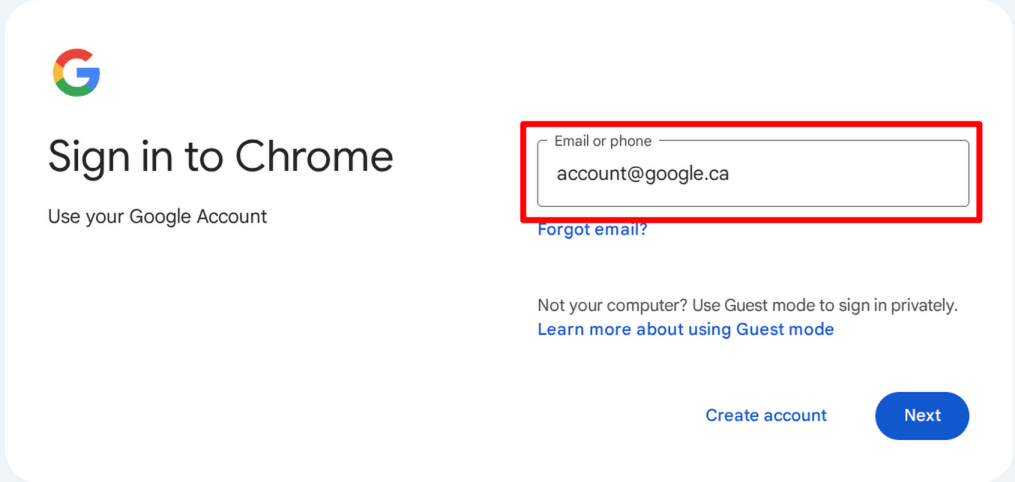](https://richerkb.ca/uploads/images/gallery/2026-05/8niDIwUiipNKCOCp-image.png) After successful login, the **Enterprise Management** dialogue will appear. ****Check the box**** for **Add existing browsing data to managed profile**, then select ****Continue****. [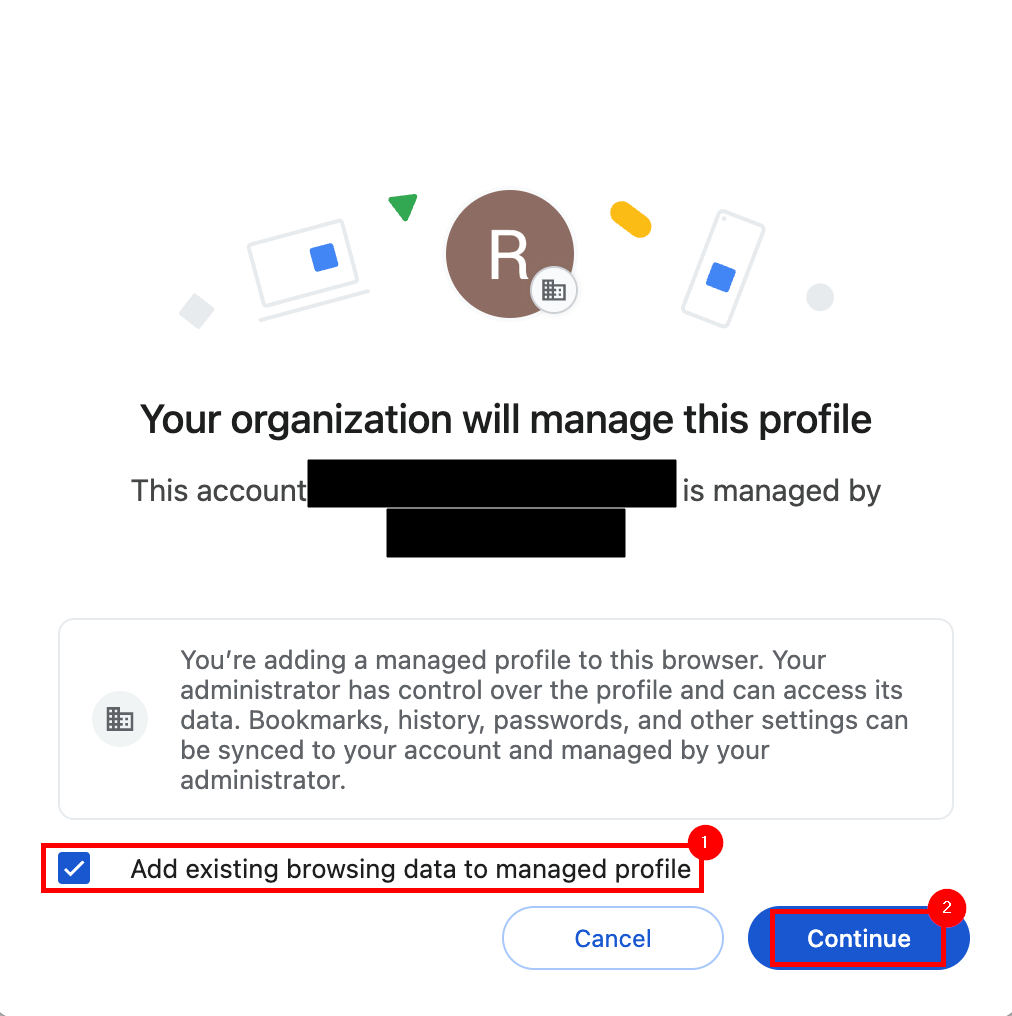](https://richerkb.ca/uploads/images/gallery/2026-05/hxJSW99wMQ0vMAez-google-1.png) From the **Turn on sync** dialogue, select ****Yes, I'm in**** from the bottom right. [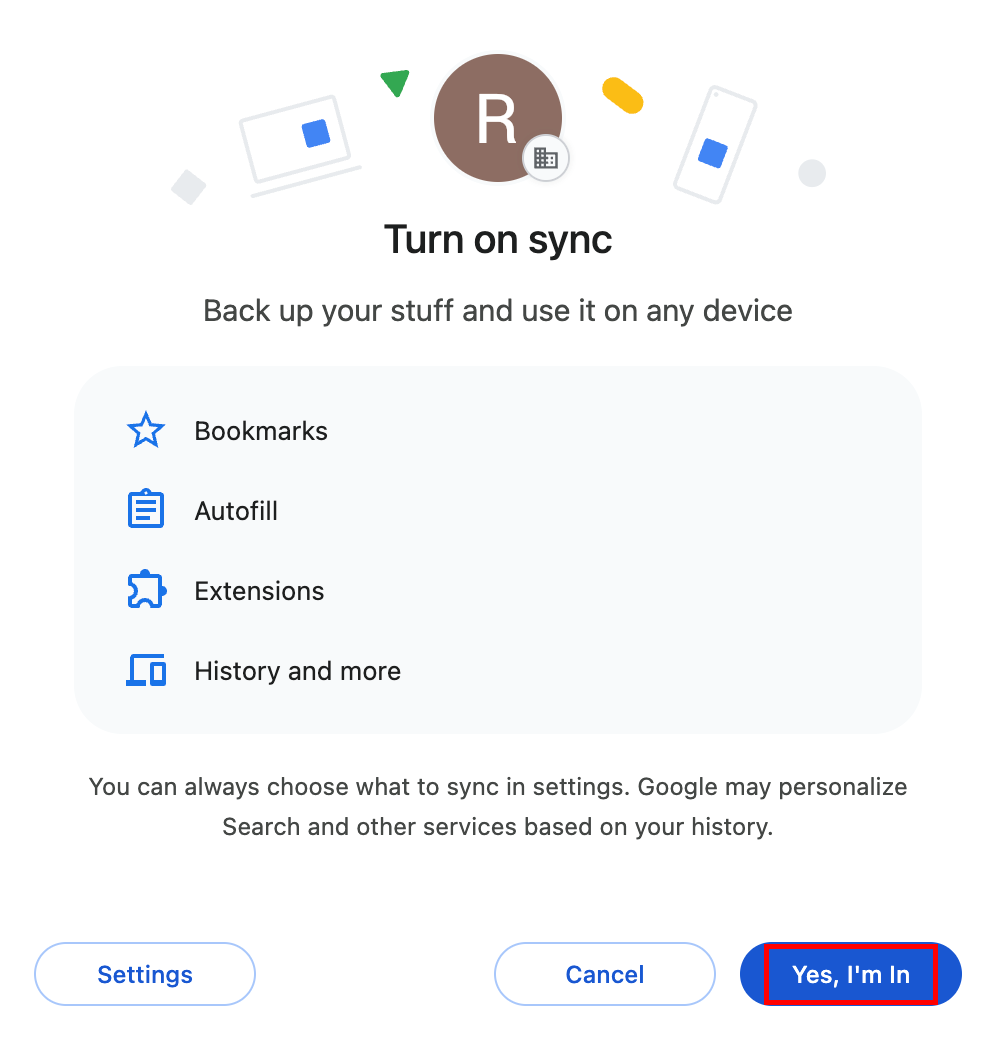](https://richerkb.ca/uploads/images/gallery/2026-05/kIcb1denHdtscTmK-image.png) When complete, verify success by selecting the ****Profile**** button from the top right of **Chrome** once again, and ensure that ****Sync in on**** is displayed. [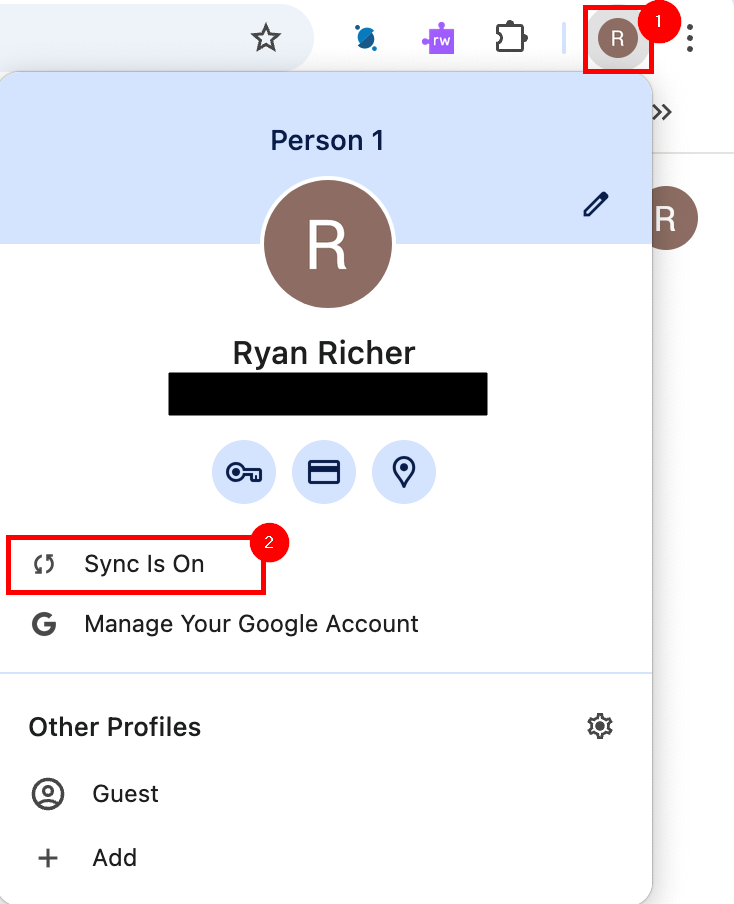](https://richerkb.ca/uploads/images/gallery/2026-05/njQOk2xktHXbT0nB-google-2.png)