# OneDrive

# Backup folders & files with OneDrive online

[****Log into OneDrive here****](https://onedrive.live.com/login)****,**** <span style="white-space: pre-wrap;">utilizing a </span>****Microsoft Account.****  
[![image.png](https://richerkb.ca/uploads/images/gallery/2026-05/scaled-1680-/OmTqkX91pcpTzYXb-image.png)](https://richerkb.ca/uploads/images/gallery/2026-05/OmTqkX91pcpTzYXb-image.png)

<span style="white-space: pre-wrap;">Once logged in, </span>**OneDrive Home** will appear.  
<span style="white-space: pre-wrap;">From the left menu pane, select </span>****My Files****.  
[![image.png](https://richerkb.ca/uploads/images/gallery/2026-05/scaled-1680-/dWWOUlUpAnFY72RA-image.png)](https://richerkb.ca/uploads/images/gallery/2026-05/dWWOUlUpAnFY72RA-image.png)

<span style="white-space: pre-wrap;">Within </span>**My Files**<span style="white-space: pre-wrap;">, select </span>****+Add New****<span style="white-space: pre-wrap;">, then select </span>****Folder****.  
[![image.png](https://richerkb.ca/uploads/images/gallery/2026-05/scaled-1680-/PqQfvlVKS3sCSchh-image.png)](https://richerkb.ca/uploads/images/gallery/2026-05/PqQfvlVKS3sCSchh-image.png)

<span style="white-space: pre-wrap;">The </span>**Create a folder** window will open.  
<span style="white-space: pre-wrap;">Name the folder </span>****File Backup****<span style="white-space: pre-wrap;">, change its colour as desired, and select </span>****Create****.  
[![image.png](https://richerkb.ca/uploads/images/gallery/2026-05/scaled-1680-/iiWJtDtSJrW9vZpd-image.png)](https://richerkb.ca/uploads/images/gallery/2026-05/iiWJtDtSJrW9vZpd-image.png)

<span style="white-space: pre-wrap;">From </span>**My Files**<span style="white-space: pre-wrap;">, select the new </span>****File Backup**** folder.[![image.png](https://richerkb.ca/uploads/images/gallery/2026-05/scaled-1680-/bnTgnI4WrxHHytGb-image.png)](https://richerkb.ca/uploads/images/gallery/2026-05/bnTgnI4WrxHHytGb-image.png)

<span style="white-space: pre-wrap;">Within </span>**File Backup**<span style="white-space: pre-wrap;">, select </span>****+Add New****<span style="white-space: pre-wrap;">, then select </span>****Folder Upload****.  
[![image.png](https://richerkb.ca/uploads/images/gallery/2026-05/scaled-1680-/Nyy1kNM6CtpwIxdY-image.png)](https://richerkb.ca/uploads/images/gallery/2026-05/Nyy1kNM6CtpwIxdY-image.png)

<span style="white-space: pre-wrap;">A </span>**File Explorer** <span style="white-space: pre-wrap;">(Windows) or </span>**Finder** (Mac) window will open.  
<span style="white-space: pre-wrap;">From the left menu pane, select </span>****Desktop****<span style="white-space: pre-wrap;">, </span>****Documents****<span style="white-space: pre-wrap;">, </span>****Downloads****<span style="white-space: pre-wrap;">, or </span>****Pictures****.  
<span style="white-space: pre-wrap;">Then, select </span>****Upload****.  
[![image.png](https://richerkb.ca/uploads/images/gallery/2026-05/scaled-1680-/TOqHP4mwDzzP8OVh-image.png)](https://richerkb.ca/uploads/images/gallery/2026-05/TOqHP4mwDzzP8OVh-image.png)

A prompt will appear notifying of the quantity of items in the folder, and a confirmation to begin the upload.  
<span style="white-space: pre-wrap;">Select </span>****Upload****.  
[![image.png](https://richerkb.ca/uploads/images/gallery/2026-05/scaled-1680-/ZV0BaKAYSRwpmPIK-image.png)](https://richerkb.ca/uploads/images/gallery/2026-05/ZV0BaKAYSRwpmPIK-image.png)

<p class="callout danger"><span style="white-space: pre-wrap;">While files upload to OneDrive, </span>****leave the browser page open****.  
Closing the browser page or shutting down the computer will interrupt the download process.  
If a folder is of a significant size, its contents may need to be uploaded in smaller chunks.</p>

<p class="callout success"><span style="white-space: pre-wrap;">Repeat the upload steps until the </span>****Desktop****<span style="white-space: pre-wrap;">, </span>****Documents****<span style="white-space: pre-wrap;">, </span>****Downloads****<span style="white-space: pre-wrap;">, and </span>****Pictures**** folders are uploaded into OneDrive.  
<span style="white-space: pre-wrap;">Mac requires pictures to be </span>[****exported from the photos app****](http://kb.sudburycatholicschools.ca/books/macbook-user-guide/page/export-from-the-photos-app).</p>

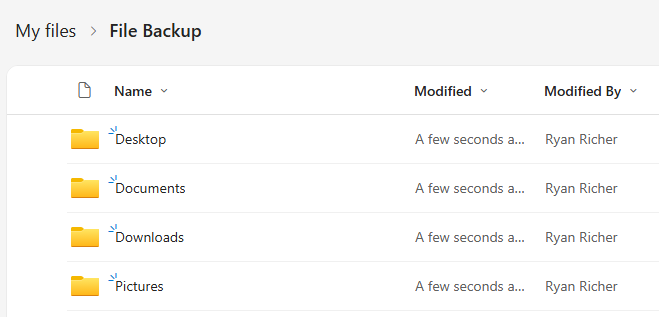
[![image.png](https://richerkb.ca/uploads/images/gallery/2026-05/scaled-1680-/AzYCdv5Yt3dPs6zI-image.png)](https://richerkb.ca/uploads/images/gallery/2026-05/AzYCdv5Yt3dPs6zI-image.png)

When complete, all uploaded files will be present and accessible through OneDrive, both on the web, and through a synchronized application.

# Setup OneDrive

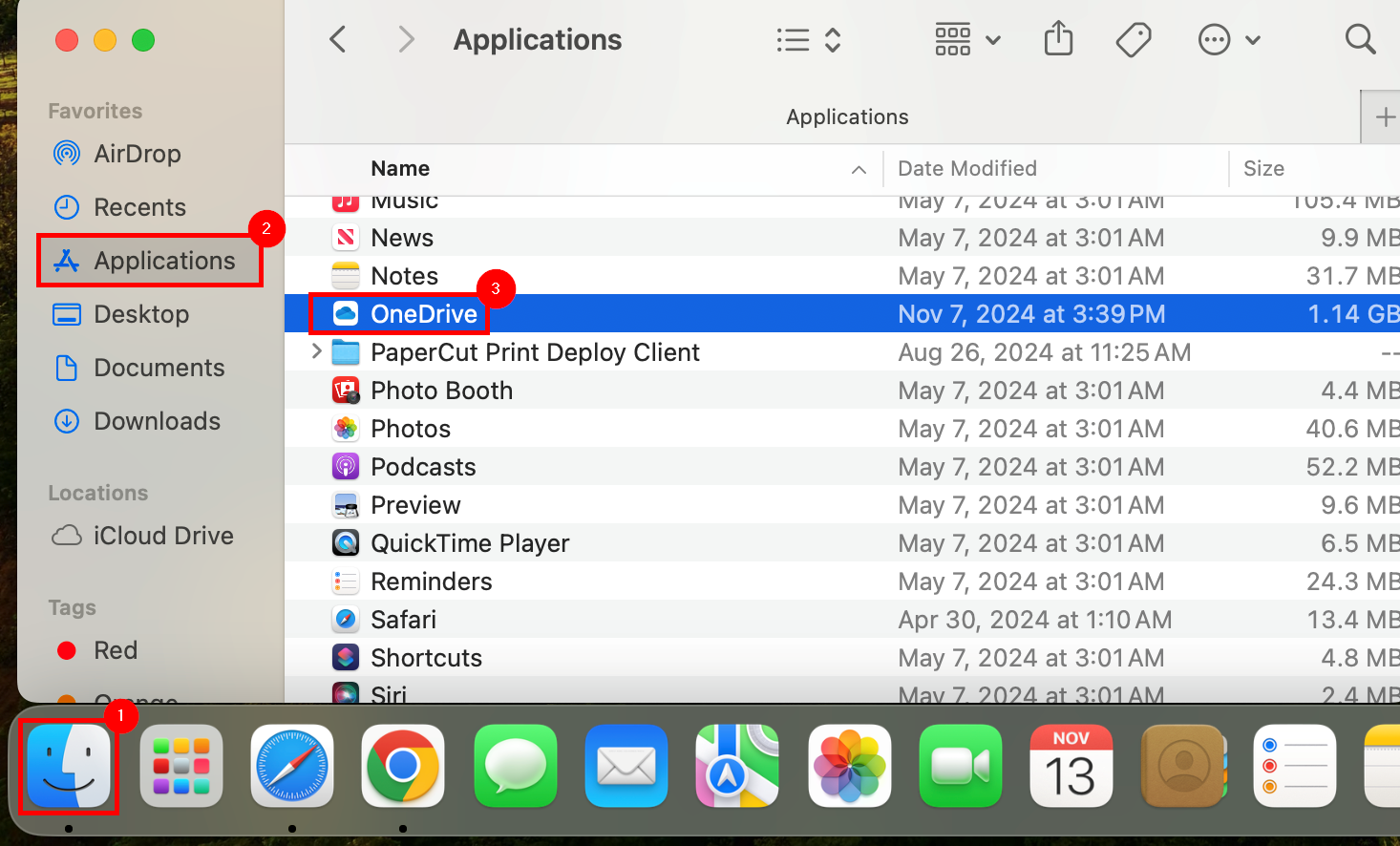
1. <span style="white-space: pre-wrap;">Launch </span>****Finder**** <span style="white-space: pre-wrap;">from the dock. Select </span>****Applications**** <span style="white-space: pre-wrap;">from the left menu pane, then select </span>****OneDrive**** <span style="white-space: pre-wrap;">from the </span>**applications** list.  
      
    [![image.png](https://richerkb.ca/uploads/images/gallery/2026-05/scaled-1680-/7XfWCKPxufwRfJ5o-image.png)](https://richerkb.ca/uploads/images/gallery/2026-05/7XfWCKPxufwRfJ5o-image.png)
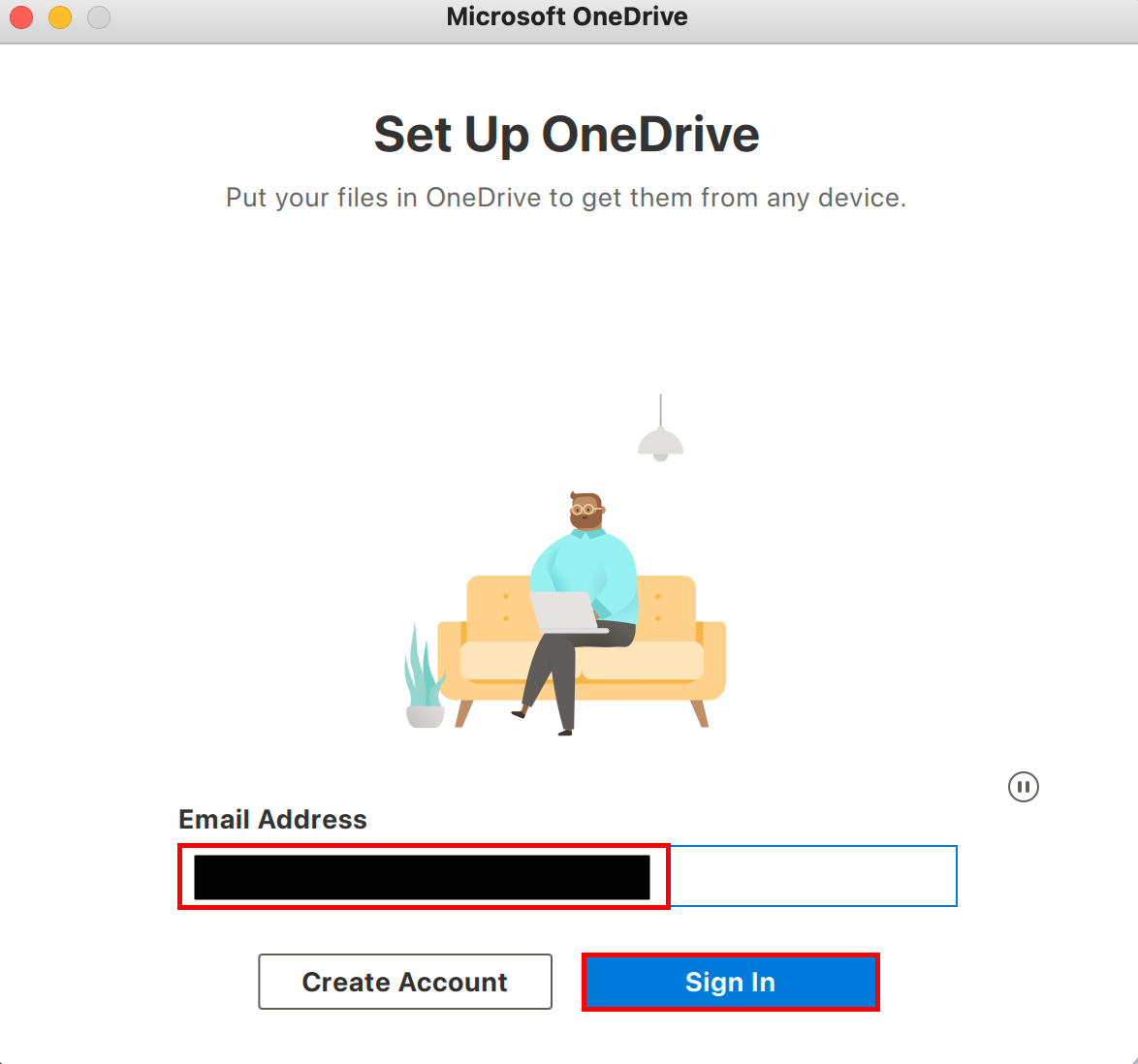
2. <span style="white-space: pre-wrap;">After a few moments, the </span>**Set Up OneDrive** window will open.  
    <span style="white-space: pre-wrap;">For the email address, utilize a </span>****Microsoft Account****.  
    <span style="white-space: pre-wrap;">Select </span>****Sign In****.  
      
    [![onedrive login.png](https://richerkb.ca/uploads/images/gallery/2026-05/scaled-1680-/gppPRMAeoAbsWsHJ-onedrive-login.png)](https://richerkb.ca/uploads/images/gallery/2026-05/gppPRMAeoAbsWsHJ-onedrive-login.png)
3. <span style="white-space: pre-wrap;">If an </span>**Office 365** redirection occurs, entering the same account information again will be required.  
      
    [![onedrive login 2.png](https://richerkb.ca/uploads/images/gallery/2026-05/scaled-1680-/zpjq08kBRRotTS7m-onedrive-login-2.png)](https://richerkb.ca/uploads/images/gallery/2026-05/zpjq08kBRRotTS7m-onedrive-login-2.png)
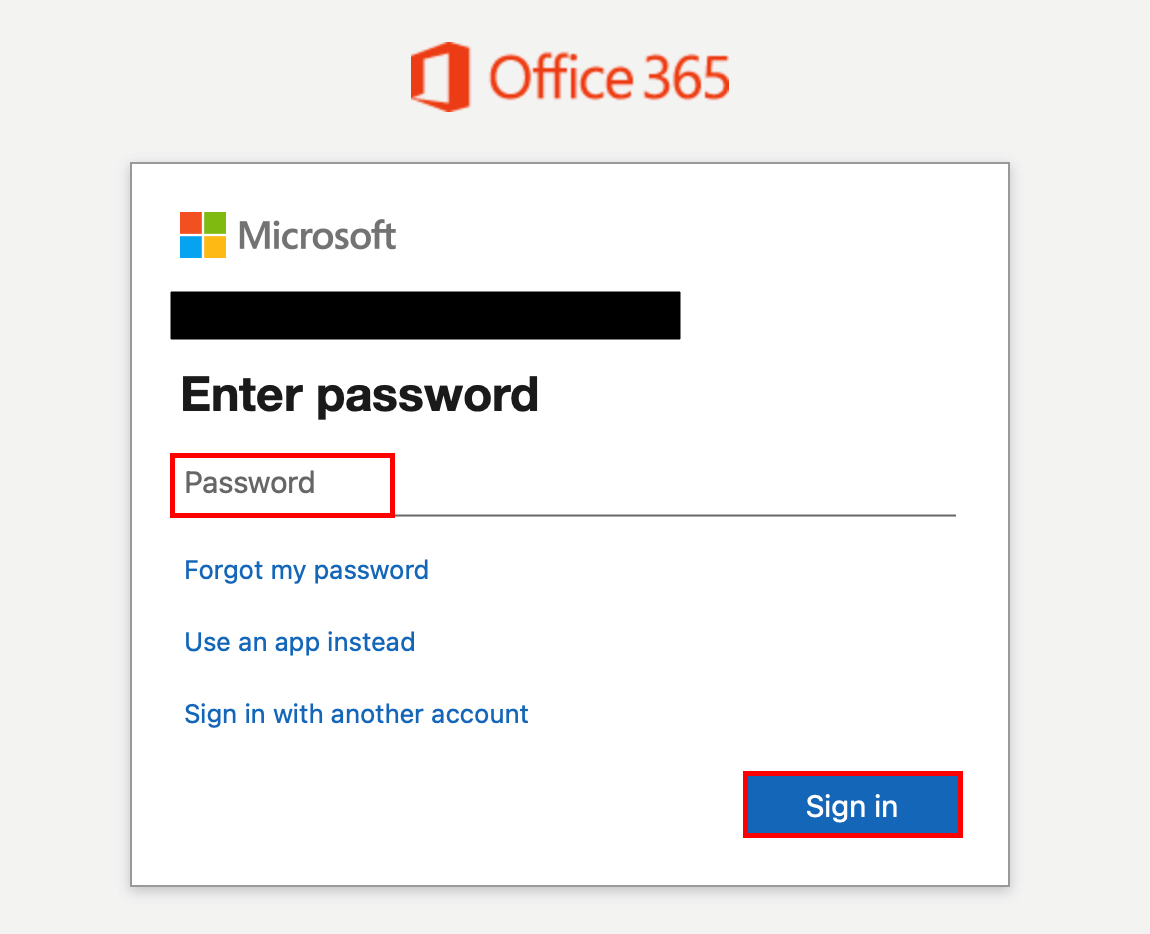
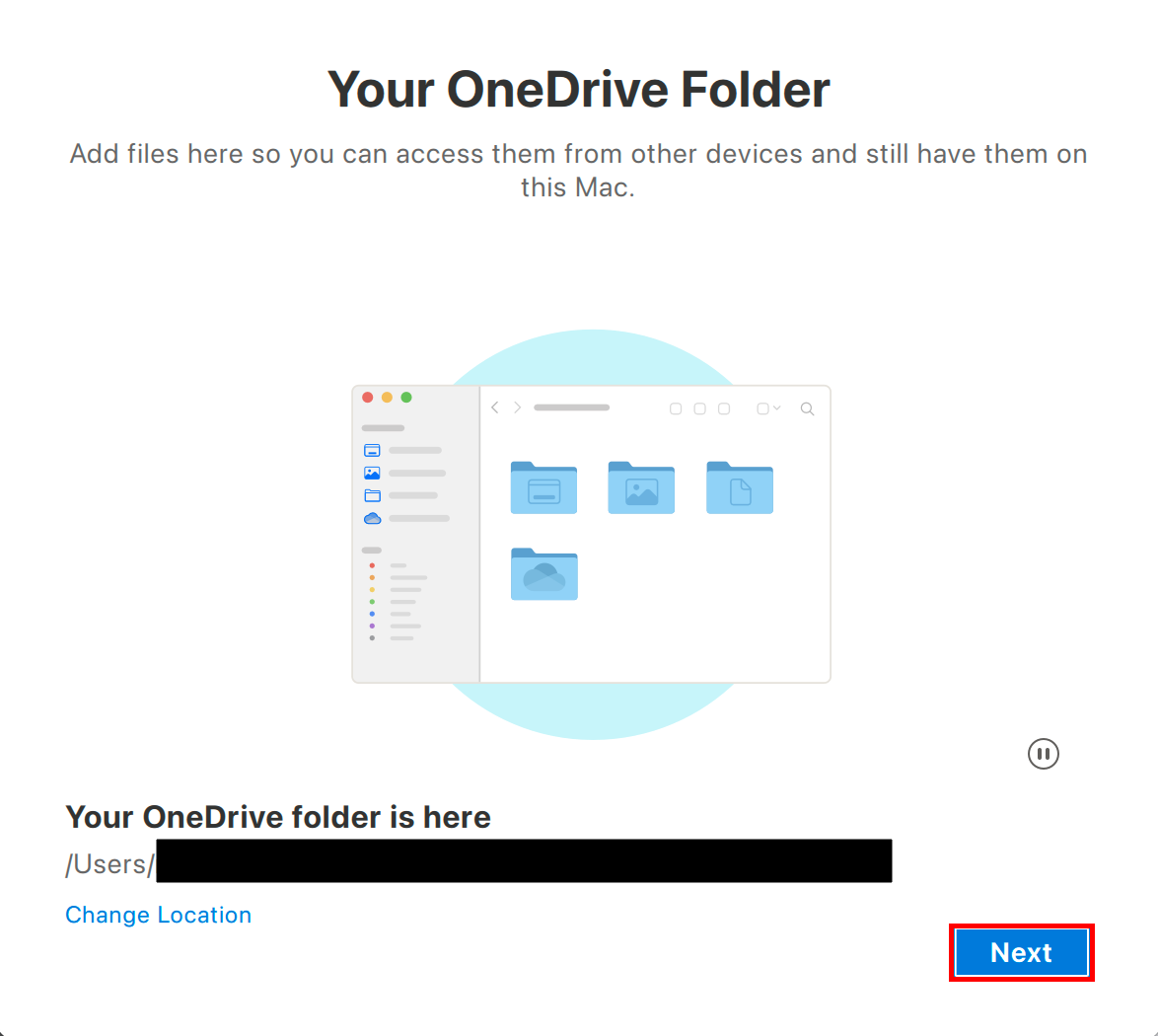
4. <span style="white-space: pre-wrap;">On the </span>**Your OneDrive Folder**<span style="white-space: pre-wrap;"> window, select </span>****Next****.  
      
    [![onedrive login 3.png](https://richerkb.ca/uploads/images/gallery/2026-05/scaled-1680-/37VyIEASvBN1ZNOm-onedrive-login-3.png)](https://richerkb.ca/uploads/images/gallery/2026-05/37VyIEASvBN1ZNOm-onedrive-login-3.png)
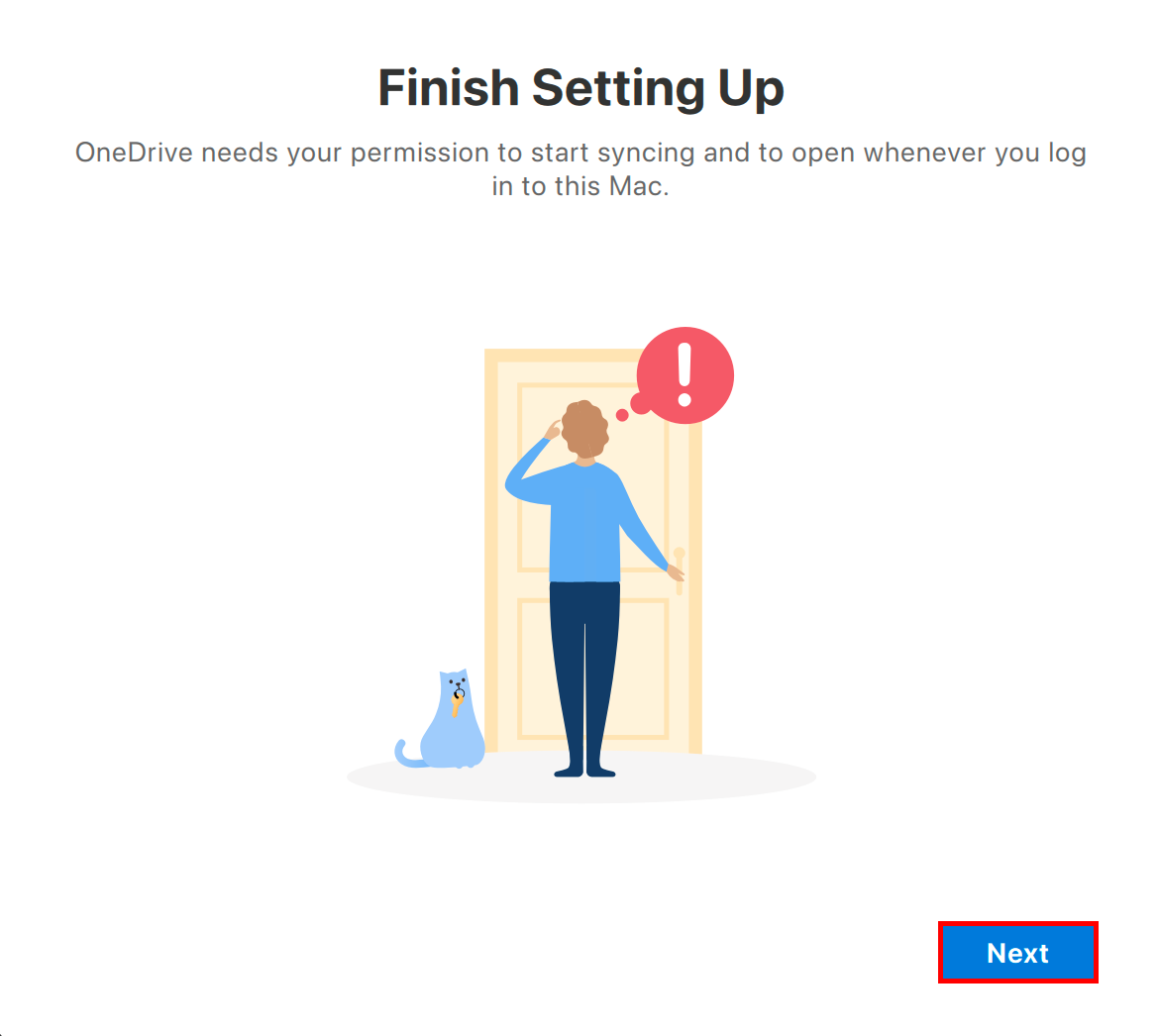
5. <span style="white-space: pre-wrap;">On the </span>**Finish Setting Up**<span style="white-space: pre-wrap;"> window, select </span>****Next****.  
      
    [![image.png](https://richerkb.ca/uploads/images/gallery/2026-05/scaled-1680-/joos3P6QsTRSY56d-image.png)](https://richerkb.ca/uploads/images/gallery/2026-05/joos3P6QsTRSY56d-image.png)
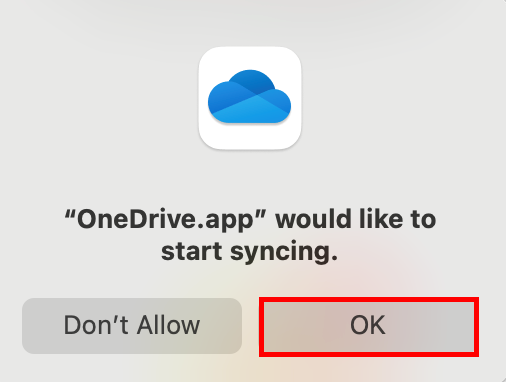
6. <span style="white-space: pre-wrap;">A dialogue will open for sync permission. Select </span>****OK****.  
      
    [![image.png](https://richerkb.ca/uploads/images/gallery/2026-05/scaled-1680-/euFuDIIa4ehI0GD7-image.png)](https://richerkb.ca/uploads/images/gallery/2026-05/euFuDIIa4ehI0GD7-image.png)
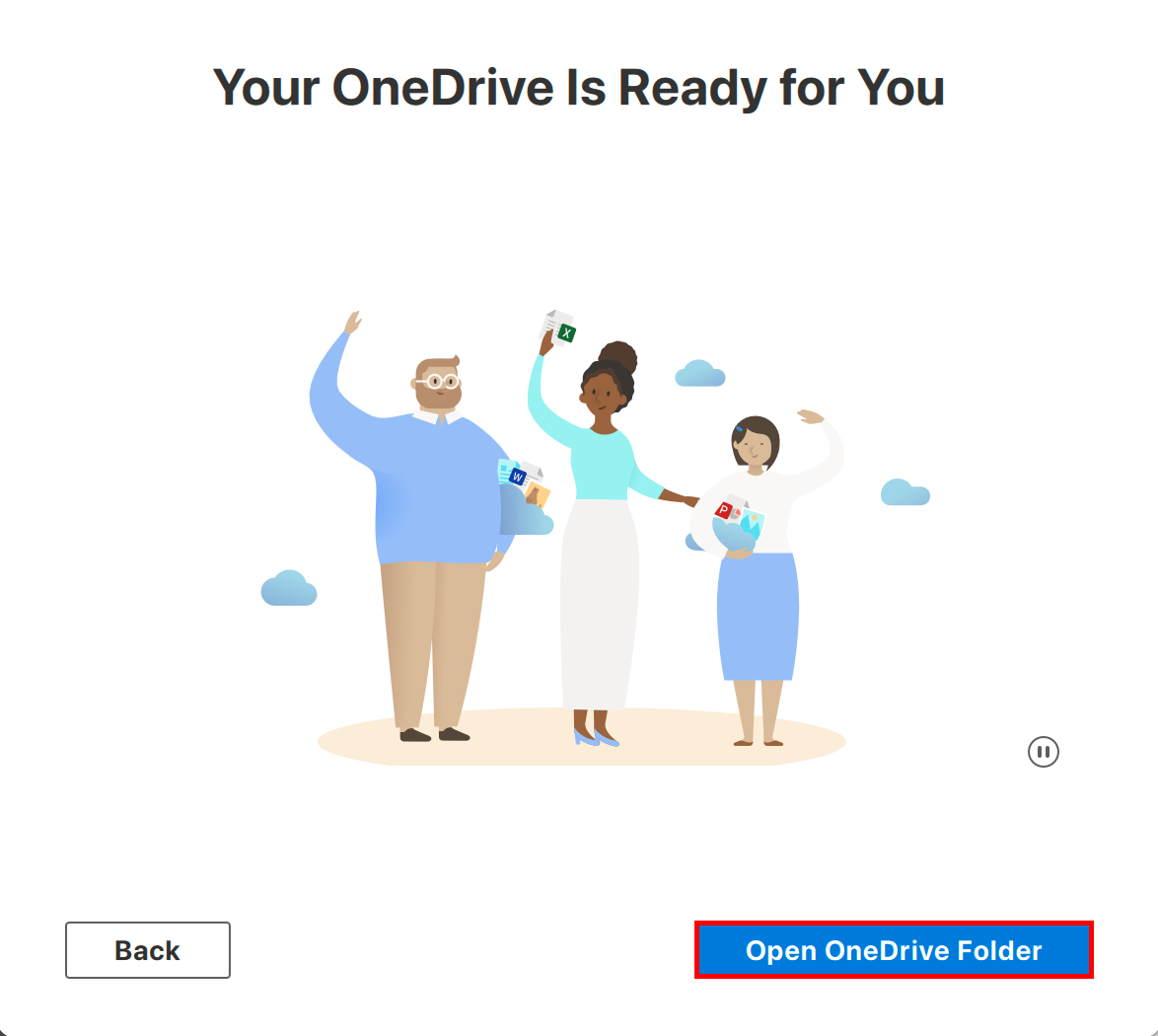
7. <span style="white-space: pre-wrap;">From the next </span>****5 windows****<span style="white-space: pre-wrap;">, select </span>****Next, Next, Next, Later,**** <span style="white-space: pre-wrap;">and </span>****Open OneDrive Folder****<span style="white-space: pre-wrap;">. </span>  
    [![image.png](https://richerkb.ca/uploads/images/gallery/2026-05/scaled-1680-/SD9TEmL19JOLD66w-image.png)](https://richerkb.ca/uploads/images/gallery/2026-05/SD9TEmL19JOLD66w-image.png)
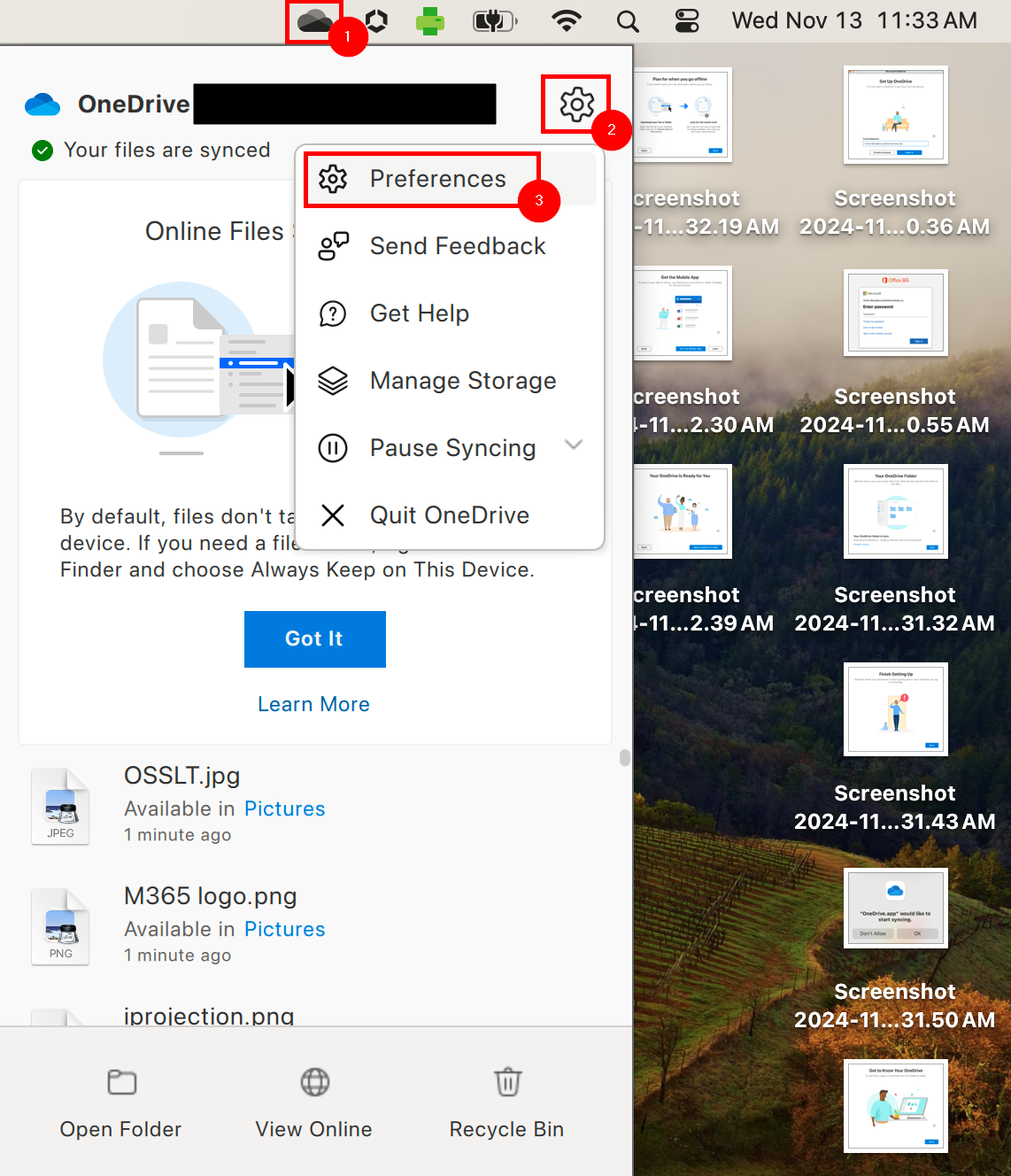
8. <span style="white-space: pre-wrap;">From the right of the </span>**Menu Bar**<span style="white-space: pre-wrap;">, select the </span>****OneDrive Icon****.  
    <span style="white-space: pre-wrap;">From the menu that appears, select the </span>****Settings Gear****.  
    <span style="white-space: pre-wrap;">From </span>**Settings**, select Preferences.  
    [![onedrive login 4.png](https://richerkb.ca/uploads/images/gallery/2026-05/scaled-1680-/1DqQ7Lk9T708m7pS-onedrive-login-4.png)](https://richerkb.ca/uploads/images/gallery/2026-05/1DqQ7Lk9T708m7pS-onedrive-login-4.png)
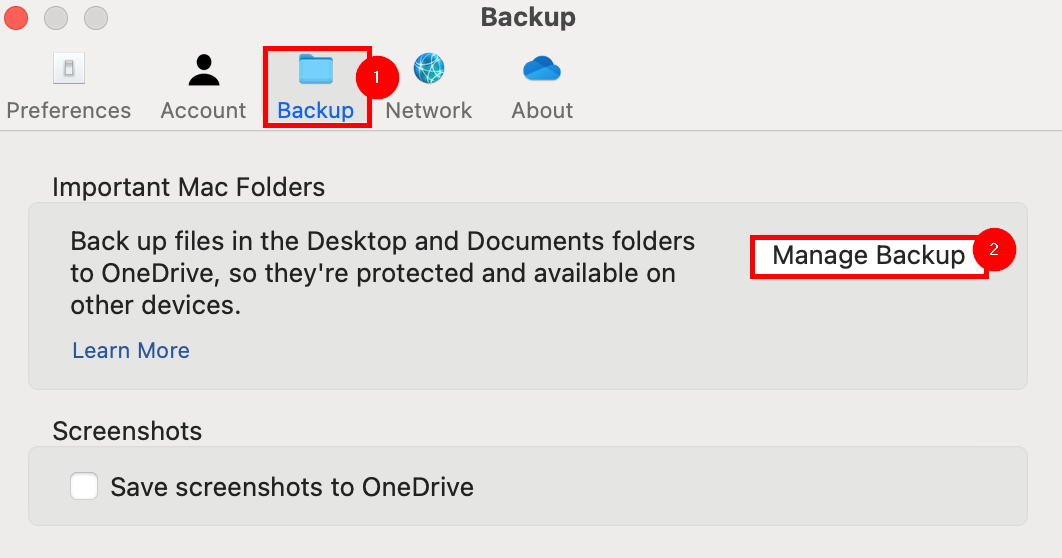
9. <span style="white-space: pre-wrap;">From </span>**Preferences**<span style="white-space: pre-wrap;">, select the </span>****Backup**** <span style="white-space: pre-wrap;">tab, then select </span>****Manage Backup****.  
      
    [![image.png](https://richerkb.ca/uploads/images/gallery/2026-05/scaled-1680-/ErgiQoLcbapIYFRl-image.png)](https://richerkb.ca/uploads/images/gallery/2026-05/ErgiQoLcbapIYFRl-image.png)
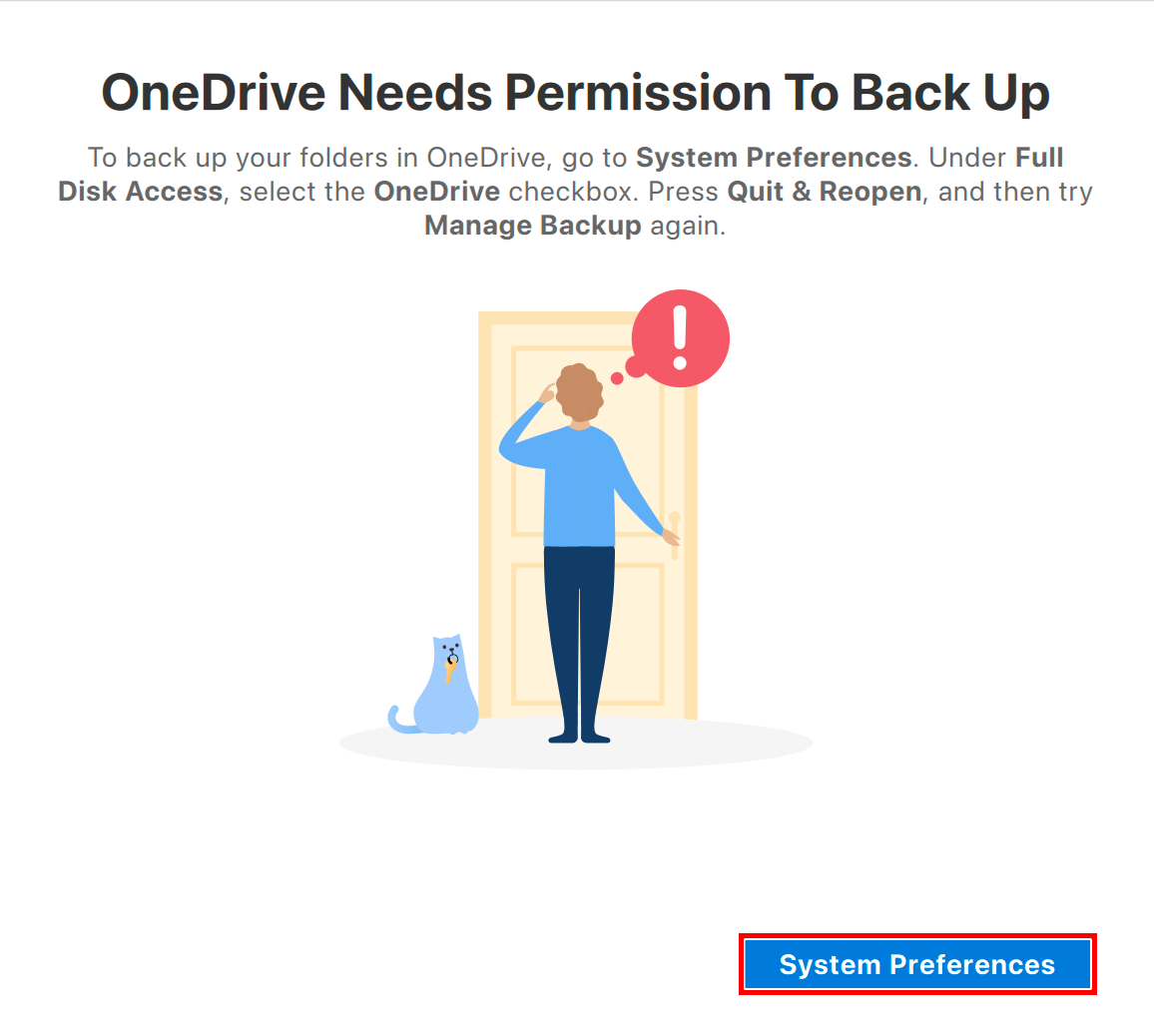
10. <span style="white-space: pre-wrap;">The </span>**OneDrive Needs Permission to Back Up**<span style="white-space: pre-wrap;"> window may open.</span>  
    <span style="white-space: pre-wrap;">Select </span>****System Preferences****<p class="callout danger"><span style="white-space: pre-wrap;">This is a vital step to ensure full data backup of all files within the </span>**OneDrive**<span style="white-space: pre-wrap;">, </span>**Desktop**<span style="white-space: pre-wrap;">, and </span>**Documents**<span style="white-space: pre-wrap;"> folders.</span>  
    Not all MacBooks may have these folders configured for backup due to procedure changes over time. As such, verifying these settings is required to ensure files and folders are retained.</p>
    
    [![image.png](https://richerkb.ca/uploads/images/gallery/2026-05/scaled-1680-/gyo2MmTAu5MKj8nO-image.png)](https://richerkb.ca/uploads/images/gallery/2026-05/gyo2MmTAu5MKj8nO-image.png)
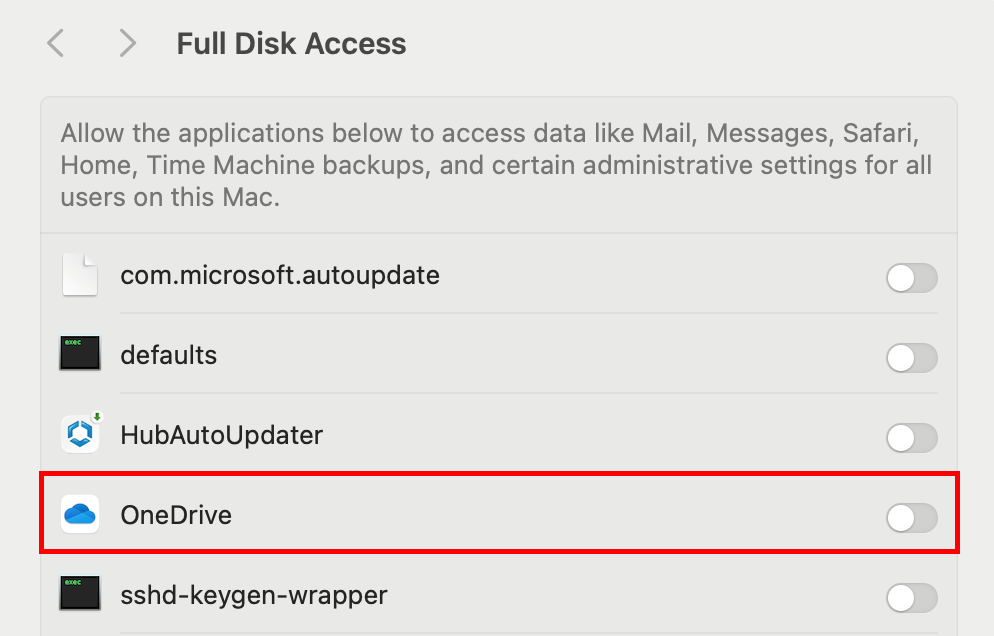
11. <span style="white-space: pre-wrap;">From the </span>**System Preferences** <span style="white-space: pre-wrap;">menu, select the </span>****Slider****<span style="white-space: pre-wrap;"> to the right of </span>**OneDrive**.  
      
    [![image.png](https://richerkb.ca/uploads/images/gallery/2026-05/scaled-1680-/1f8uAt6GU4OS6HTb-image.png)](https://richerkb.ca/uploads/images/gallery/2026-05/1f8uAt6GU4OS6HTb-image.png)
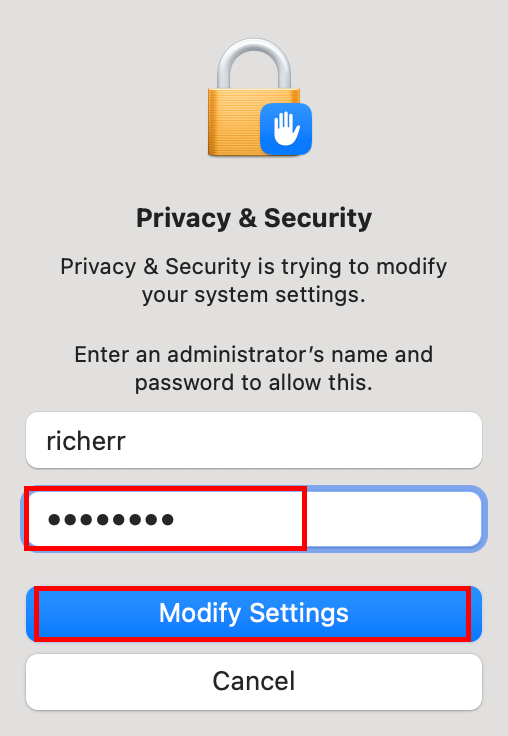
12. The MacBook will prompt for your login password.  
    <span style="white-space: pre-wrap;">Enter it, and select </span>****Modify Settings****.  
      
    [![image.png](https://richerkb.ca/uploads/images/gallery/2026-05/scaled-1680-/RhIWotflwY8gW6ad-image.png)](https://richerkb.ca/uploads/images/gallery/2026-05/RhIWotflwY8gW6ad-image.png)
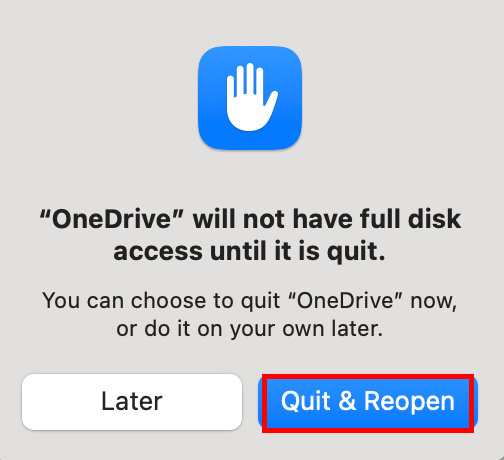
13. <span style="white-space: pre-wrap;">A dialogue will open, notifying that the change will not occur until </span>**OneDrive** <span style="white-space: pre-wrap;">has restarted. </span>  
    <span style="white-space: pre-wrap;">Select </span>****Quit &amp; Reopen****.  
      
    [![image.png](https://richerkb.ca/uploads/images/gallery/2026-05/scaled-1680-/TamibS8m3M4XkCKq-image.png)](https://richerkb.ca/uploads/images/gallery/2026-05/TamibS8m3M4XkCKq-image.png)
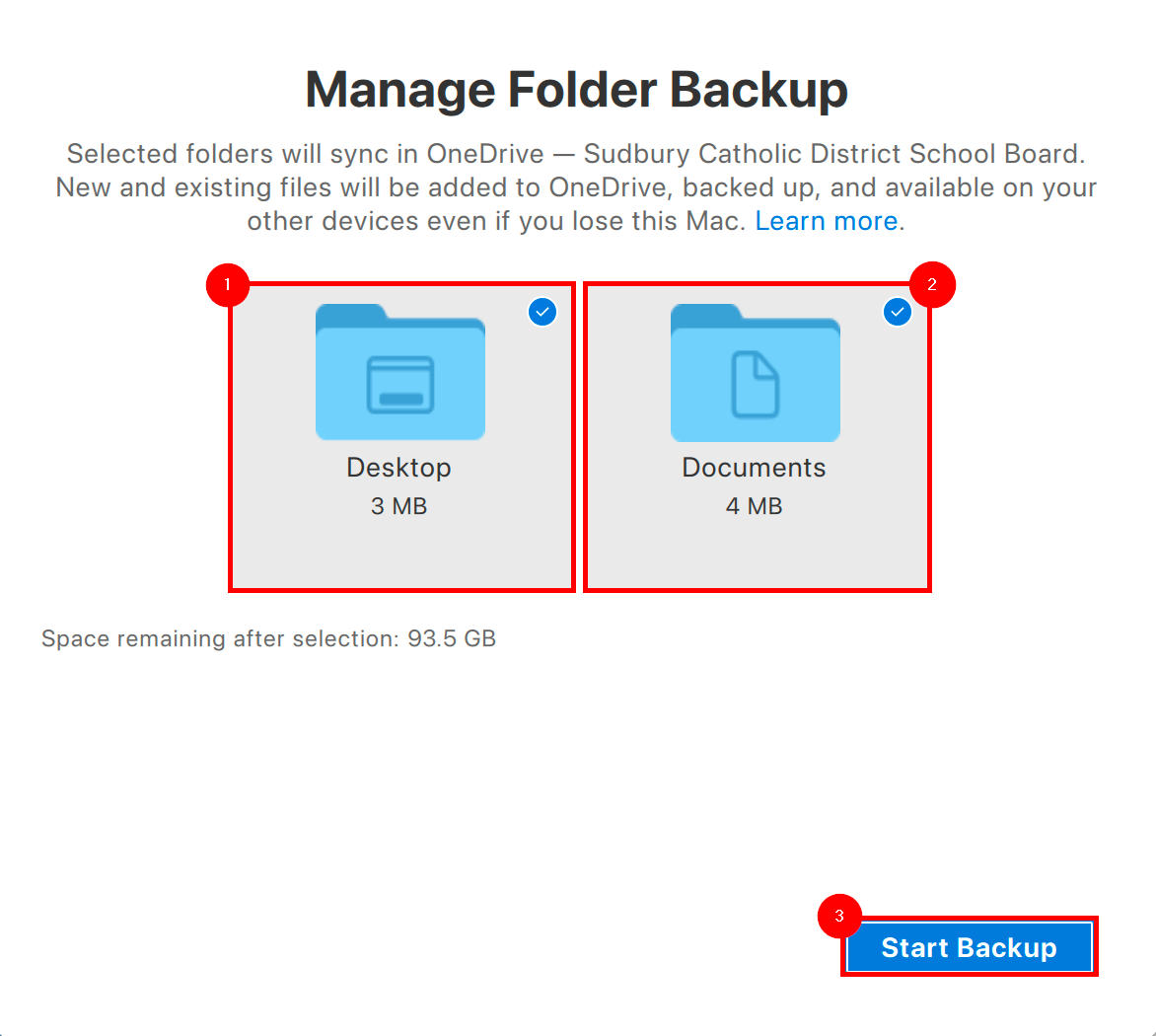
14. <span style="white-space: pre-wrap;">Repeat steps </span>****\#8**** <span style="white-space: pre-wrap;">and </span>****\#9****<span style="white-space: pre-wrap;">, to arrive at the </span>**Manage Folder Backup* window.  
    <span style="white-space: pre-wrap;">Select both the </span>****Desktop**** <span style="white-space: pre-wrap;">and </span>****Documents****<span style="white-space: pre-wrap;"> folders, and select </span>****Start Backup****.  
      
    [![image.png](https://richerkb.ca/uploads/images/gallery/2026-05/scaled-1680-/e1DAy5Bnfp8ui0WH-image.png)](https://richerkb.ca/uploads/images/gallery/2026-05/e1DAy5Bnfp8ui0WH-image.png)  
    <span style="white-space: pre-wrap;"></span>
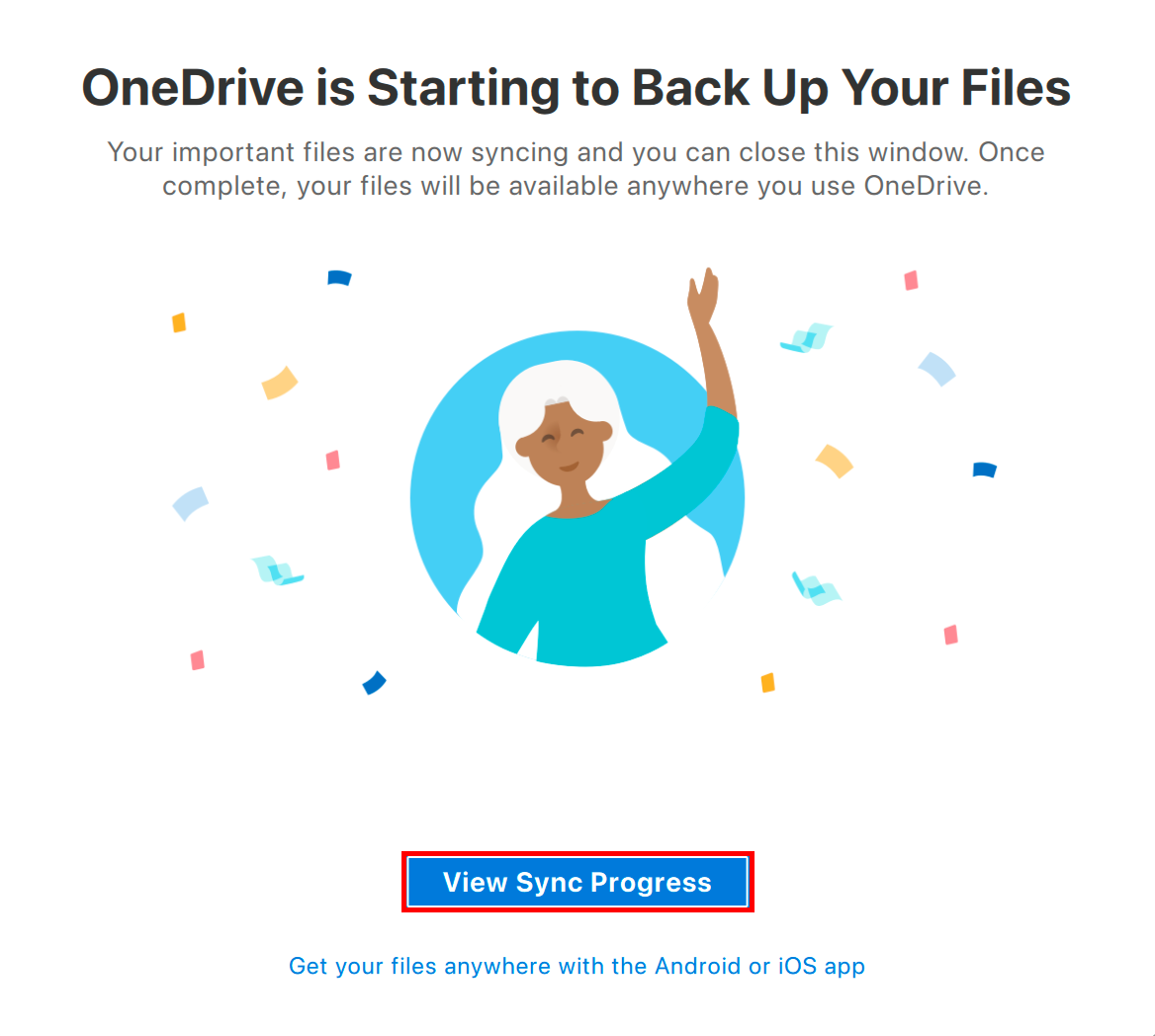
15. OneDrive will begin backing up present files, and populating folders with existing files.  
    <span style="white-space: pre-wrap;">Select </span>****View Sync Progress****<span style="white-space: pre-wrap;"> to observe its completion.</span>  
      
    [![image.png](https://richerkb.ca/uploads/images/gallery/2026-05/scaled-1680-/pIgajfkI3c87P57E-image.png)](https://richerkb.ca/uploads/images/gallery/2026-05/pIgajfkI3c87P57E-image.png)
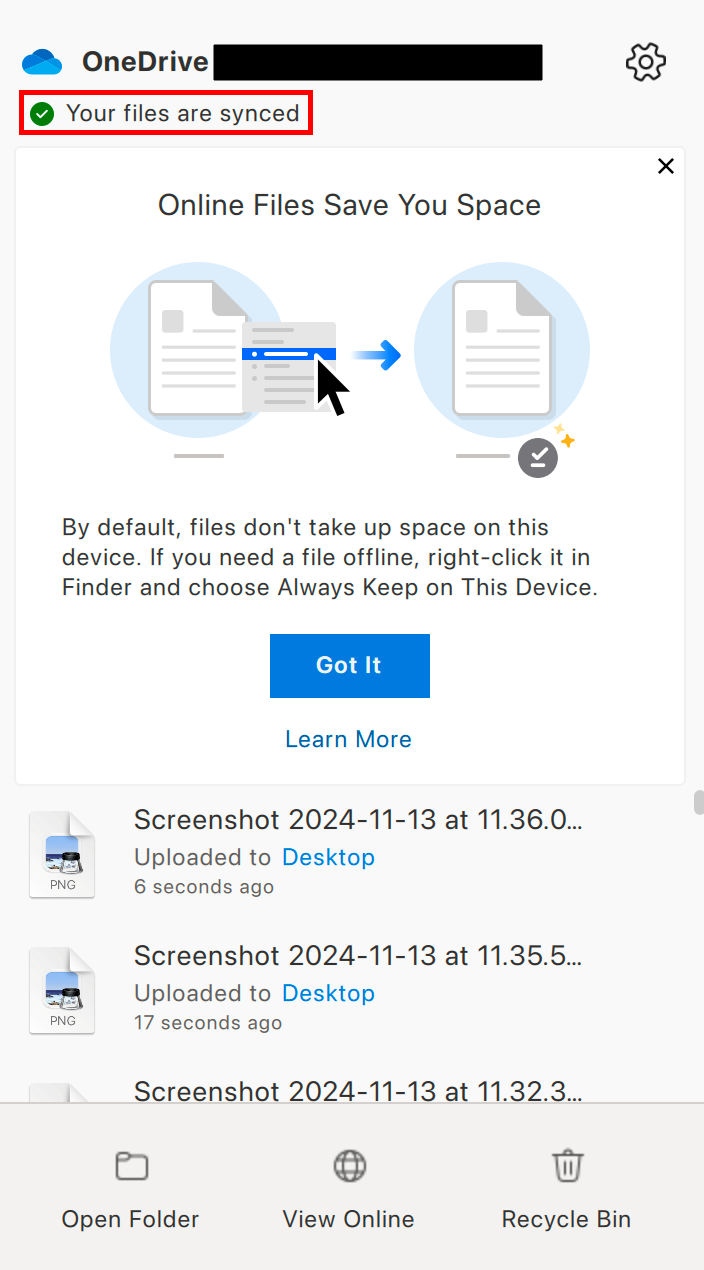
16. <span style="white-space: pre-wrap;">When complete, the </span>**OneDrive** <span style="white-space: pre-wrap;">menu will read </span>****Your files are synced****  
      
    [![onedrive login 5.png](https://richerkb.ca/uploads/images/gallery/2026-05/scaled-1680-/5UXafPfMsWg4chgU-onedrive-login-5.png)](https://richerkb.ca/uploads/images/gallery/2026-05/5UXafPfMsWg4chgU-onedrive-login-5.png)