An account may already be associated with a **Chrome** profile. If so, take note of the account used, and ensure it is actively synching with Google's services.
[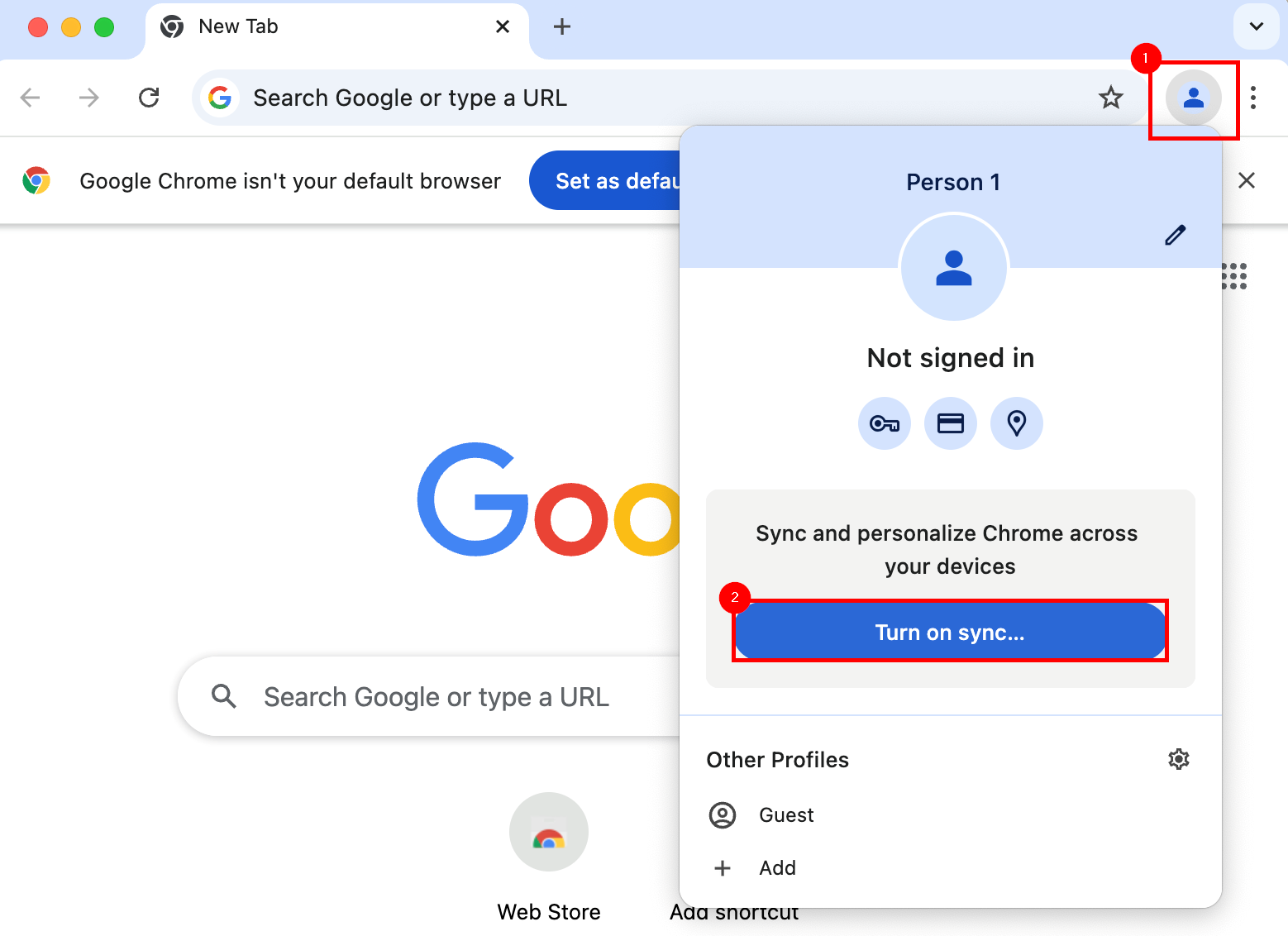](https://richerkb.ca/uploads/images/gallery/2026-05/pDCoqU89jnSfdMY5-image.png) At the **Sign in to Chrome** prompt, enter a ****Google Account****, and select ****Next****.[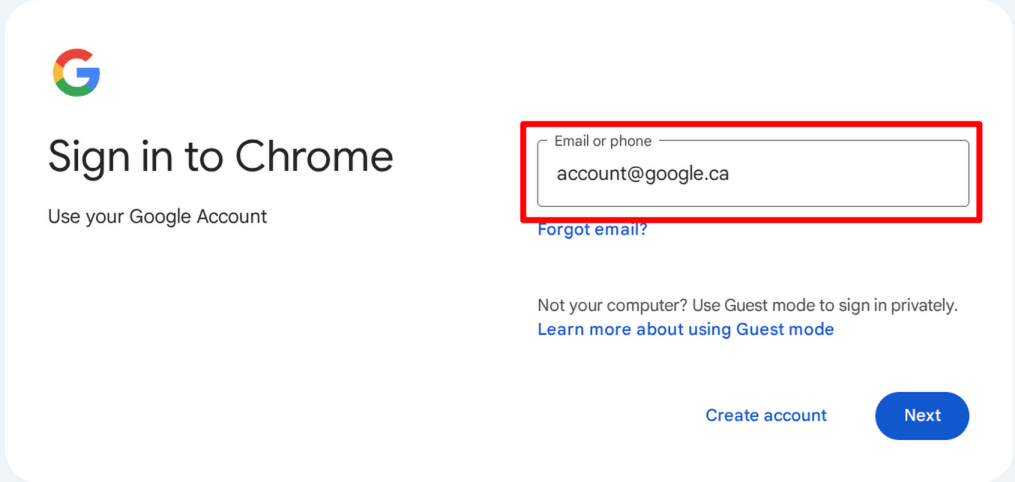](https://richerkb.ca/uploads/images/gallery/2026-05/8niDIwUiipNKCOCp-image.png) After successful login, the **Enterprise Management** dialogue will appear. ****Check the box**** for **Add existing browsing data to managed profile**, then select ****Continue****. [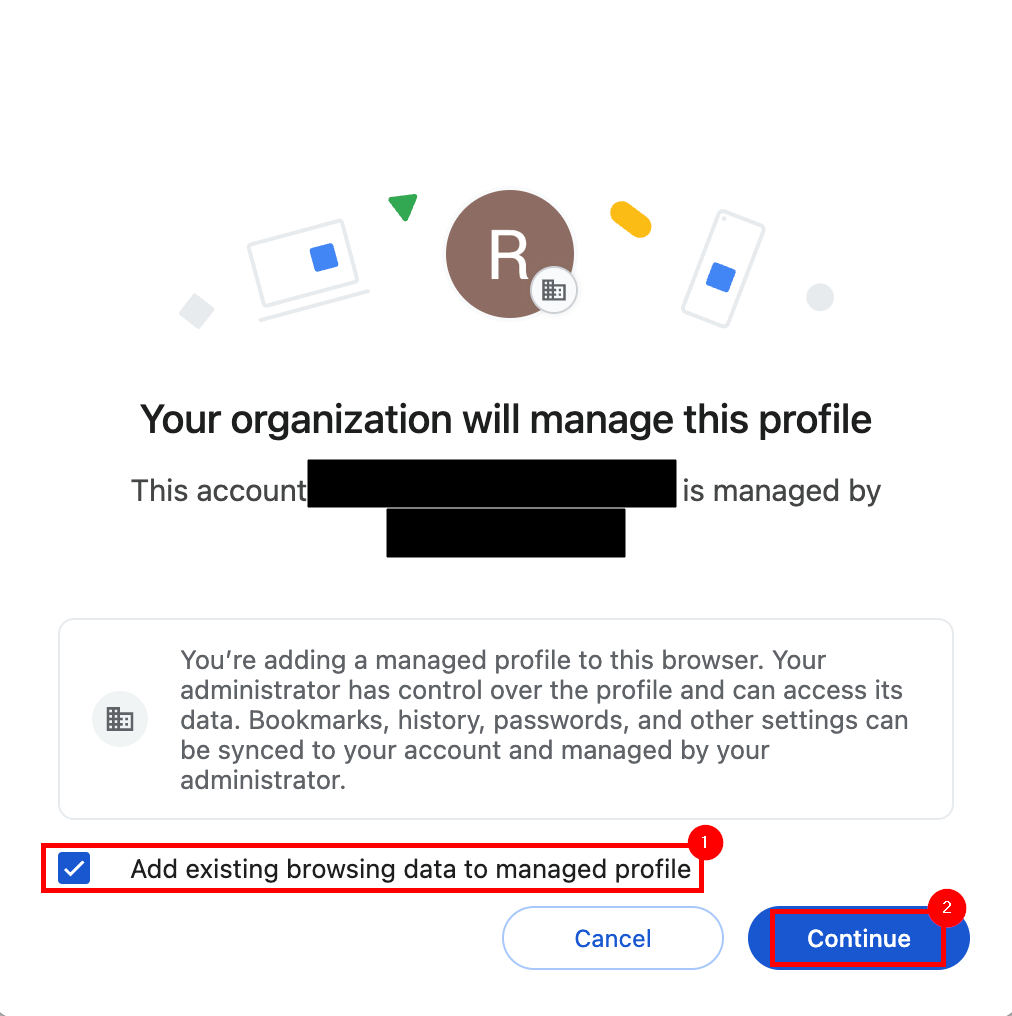](https://richerkb.ca/uploads/images/gallery/2026-05/hxJSW99wMQ0vMAez-google-1.png) From the **Turn on sync** dialogue, select ****Yes, I'm in**** from the bottom right. [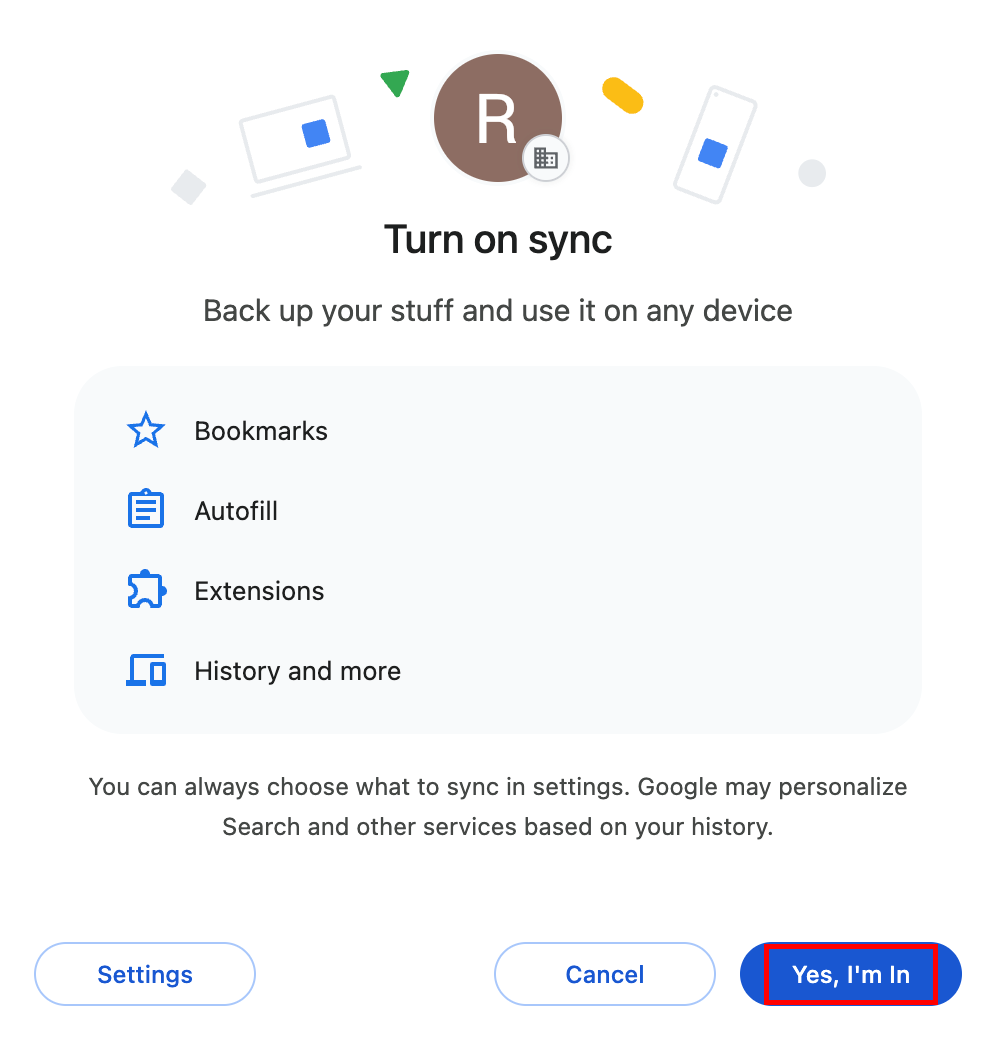](https://richerkb.ca/uploads/images/gallery/2026-05/kIcb1denHdtscTmK-image.png) When complete, verify success by selecting the ****Profile**** button from the top right of **Chrome** once again, and ensure that ****Sync in on**** is displayed. [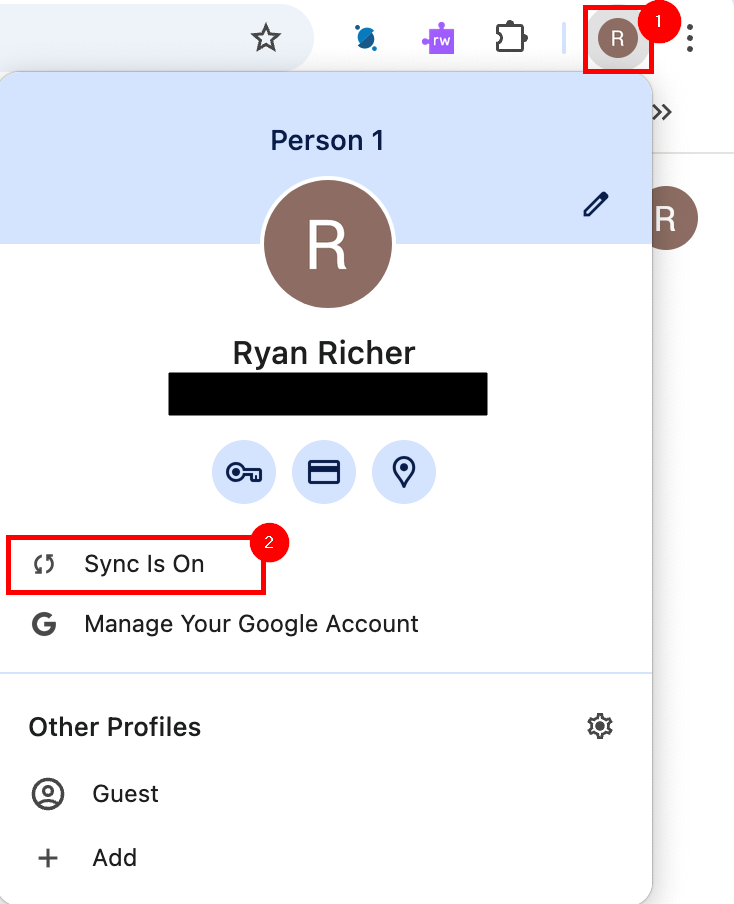](https://richerkb.ca/uploads/images/gallery/2026-05/njQOk2xktHXbT0nB-google-2.png)